• Download
  • Products
    • Product Highlights
      • DataHub Smart MQTT Broker
      • DataHub IoT Gateway
      • DataHub OPC Gateway
      • DataHub service for Azure
      • DataHub OPC Bridge
      • OPC DataHub
      • DataHub WebView
      • DataHub Modbus OPC Server
    • Tunnellers
      • DataHub UA Tunneller
      • DataHub DA Tunneller
      • DataHub Tunnel A&E
      • DataHub Modbus Tunneller
      • DataHub DDE Tunneller
      • Individual Features
        • Redundancy
        • Data Diode Mode
        • Audit
        • Monitoring
    • Historians
      • Connect to InfluxDB
      • Connect to Amazon Kinesis
      • Connect to AVEVA CONNECT
      • Connect to AVEVA Historian
      • Connect to AVEVA Insight
      • Connect to AVEVA PI
      • Connect to RESTful Systems
      • Connect to Kafka
      • Connect to ODBC
      • Connect to Azure Event Hubs
      • Connect to OPC Classic HDA
    • Notifications
      • Alarm and Notification
      • Email / SMS
      • OPC A&E support
      • OPC UA A&C support
    • Excel and DDE
      • DataHub Add-In
        for Microsoft Excel
      • DDE / Excel
    • Loggers
      • DataHub OPC Logger
      • DataHub Modbus Logger
  • Purchasing
    • How to Purchase
    • Request a Quote
    • Feature Matrix
    • Software Subscription Plan
    • Maintenance Support Plan
    • Educational Program
  • Learning Hub
    • Industries & Use Cases
      • Wind & Solar
      • Conventional Energy
      • Oil & Gas
      • Minerals & Mining
      • Manufacturing
      • Food & Beverage
      • Pharma & Healthcare
      • System Integration
      • Machines & Tools
    • Knowledge Center
      • Videos
      • Webinars
      • How-To
      • Case Studies
      • White Papers
      • Essential Guides
        • MQTT & Sparkplug Essentials
        • DataHub Security Essentials
    • Connecting
      • Industrial AI
      • Industrial IoT
      • Secure OT to IT
      • OPC
      • Historian
      • MQTT
        • Sparkplug
      • Database
      • Modbus
      • Excel
      • Web
      • Embedded
      • Open APIs
      • DHTP
      • Architecture
  • Support
    • FAQ
    • Documentation
    • Release Notes
    • Technical Specifications
  • About
    • Partners
    • Customers
    • Testimonials
    • Privacy Policy
    • Terms of Use
    • Legal Notices
  • Click to open the search input field Click to open the search input field Search
  • Menu Menu
  • Download
  • Products
    • DataHub Smart MQTT Broker
    • DataHub IoT Gateway
    • DataHub OPC Gateway
    • DataHub service for Azure
    • DataHub OPC Bridge
    • OPC DataHub
    • DataHub WebView
    • DataHub Modbus OPC Server
    • Tunnellers
      • DataHub UA Tunneller
      • DataHub DA Tunneller
      • Tunnel A&E
      • DataHub Modbus Tunneller
      • DataHub DDE Tunneller
    • Historians
      • Connect to InfluxDB
      • Connect to Amazon Kinesis
      • Connect to AVEVA Historian
      • Connect to AVEVA Insight
      • Connect to AVEVA PI
      • Connect to RESTful Systems
      • Connect to Kafka
      • Connect to Azure Event Hubs
      • Connect to ODBC
      • Connect to OPC Classic HDA
    • Notifications
      • Alarm and Notification
      • Email / SMS
      • OPC A&E support
      • OPC UA A&C support
    • Excel and DDE
      • DataHub Add-in for Microsoft Excel
      • DDE / Excel
    • Loggers
      • DataHub OPC Logger
      • DataHub Modbus Logger
      • Monitoring
    • Individual Features
      • Redundancy
      • Data Diode Mode
      • Monitoring
  • Purchasing
    • How to Purchase
    • Request a Quote
    • Feature Matrix
    • Software Subscription Plan
    • Maintenance Support Plan
    • Educational Program
  • Learning Hub
    • Industries & Use Cases
      • Wind and Solar
      • Conventional Energy
      • Oil & Gas
      • Minerals & Mining
      • Manufacturing
      • Food and Beverage
      • Pharma and Healthcare
      • System Integration
      • Machines and Tools
    • Knowledge Center
      • Videos
      • Webinars
      • How-to
      • Case Studies
      • White Papers
    • Essential Guides
      • MQTT and Sparkplug Essentials
      • DataHub Security Essentials
    • Connecting
      • Industrial AI
      • Industrial IoT
      • Secure OT to IT
      • OPC
      • Historian
      • MQTT
        • Sparkplug
      • Database
      • Modbus
      • Excel
      • Web
      • Embedded
      • Open APIs
      • DHTP
      • Architecture
  • Support
    • FAQ
    • Documentation
    • Release Notes
    • Technical Specifications
  • About
    • Partners
    • Customers
    • Testimonials
    • Privacy Policy
    • Terms of Use
    • Legal Notices

How to secure remote connections

No access to YouTube? Click here to view locally

Summary

  1. Download and install Cogent DataHub software on the remote computer.
  2. Start the DataHub.
  3. Open the Security feature and add a new user.
  4. Deselect the RequireTOTPAuthentication role and select the AllDataFullAccess role.
  5. Apply your changes.

For more details and options, see the documentation.

DataHub feature used: Security

Transcript

  1. How to secure remote connections for tunnel, OPC UA, MQTT or TCP connections to a remote Cogent DataHub instance.
  2. Starting with DataHub version 11, anonymous remote connections for Tunnel Mirror, OPC UA, MQTT, and TCP have enhanced security.  Here’s how to configure your remote DataHub instance to protect system data from unauthorized remote users.
  3. First, download and install Cogent DataHub software at the remote location.
  4. Start the remote DataHub instance, and from the Properties window, scroll down to the Security option, select it, and click the Configure button.
  5. Make sure the Organization is Local, then in the Users tab, under Users, click the Add button and select Add BuiltIn User.
  6. Enter a User Name, like NetworkUser.
  7. Enter a secure password, then enter it again to confirm it.
  8. Uncheck the Require TOTP Authentication box because this will be an automatic, non-interactive connection.  Then click OK.
  9. The new user will appear in the Users list, as well as in the Principals list.
  10. Down in Roles, check the Show Available box to view all available roles.  Then check the All Data Full Access box to provide read and write permissions on the data.
  11. Click Apply to apply the changes.
  12. Now your DataHub instance is configured for secure remote connections.
  13. To connect a DataHub tunnel slave, enter the username and password in the Slave’s Tunnel Mirror Master configuration.
  14. To connect an OPC UA client, enter the username and password in its authentication settings.
  15. For MQTT clients, enter the username and password as required.
  16. And for custom connections or apps like DataPid or the DataHub Excel Add-in that connect via TCP, again, enter the username and password as required.
  17. For details about security, restricting access, authentication and more, please see Using Security in the Cogent DataHub manual, at cogentdatahub.com/docs.

Background

For optimal security, networked connections in DataHub software are not assigned data access roles by default. This applies to the following types of connections:
  • Tunnel/Mirror – for tunnel slave connections
  • MQTT – for MQTT client connections
  • OPCUA – for OPC UA client connections
  • TCP – for TCP connections, such as when using the DataHub Add-in for Microsoft Excel or the DataHub APIs.
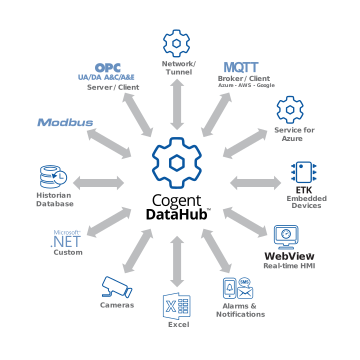
Cogent DataHub products wheel diagram

Enabling remote data access is simply a matter of adding a new user for each protocol you need, and giving that user Basic Connectivity and All Data Full Access roles. You also remove the Require TOTP Authentication role, since that user is not a person and cannot use two-factor authentication. Then, to make a secure connection, enter the username and password credentials in the connecting application.

Skkynet provides Cogent DataHub secure-by-design software and services to let you acquire, aggregate, monitor, control visualize, and network live process data in-plant or over insecure external networks, making it ideal for OT to IT and cloud connections. You can isolate control networks from cyber attacks and integrate industrial data under a unified namespace, all without compromising the plant.

How-to Videos


Basic Connections:

Connect to an OPC UA server
Connect to an OPC DA server
Connect an OPC UA client
Connect an OPC DA client
Connect an MQTT client
Connect to an MQTT broker

Protocol Conversions:

Convert OPC DA to OPC UA
Convert OPC UA to OPC DA
Convert OPC DA to MQTT
Convert OPC UA to MQTT
Convert MQTT to OPC DA
Convert MQTT to OPC UA

Tunnelling:

Tunnel OPC UA – outbound
Tunnel OPC DA – outbound
Tunnel OPC DA – inbound

Advanced:

Use a DataHub script
Configure Redundancy
Connect time-series data to ODBC

Connect through a Data Diode:

Connect OPC UA thru Data Diode
Connect OPC DA thru Data Diode
Connect MQTT thru Data Diode to Client
Connect MQTT thru Data Diode to Cloud

Connect through a DMZ:

Connect OPC UA thru DMZ
Connect OPC DA thru DMZ
Connect MQTT thru DMZ
Cogent DataHub footer logo white
  • Download
  • Products
  • Purchasing
  • Learning Hub
  • Support
  • About
  • Back to Top
  • LinkedIn iconTwitter iconYouTube icon

Skkynet
302-2233 Argentia Road
Mississauga, ON L5N 2X7

International: 1-905-702-7851
US toll free: 1-888-702-7851

[email protected]
[email protected]
[email protected]
[email protected]

© 2026 Skkynet | All rights reserved | Legal notices
Scroll to top Scroll to top Scroll to top

We are using cookies to give you the best experience on our website.

You can find out more about which cookies we are using or switch them off in .

Cogent DataHub Logo
Powered by  GDPR Cookie Compliance
Privacy Overview

This website uses cookies so that we can provide you with the best user experience possible. Cookie information is stored in your browser and performs functions such as recognising you when you return to our website and helping our team to understand which sections of the website you find most interesting and useful.

Strictly Necessary Cookies

Strictly Necessary Cookie should be enabled at all times so that we can save your preferences for cookie settings.

3rd Party Cookies

This website uses Google Analytics to collect anonymous information such as the number of visitors to the site, and the most popular pages.

Keeping this cookie enabled helps us to improve our website.

Cookie Policy

More information about our Cookie Policy