How to connect an MQTT client
No access to YouTube? Click here to view locally
Summary
- Download and install Cogent DataHub software.
- Start the DataHub.
- Configure security.
- Connect your MQTT device.
For more details and options, see the documentation.
DataHub product used: DataHub IoT Gateway
Transcript
- How to connect an MQTT client.
- First, download and install Cogent DataHub software.
- Start the DataHub, and from the Properties window, select the Security option to configure secure remote connections. Click the Configure button.
- Under Users, click the Add button to add a Built-In User.
- Enter a username and password.
- Uncheck the Require TOTP Authentication box because this is a non-interactive connection. Then click OK.
- In the Roles, check the All Data Full Access box. This enables secure remote connections. Then click OK and Apply.
- In the Properties window, select the MQTT Broker. Ensure the Enable MQTT Broker option is checked, and that “Listen for connections on port 1883” is enabled.
- In Message Content, select “Interpret messages as JSON data point values” and the Simple message format. Then click the Edit button.
- In the Configure Parser dialog window, delete all values in the Per-Point Format entry field.
- Type {value}. This will assign the entire content of each MQTT message to be the value of a DataHub point. See the documentation for other options.
- Click OK to close this window.
- Back in the main configuration, in Options, make sure “Require authentication” and “Use per-topic permissions” are not selected. This will simplify your security requirements for now. See the documentation for enabling security later on. You can keep “Mark data as Not Connected” selected.
- Leave all the other options at the default settings, and click Apply.
- Connect your device to your DataHub MQTT Broker. We are using an MQTT demo program to simulate a device.
- In our simulator, we create an MQTT topic name as a two-part string separated by a slash, like Device1/Msg1. The first part of the string is for the DataHub domain and the second part is the point name. Your device may use a different naming convention.
- Publish a test message to the DataHub MQTT Broker.
- Back in your DataHub instance, click View Data to see your data in the Data Browser.
- The device, the MQTT client, is now connected.
Background
MQTT is a messaging protocol used in many Industrial IoT (IIoT) applications. It allows clients to connect using a publish/subscribe mechanism over TCP/IP. It can support low bandwidth and low latency connections, and can scale up or down as needed.
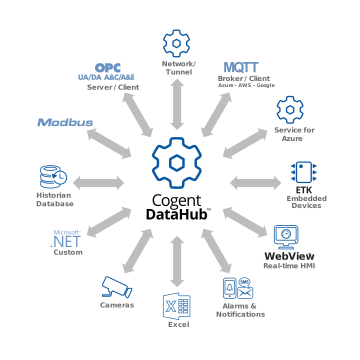
Connecting an MQTT client to Cogent DataHub software is a good way to integrate MQTT data and and make it available to all of the other supported protocols, like OPC DA and UA, OPC A&E and A&C, Modbus, ODBC, and more.
Skkynet provides Cogent DataHub secure-by-design software and services to let you acquire, aggregate, monitor, control visualize, and network live process data in-plant or over insecure external networks, making it ideal for OT to IT and cloud connections. You can isolate control networks from cyber attacks and integrate industrial data under a unified namespace, all without compromising the plant.