How to secure remote connections
No access to YouTube? Click here to view locally
Summary
- Download and install Cogent DataHub software on the remote computer.
- Start the DataHub.
- Open the Security feature and add a new user.
- Deselect the RequireTOTPAuthentication role and select the AllDataFullAccess role.
- Apply your changes.
For more details and options, see the documentation.
DataHub feature used: Security
Transcript
- How to secure remote connections for tunnel, OPC UA, MQTT or TCP connections to a remote Cogent DataHub instance.
- Starting with DataHub version 11, anonymous remote connections for Tunnel Mirror, OPC UA, MQTT, and TCP have enhanced security. Here’s how to configure your remote DataHub instance to protect system data from unauthorized remote users.
- First, download and install Cogent DataHub software at the remote location.
- Start the remote DataHub instance, and from the Properties window, scroll down to the Security option, select it, and click the Configure button.
- Make sure the Organization is Local, then in the Users tab, under Users, click the Add button and select Add BuiltIn User.
- Enter a User Name, like NetworkUser.
- Enter a secure password, then enter it again to confirm it.
- Uncheck the Require TOTP Authentication box because this will be an automatic, non-interactive connection. Then click OK.
- The new user will appear in the Users list, as well as in the Principals list.
- Down in Roles, check the Show Available box to view all available roles. Then check the All Data Full Access box to provide read and write permissions on the data.
- Click Apply to apply the changes.
- Now your DataHub instance is configured for secure remote connections.
- To connect a DataHub tunnel slave, enter the username and password in the Slave’s Tunnel Mirror Master configuration.
- To connect an OPC UA client, enter the username and password in its authentication settings.
- For MQTT clients, enter the username and password as required.
- And for custom connections or apps like DataPid or the DataHub Excel Add-in that connect via TCP, again, enter the username and password as required.
- For details about security, restricting access, authentication and more, please see Using Security in the Cogent DataHub manual, at cogentdatahub.com/docs.
Background
For optimal security, networked connections in DataHub software are not assigned data access roles by default. This applies to the following types of connections:
- Tunnel/Mirror – for tunnel slave connections
- MQTT – for MQTT client connections
- OPCUA – for OPC UA client connections
- TCP – for TCP connections, such as when using the DataHub Add-in for Microsoft Excel or the DataHub APIs.
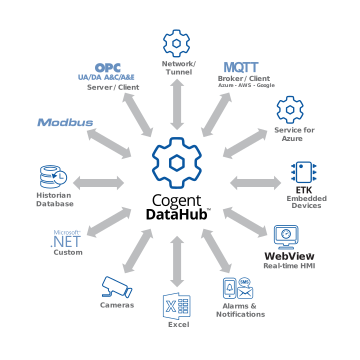
Enabling remote data access is simply a matter of adding a new user for each protocol you need, and giving that user Basic Connectivity and All Data Full Access roles. You also remove the Require TOTP Authentication role, since that user is not a person and cannot use two-factor authentication. Then, to make a secure connection, enter the username and password credentials in the connecting application.
Skkynet provides Cogent DataHub secure-by-design software and services to let you acquire, aggregate, monitor, control visualize, and network live process data in-plant or over insecure external networks, making it ideal for OT to IT and cloud connections. You can isolate control networks from cyber attacks and integrate industrial data under a unified namespace, all without compromising the plant.


