How to connect OPC DA through a data diode
No access to YouTube? Click here to view locally
Summary
- Download and install Cogent DataHub software on the OPC DA server and OPC DA client machines.
- On the OPC DA client side, configure the DataHub to act as a tunnelling Master.
- Switch to the OPC DA server side, and connect that DataHub to the OPC server.
- Then configure it so act as a tunnelling Slave, and connect it through the data diode to the tunnelling Master on the DataHub on the OPC DA client side.
- Switch back to the DataHub on the OPC DA client side and configure it to act as an OPC server.
- Connect your OPC DA client.
For more details and options, see the documentation.
DataHub product used: DataHub DA Tunneller
Transcript
- How to connect OPC DA through a data diode, using a tunnel to connect the OPC DA server to the OPC DA client. A data diode protects the data source from all incoming data and external attacks
- First download and install Cogent DataHub software on both the server and client computers.
- We will start with the DataHub instance on the OPC DA client machine by configuring it as a Tunnel Master.
- On the OPC client computer, start the DataHub, and from the Properties window,, select the Tunnel/Mirror option. Make sure “Accept plain-text connections” is configured for port 4502. That port must be opened on this computer to make the connection, but no firewall ports need to be open on the OPC server computer. Click Apply.
- In the Properties window select Security and then click the Configure button.
- Under Users, click the Add button to add a Built-In User.
- Enter a username and password.
- Uncheck the Require TOTP Authentication box because this is a non-interactive connection. Then click OK.
- In the Roles, check the All Data Full Access box. Then click OK. The OPC client side is now configured as the Tunnel Master.
- Next we will connect to the OPC DA server on the OPC server computer. Switch to that computer.
- On the OPC server computer, start the DataHub, and from the Properties window, select the OPC DA option and click the Add button.
- Choose an OPC server.
- Set a maximum update of 100 milliseconds for now.
- Leave the other options at the default settings.
- Manually select the points you want to connect to.
- Or choose Load All Items on Server.
- Click OK and Apply.
- Click View Data to see your data in the Data Browser. You are now connected to the OPC DA server.
- Now we will configure the tunnel connection through the data diode.
- Still on the OPC server computer, select the Tunnel/Mirror option. Make sure the Act as a tunnel/mirror slave option is checked, because this DataHub instance is the tunnel slave. Then click the Add Master button to add a tunnel master.
- Enter the IP address or computer name for the primary host., the tunnel Master, which is the OPC client computer where the other DataHub instance is running. For details about connecting through your data diode, consult your hardware supplier.
- For now, keep the local data domain here on the Slave as default, the same as the remote data domain on the Master.
- Enter the username and password for the networked user that you created on the Master.
- For the Data Flow Direction, choose “Write-only” to just send data to the OPC client.
- When the connection is initiated, when it first starts, you want to override the OPC client values with the Slave’s values, the OPC server data. So choose the Override option.
- When the connection is lost, you want to mark the data quality for all points over there on the Master as “Not Connected”. So choose that option.
- Check the “Run in data diode mode” option to enable data diode support. If you don’t have a hardware data diode, this mode enables software emulation. Click OK and Apply.
- Now switch back to the OPC client computer.
- On the OPC client computer, click View Data to see the data, coming across the tunnel from the OPC server. The data is now updating here on this DataHub instance..
- For the final step, we will connect the OPC DA client.
- In the DataHub Properties window on the OPC client machine, select OPC DA and check the box for Act as an OPC Server. Then click Apply.
- In your OPC client, connect to the OPC server named Cogent.DataHub.1. Then add a group and select your items.
- Now you are connected. OPC DA server data is being sent through the data diode to the OPC DA client. No data of any kind gets sent back, protecting the OT network from external attacks.
Background
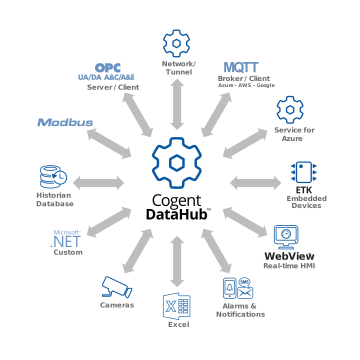
An OPC DA client cannot connect to an OPC DA server through a data diode because all incoming data gets blocked. To solve this problem, the DataHub tunnel/mirror approach encapsulates OPC DA within a unidirectional transport layer that can pass through the diode. On the receiving side, a DataHub instance converts the data back into OPC DA data for the client application.
A further benefit of this approach is that it eliminates the hassles of configuring DCOM, and any issues with the KB5004442 security patch from Microsoft.
Skkynet provides Cogent DataHub secure-by-design software and services to let you acquire, aggregate, monitor, control visualize, and network live process data in-plant or over insecure external networks, making it ideal for OT to IT and cloud connections. You can isolate control networks from cyber attacks and integrate industrial data under a unified namespace, all without compromising the plant.