• Download
  • Products
    • Product Highlights
      • DataHub Smart MQTT Broker
      • DataHub IoT Gateway
      • DataHub OPC Gateway
      • DataHub service for Azure
      • DataHub OPC Bridge
      • OPC DataHub
      • DataHub WebView
      • DataHub Modbus OPC Server
    • Tunnellers
      • DataHub UA Tunneller
      • DataHub DA Tunneller
      • DataHub Tunnel A&E
      • DataHub Modbus Tunneller
      • DataHub DDE Tunneller
      • Individual Features
        • Redundancy
        • Data Diode Mode
        • Monitoring
    • Historians
      • Connect to InfluxDB
      • Connect to Amazon Kinesis
      • Connect to AVEVA Historian
      • Connect to AVEVA Insight
      • Connect to AVEVA PI
      • Connect to RESTful Systems
      • Connect to Kafka
      • Connect to ODBC
      • Connect to Azure Event Hubs
      • Connect to OPC Classic HDA
    • Notifications
      • Alarm and Notification
      • Email / SMS
      • OPC A&E support
      • OPC UA A&C support
    • Excel and DDE
      • DataHub Add-In
        for Microsoft Excel
      • DDE / Excel
    • Loggers
      • DataHub OPC Logger
      • DataHub Modbus Logger
  • Purchasing
    • How to Purchase
    • Request a Quote
    • Feature Matrix
    • Software Subscription Plan
    • Maintenance Support Plan
    • Educational Program
  • Learning Hub
    • Industries & Use Cases
      • Wind & Solar
      • Conventional Energy
      • Oil & Gas
      • Minerals & Mining
      • Manufacturing
      • Food & Beverage
      • Pharma & Healthcare
      • System Integration
      • Machines & Tools
    • Knowledge Center
      • Videos
      • Webinars
      • How-To
      • Case Studies
      • White Papers
      • Essential Guides
        • MQTT & Sparkplug Essentials
        • DataHub Security Essentials
    • Connecting
      • Industrial AI
      • Industrial IoT
      • Secure OT to IT
      • OPC
      • Historian
      • MQTT
        • Sparkplug
      • Database
      • Modbus
      • Excel
      • Web
      • Embedded
      • Open APIs
      • DHTP
      • Architecture
  • Support
    • FAQ
    • Documentation
    • Release Notes
    • Technical Specifications
  • About
    • Partners
    • Customers
    • Testimonials
    • Privacy Policy
    • Terms of Use
    • Legal Notices
  • Click to open the search input field Click to open the search input field Search
  • Menu Menu
  • Download
  • Products
    • DataHub Smart MQTT Broker
    • DataHub IoT Gateway
    • DataHub OPC Gateway
    • DataHub service for Azure
    • DataHub OPC Bridge
    • OPC DataHub
    • DataHub WebView
    • DataHub Modbus OPC Server
    • Tunnellers
      • DataHub UA Tunneller
      • DataHub DA Tunneller
      • Tunnel A&E
      • DataHub Modbus Tunneller
      • DataHub DDE Tunneller
    • Historians
      • Connect to InfluxDB
      • Connect to Amazon Kinesis
      • Connect to AVEVA Historian
      • Connect to AVEVA Insight
      • Connect to AVEVA PI
      • Connect to RESTful Systems
      • Connect to Kafka
      • Connect to Azure Event Hubs
      • Connect to ODBC
      • Connect to OPC Classic HDA
    • Notifications
      • Alarm and Notification
      • Email / SMS
      • OPC A&E support
      • OPC UA A&C support
    • Excel and DDE
      • DataHub Add-in for Microsoft Excel
      • DDE / Excel
    • Loggers
      • DataHub OPC Logger
      • DataHub Modbus Logger
      • Monitoring
    • Individual Features
      • Redundancy
      • Data Diode Mode
      • Monitoring
  • Purchasing
    • How to Purchase
    • Request a Quote
    • Feature Matrix
    • Software Subscription Plan
    • Maintenance Support Plan
    • Educational Program
  • Learning Hub
    • Industries & Use Cases
      • Wind and Solar
      • Conventional Energy
      • Oil & Gas
      • Minerals & Mining
      • Manufacturing
      • Food and Beverage
      • Pharma and Healthcare
      • System Integration
      • Machines and Tools
    • Knowledge Center
      • Videos
      • Webinars
      • How-to
      • Case Studies
      • White Papers
    • Essential Guides
      • MQTT and Sparkplug Essentials
      • DataHub Security Essentials
    • Connecting
      • Industrial AI
      • Industrial IoT
      • Secure OT to IT
      • OPC
      • Historian
      • MQTT
        • Sparkplug
      • Database
      • Modbus
      • Excel
      • Web
      • Embedded
      • Open APIs
      • DHTP
      • Architecture
  • Support
    • FAQ
    • Documentation
    • Release Notes
    • Technical Specifications
  • About
    • Partners
    • Customers
    • Testimonials
    • Privacy Policy
    • Terms of Use
    • Legal Notices

How to connect OPC UA through a data diode

No access to YouTube? Click here to view locally

Summary

  1. Download and install Cogent DataHub software on the OPC UA server and OPC UA client machines.
  2. On the OPC UA client side, configure the DataHub to act as a tunnelling Master.
  3. Switch to the OPC UA server side, and connect that DataHub to the OPC server.
  4. Then configure it so act as a tunnelling Slave, and connect it through the data diode to the tunnelling Master on the DataHub on the OPC UA client side.
  5. Switch back to the DataHub on the OPC UA client side and configure it to act as an OPC server.
  6. Connect your OPC UA client.

For more details and options, see the documentation.

DataHub product used: DataHub UA Tunneller.

Transcript

  1. How to connect OPC UA through a data diode, using a tunnel to connect the OPC UA server to the OPC UA client.  A data diode protects the data source from all incoming data and external attacks
  2. First download and install Cogent DataHub software on both the server and client computers.
  3. We will start with the DataHub instance on the OPC UA client machine by configuring it as a Tunnel Master.
  4. On the OPC client computer, start the DataHub, and from the Properties window,, select the Tunnel/Mirror option. Make sure “Accept plain-text connections” is configured for port 4502. That port must be opened on this computer to make the connection, but no firewall ports need to be open on the OPC server computer.  Click Apply.
  5. Still n the Properties window, select Security and then click the Configure button.
  6. Under Users, click the Add button to add a Built-In User.
  7. Enter a username and password.
  8. Uncheck the Require TOTP Authentication box because this is a non-interactive connection.  Then click OK.
  9. In the Roles, check the All Data Full Access box.  Then click OK. The OPC client side is now configured as the Tunnel Master.
  10. Next we will connect to the OPC UA server on the OPC server computer.  Switch to that computer.
  11. On the OPC server computer, start the DataHub, and from the Properties window, select the OPC UA option and click the Add button.
  12. Choose or enter a Discovery Domain.
  13. Choose or enter the endpoint URL for the OPC server.
  14. Leave the other fields at the default settings and click the Connection Test button.
  15. The connection should succeed. Close the window.
  16. Leave the Data Transfer options at the default settings.
  17. Manually select the nodes you want to connect to.
  18. Or choose Load All Nodes on Server.
  19. Enter a meaningful name for the data domain. Let’s call it “OPC UA server.”
  20. Click OK, make sure the “Act as an OPC UA Client” and the “On” button are checked, then click Apply.
  21. Click View Data to see your data in the Data Browser.
  22. Now we will configure the tunnel connection through the data diode.
  23. Still on the OPC server computer, select the Tunnel/Mirror option. Make sure the Act as a tunnel/mirror slave option is checked, because this DataHub instance is the tunnel slave. Then click the Add Master button to add a tunnel master.
  24. Enter the IP address or computer name for the primary host., the tunnel Master, which is the OPC client computer where the other DataHub instance is running. For details about connecting through your data diode, consult your hardware supplier
  25. Enter “OPC UA server” for the local data domain here on the Slave, and the same for the remote data domain on the Master.
  26. Enter the username and password for the networked user that you created on the Master.
  27. For the Data Flow Direction, choose “Write-only” to just send data to the OPC client.
  28. When the connection is initiated, when it first starts, you want to override the OPC client values with the Slave’s values, the OPC server data.  So choose the Override option.
  29. When the connection is lost, you want to mark the data quality for all points over there on the Master as “Not Connected”.  So choose that option.
  30. Check the “Run in data diode mode” option to enable data diode support. If you don’t have a hardware data diode, this mode enables software emulation.  Click OK and Apply.
  31. Now switch back to the OPC client computer.
  32. On the OPC client computer, click View Data to see the data, coming across the tunnel from the OPC server. The data is now updating here on this DataHub instance..
  33. For the final step, we will connect the OPC UA client.
  34. In the DataHub Properties window on the OPC client machine, select OPC UA and make sure the box for Act as an OPC UA Server is checked, and that the protocols you need are also checked.  Then click Apply.
  35. In your OPC UA client, add the Cogent DataHub server.  Then select your nodes.
  36. Now you are connected.  OPC UA server data is being sent through the data diode to the OPC UA client.  No data of any kind gets sent back, protecting the OT network from external attacks.

Background

An OPC UA client cannot connect to an OPC UA server through a data diode because all incoming data gets blocked.  OPC UA pub/sub can make outbound connections, but it relies on UDP, which is not practical for most industrial applications. Data delivered over UDP can be damaged, out of sequence, or incomplete.

To solve this problem, the DataHub tunnel/mirror approach encapsulates OPC UA within a unidirectional transport layer that can pass through the diode. On the receiving side, a DataHub instance converts the data back into OPC UA data for the client application.

Skkynet provides Cogent DataHub secure-by-design software and services to let you acquire, aggregate, monitor, control visualize, and network live process data in-plant or over insecure external networks, making it ideal for OT to IT and cloud connections.  You can isolate control networks from cyber attacks and integrate industrial data under a unified namespace, all without compromising the plant.
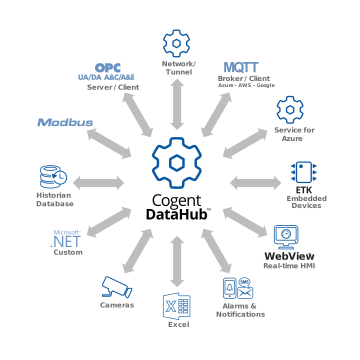
Cogent DataHub products wheel diagram

How-to Videos


Basic Connections:

Connect to an OPC UA server
Connect to an OPC DA server
Connect an OPC UA client
Connect an OPC DA client
Connect an MQTT client
Connect to an MQTT broker

Protocol Conversions:

Convert OPC DA to OPC UA
Convert OPC UA to OPC DA
Convert OPC DA to MQTT
Convert OPC UA to MQTT
Convert MQTT to OPC DA
Convert MQTT to OPC UA

Tunnelling:

Tunnel OPC UA – outbound
Tunnel OPC DA – outbound
Tunnel OPC DA – inbound

Advanced:

Use a DataHub script
Configure Redundancy
Connect time-series data to ODBC

Connect through a Data Diode:

Connect OPC UA thru Data Diode
Connect OPC DA thru Data Diode
Connect MQTT thru Data Diode to Client
Connect MQTT thru Data Diode to Cloud

Connect through a DMZ:

Connect OPC UA thru DMZ
Connect OPC DA thru DMZ
Connect MQTT thru DMZ
Cogent DataHub footer logo white
  • Download
  • Products
  • Purchasing
  • Learning Hub
  • Support
  • About
  • Back to Top
  • LinkedIn iconTwitter iconYouTube icon

Skkynet
302-2233 Argentia Road
Mississauga, ON L5N 2X7

International: 1-905-702-7851
US toll free: 1-888-702-7851

[email protected]
[email protected]
[email protected]
[email protected]

© 2026 Skkynet | All rights reserved | Legal notices
Scroll to top Scroll to top Scroll to top

We are using cookies to give you the best experience on our website.

You can find out more about which cookies we are using or switch them off in .

Cogent DataHub Logo
Powered by  GDPR Cookie Compliance
Privacy Overview

This website uses cookies so that we can provide you with the best user experience possible. Cookie information is stored in your browser and performs functions such as recognising you when you return to our website and helping our team to understand which sections of the website you find most interesting and useful.

Strictly Necessary Cookies

Strictly Necessary Cookie should be enabled at all times so that we can save your preferences for cookie settings.

3rd Party Cookies

This website uses Google Analytics to collect anonymous information such as the number of visitors to the site, and the most popular pages.

Keeping this cookie enabled helps us to improve our website.

Cookie Policy

More information about our Cookie Policy