Chapter 2. Quick Start
Table of Contents
Here is a brief example of how to start the WebView application, add a control to a page, edit a property and animate the control with live data, and then save and view the resulting page.
2.1. Start the WebView Application
You have two options for starting the WebView application:
The WebView user interface is made up of 3 main areas: the Toolbar, the Explorer Panel, and the Design window.
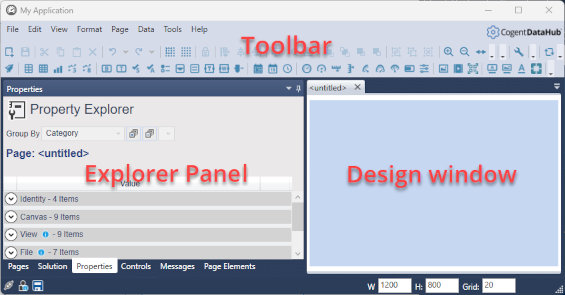
The Toolbar contains all the tools and controls used for building pages.
The Design window is where you build pages and place controls.
The Explorer Panel has several tabs for displaying details about the pages, controls, and other elements of your WebView project.
Please see User Interface for more information on these.