2.3. Bind a Control to a Data Point
Many of the WebView controls can be bound to certain variables, so that whenever the variable changes, the value or appearance of the control changes as well. For example, a gauge or meter can be bound to a DataHub point to display changes to the point in real time. In this example we bind the gauge we created above to display the value of the DataPid point Pv.
Start the DataPid program that is included in your Cogent DataHub archive to generate some test data.
Open the Basic Properties of your gauge, and click the arrow button on the right side of the Current Value row.
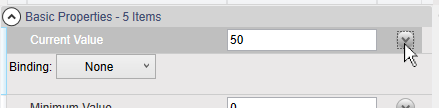
A Binding selection box will appear.
In the Binding selection box, click the down arrow to open the list, and select Point.
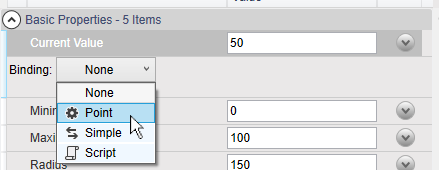
This will activate the point selection entry field.
We want to connect to the DataPid point DataPid:PID1:Pv, so enter just Pv. All the points that have "
Pv" in their names will appear.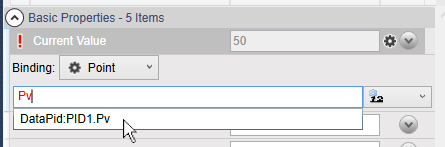
Select the point DataPid:PID1:Pv. Once selected, the data will start updating in the value entry, and the gauge needle will start to move.
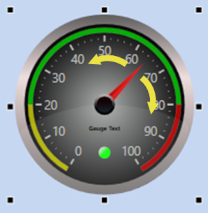
See also Chapter 4, Controls for more details about using controls, or Chapter 5, Property Binding for binding data them to DataHub points.