Chapter 4. Controls
4.1. Add and Manipulate Controls
To add a new control to your page, you have two options:
From the menu, select to open the Control Explorer.
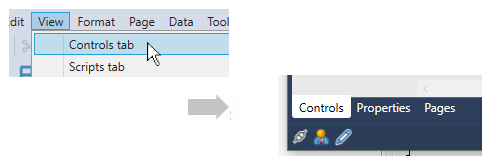
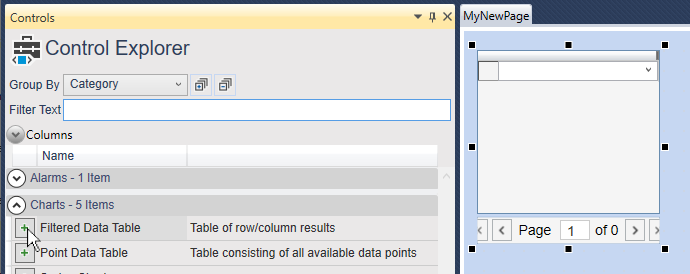
In the Control Explorer, find the control in its appropriate group and click the Add button
 .
.
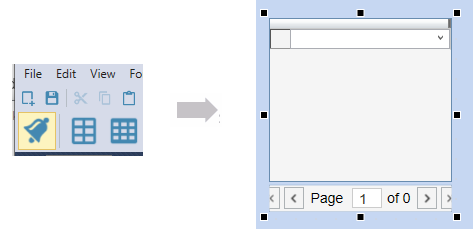
Alternatively, you can click that control's button in the Control Toolbar at the top of the page to put the control in the center of the page.
![[Note]](images/note_1156523861.png)
Pressing the Shift key while you click on the control button lets you manually position the control on the page. While positioning the control, pressing Ctrl + Shift and turning the mouse wheel allows you to zoom in and out.
To copy a control select it, and from the menu choose , or press Ctrl + Shift + C.
To paste a control select it, and from the menu choose , or press Ctrl + Shift + V.
To resize a control select it and resize it with one of the black resize handles. Or, enter a width and height in the W: and H: entry fields at the bottom right corner of the editing window.

To move a control select it, and move it with the mouse. For precise movements, you can show gridlines, and snap controls to the grid. Or, enter X and Y coordinates (distance from the top-left corner) in the X: and Y: entry fields at the bottom right corner of the editing window. Alternatively, you can use the cursor keys as follows:
move by 1 pixel: Ctrl + arrow keys
move by 10 pixels: arrow keys
move by 100 pixels: Ctrl + Shift + arrow keys
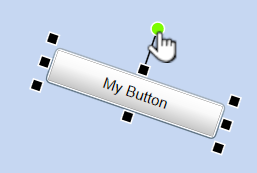
To rotate a control use the rotation handle on the top of the control.
To add a hover border you can configure a one-pixel border of any color that appears around the control in Run mode when you hover your mouse over it.
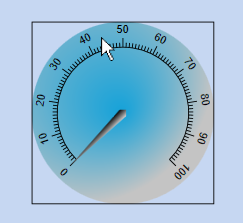
To activate this feature:
Select a control.
In the Property Explorer, go to Common Properties: Content Visibility and Appearance.
Check the box.

The border will appear on hover for any opacity setting of the control (Content Opacity or ), but will not appear if the box is not checked.