3.2. View: Size, Grid, Zoom, Elements
Page Size
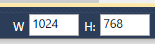
To change page size enter a number of pixels for the width and height of the W: and H: entry fields at the bottom right corner of the editing window.
The Grid
To show gridlines click the button  , or type
 True in the
menu,
dialog, Design Mode list, Show
gridlines entry.
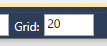
To change the grid size enter a number of pixels in the Grid entry field at the bottom right corner of the editing window.
To snap controls to the grid click the button  , or type
 True in the
menu,
dialog, Design Mode list, Snap to grid
entry.
Zoom
To view the page at a specific size, click the Page Zoom button  , which opens a list of zoom levels, and choose the level
you need. There are several other ways to zoom in and out, to make resizing the
page convenient.
, which opens a list of zoom levels, and choose the level
you need. There are several other ways to zoom in and out, to make resizing the
page convenient.
To fit the page into the window, click the Fit button  , use the /
menu, or press Ctrl + Shift +
Z.
, use the /
menu, or press Ctrl + Shift +
Z.
To zoom in and out click the Zoom In  or Zoom Out
  buttons, use the menu, or press
Ctrl + Shift and spin the mouse wheel up
or down.
buttons, use the menu, or press
Ctrl + Shift and spin the mouse wheel up
or down.
To focus your zoom on a specific location in the page, click the Set Zoom Focal Point button , or click that option in the
/ menu. Then click the page
where you want to focus your zoom.
To zoom on a control click the control, and then from the / menu check the option.