Chapter 2. Remote Config
The Remote Config application is used to access DataHub applications for configuration and monitoring connections. Because it connects over TCP, it is especially useful for the Cogent DataHub service for Azure. It is also used with the Cogent DataHub program when it is running as a service, or to access it remotely.
2.1. Getting Started
For the Cogent DataHub service for Azure use the Web Application Manager to launch the Remote Config application. The log-in window will be pre-entered.
![[Note]](images/note_1156523861.png)
When running on Windows 7, Remote Config can only connect to a local DataHub instance. Connections to the Cogent DataHub service require WebSocket support, and so must be done from Windows 8 or higher.
For the DataHub program (or for a detailed explanation of the configuration options) please see Configuring a Local DataHub Instance.

After logging in, you will have access to the available DataHub features and their configuration options.
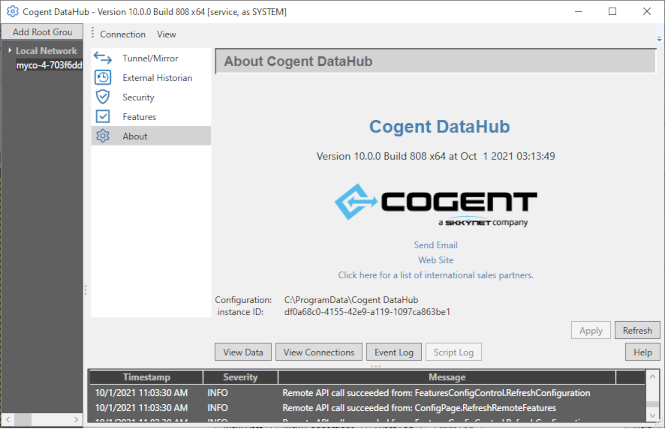
The panel on the left lists all of the DataHub connections you have configured. The bottom panel displays the application log for the connection to the DataHub instance. The center column displays all of the DataHub features of the DataHub Properties window that you have licensed or enabled, with the options for each feature appearing in the main, right-hand panel.
The buttons at the bottom of that panel open other DataHub windows for the Data Browser, Connection Viewer, and Event Log. If you are connecting to a Cogent DataHub instance, the Script Log button is also available.
| |
Pressing the button instead of the button when you first log in will allow you to open the Data Browser, and possibly the Event Log, Connections, and Script Log windows, but you will not be able to see or change any configuration. |