4.3. Event Log
This window lets you view a log of events from the DataHub instance. You can open this window in either of two ways:
Click the button in the Properties window.
Right click the DataHub instance icon in the system tray and select from the pop-up menu.
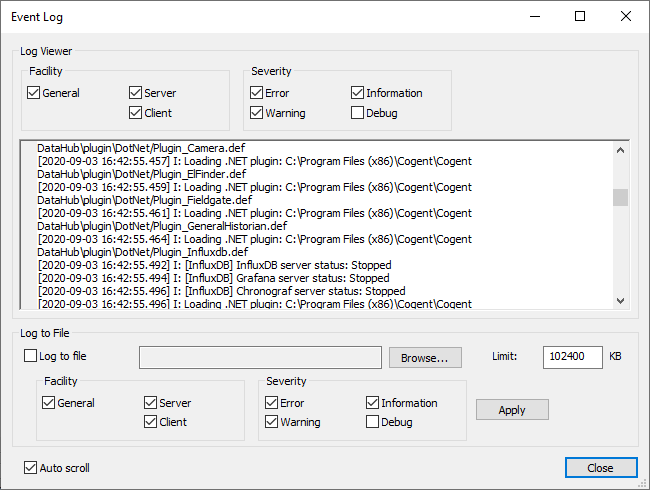
You can specify the category of event Facility and level of Severity by checking or unchecking the related items. It is possible to open multiple Event Log windows, and select different Facility and Severity options in each window.
![[Important]](images/important_2051192373.png) | |
The option is very verbose. Operating in this mode could put an unusually high demand on system resources. |
Unchecking this box stops the scrolling mechanism, keeping the display for the current output, making it easier to read. This box is checked by default.
Log to File
If you wish to save a log, you can have the DataHub instance write the log to a file.
Check the box and specify a path and file name in
the entry field, typically with a .log extension. You can use
the button to find a file. The
Limit text entry box allows you to change the maximum file
size (default 102,400 Kb).
![[Note]](images/note_1156523861.png) | |
Once the |
Here are some other useful pointers about log file management:
If the file you specify doesn't exist, the DataHub instance will create it. If the file does exist, the DataHub instance will append log data to the file.
As long as the box is checked, the DataHub instance will append all log entries to the file, even when a new instance is restarted after a shutdown.
You can specify the category of event Facility and level of Severity logged to file by checking or unchecking the related items.