Chapter 2. Tutorials
- 2.1. Tutorial 1: Writing new rows to a table, based on a trigger - Multi-Threaded Version
- 2.2. Tutorial 2: Writing new rows to a table, based on a trigger - Single-Threaded Version
- 2.3. Tutorial 3: Updating existing rows, or writing new ones
- 2.4. Tutorial 4: Writing data from a database to a DataHub instance
- 2.5. Viewing data from a web browser
2.1. Tutorial 1: Writing new rows to a table, based on a trigger - Multi-Threaded Version
This script creates and inserts a new row into a database whenever a trigger point changes value. The data that gets inserted into the row is an ID for the entry (the primary key), the name of a specified point, its value, and a timestamp of the change. The script uses the multi-threaded feature Store and Forward to store data in memory and/or on disk if the database is disconnected or too busy, and then log that data in time-sequential order when the database is available again.
![[Note]](images/note_1156523861.png) | |
The tutorials in this manual use SQL commands to query the database. The syntax for these commands may vary slightly from one ODBC database to another. If a given tutorial doesn't work right away, check the syntax of the SQL commands used here against the syntax that your database uses. |
| |
Although DataHub Scripting is included with every Cogent DataHub license, ODBC scripting requires that the Cogent DataHub Database feature be licensed as well. |
| |
The code for this and other example scripts can be found in the DataHub distribution archive, typically at this location:
Please refer to Chapter 3, An Explanation of the Tutorial Code for more information about the code. |
Getting Started
To run this code or the other tutorials in this manual, you will need to do the following:
Set up a DSN (Data Source Name) called "
DataHubThreadedTest" and point it to an empty database on your database server.Create a table in the database named "
datatable" that contains at least four columns with names, data types, and other attributes exactly as specified here:Column name Data type Other attributes ptidinteger identity, non-null, counter ptnametext string null ptvaluereal non-null pttimedatetime null Any other columns in this table must be allowed to take on a null value.
Start DataSim.
Find the tutorial script
ODBCTutorial1.gon your system, and run it.You can access DataHub scripts and scripting capabilities by pressing the button in the Properties window, to display the Scripting and Customization screen. The upper half of the screen shows the Gamma files currently configured in the DataHub instance:
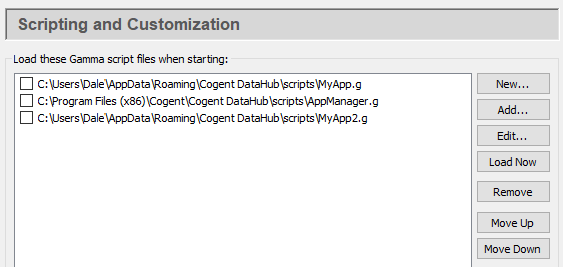
The button opens a file selector for you to add an existing script to the list. Scripts are kept in a DataHub
scriptsfolder. Scripts that come with the DataHub program are installed here (32-bit or 64-bit):C:\Program Files (x86)\Cogent\Cogent DataHub\scripts\ C:\Program Files\Cogent\Cogent DataHub\scripts\
All content in this directory will be replaced by the default content when the DataHub program is re-installed. If you plan to edit one of these scripts, or to write a new script, you should keep it in this folder for user-created scripts:
C:\Users\
Username\AppData\Roaming\Cogent DataHub\scriptsThe button opens the selected script in the Script Editor for editing.
You can view error message and printed output from a script in the Script Log. To open the Script Log, right click on the DataHub icon in the system tray, and select .
For complete information about DataHub scripting, please refer to the DataHub Scripting Manual
Check the database table to see the results. Once you have it working, you can modify the code as explained below.
The Code: ODBCTutorial1.g
/*
 * This script demonstrates the use of the threaded ODBC interface
 * to insert data from the DataSim program into a database based on
 * a timer or an event.
 */

require ("Application");
require ("ODBCThreadSupport");
require ("Time");
require ("Quality");

class ODBCTutorial1 Application
{
    DSN = "MySQLLocal";      // The DSN name to use for the database
                             // connection
    username = "test";       // The user name for connecting to
                             // the database
    password = "test";       // The password for connecting to
                             // the database
    tablename = "test";      // The name of the database table
    cachefile = "c:/tmp/testcache.txt";     // Base name for the disk
                                            // cache file
    tableclass;
    thread;
}

/* This method will be called every time the connection is
 * established to the database. If there is something we only want to
 * perform on the first connection, we can test is_first_connect to
 * perform the code only once.
 */
method ODBCTutorial1.onConnect()
{
    princ ("Connection succeeded\n");
    if (.thread.is_first_connect)
    {
        // Start the sequence defined by the AddInitStage calls
        // in the constructor
        .thread.BeginAsyncInit();
    }
}

/* If we get a connection attempt failure, or the connection fails
 * after having been connected, this method is called.
 */
method ODBCTutorial1.onConnectFail()
{
    princ ("Connection closed: ", SQLResult.Description, "\n");
}

/* Map the table in the set of table definitions that matches the
 * name in .tablename into a Gamma class.  This lets us easily
 ( convert between class instances and rows in the table.
 */
method ODBCTutorial1.mapTable(name, tabledefinitions)
{
    .tableclass = .thread.ClassFromTable(name, tabledefinitions);
}

/* Set up the timer or event handler functions to write to
 * the table.
 */
method ODBCTutorial1.startLogging()
{
     /* You can modify and/or add similar timers or event handlers
      * for each data point that you want to log.  Please refer to
      * the "Methods and Functions from Application.g" section of
      * the documentaton for more details about the timer and event
      * handler funtions.
      */
     // Log a new row of data every 3 seconds.
    .TimerEvery(3, `(@self).writeData(#$DataSim:Sine));

     // Log a new row of data at 20 seconds past each minute of
     // each hour, etc.
    .TimerAt(nil, nil, nil, nil, nil, 20,
	     `(@self).writeData(#$DataSim:Triangle));

    // Log a new row of data for the point DataSim:Square when it
    // changes.
    .OnChange(#$DataSim:Square, `(@self).writeData(this));

    // Log a new row of data for the point DataSim:Sine when
    // DataSim:Square changes.
    .OnChange(#$DataSim:Square, `(@self).writeData(#$DataSim:Sine));
}

method ODBCTutorial1.writeData(pointsymbol)
{
    local       row = new (.tableclass);
    local       pttime, ptltime;
    local       timestring;

    /* Generate a timestamp in database-independent format to
     * the millisecond. Many databases strip the milliseconds from
     * a timestamp, but it is harmless to provide them in case the
     * database can store them.
     */
    pttime =
      WindowsTimeToUnixTime(PointMetadata(pointsymbol).timestamp);
    ptltime = localtime(pttime);
    timestring = format("{ts '%04d-%02d-%02d %02d:%02d:%02d.%03d'}",
			ptltime.year+1900, ptltime.mon+1,
			ptltime.mday, ptltime.hour, ptltime.min,
			ptltime.sec,
			(pttime % 1) * 1000);

    /* Fill the row.  Since we mapped the table into a Gamma class,
     * we can access the columns in the row as member variables of
     * the mapped class.
     */
    row.ptname = string(pointsymbol);
    row.ptvalue = eval(pointsymbol);
    row.pttime = timestring;
    /* Perform the insertion.  In this case we are providing no
     * callback on completion.
     */
    .thread.Insert(row, nil);
}

/* Write the 'main line' of the program here. */
method ODBCTutorial1.constructor ()
{
    // Create and configure the database connection object
    .thread = new ODBCThread();
    .thread.Configure(.DSN, .username, .password,
		      STORE_AND_FORWARD, .cachefile, 0);

    /* Use this to delete the table on the first connection after
     * the script starts.
     * BE CAREFUL - re-running the script will start over and delete
     * the table again.
     */
     //.thread.AddInitStage(format("drop table %s", .tablename),
     //			  nil, t);

    /* Use this to create the table if it does not exist.
     * Note: this might not work for all databases.
     * When in doubt, create the table manually.  The 't' in the
     * onFail argument says to ignore errors and continue with the
     * next stage.
     */
    .thread.AddInitStage(format("create table %s (ptid int
                         auto_increment primary key, ptname
                         varchar(64),ptvalue double, pttime
                         datetime )", .tablename), nil, t);

    /* Query the table and map it to a class for each insertion.We
     * want to run an asynchronous event within the asynchronous
     * initialization stage, so to do that we specify the special
     * method cbInitStage as the callback function of our
     * asynchronous event (GetTableInfo).  We deal with the return
     * from the GetTableInfo in the onSuccess argument of the init
     * stage.
     */
    .thread.AddInitStage(`(@.thread).GetTableInfo("", "",
						  (@.tablename),
						  "TABLE,VIEW",
                                                  `(@.thread)
						  .cbInitStage()),
                         `(@self).mapTable(@.tablename, SQLTables),
			 nil);

    /* Do not start writing data to the table until we have
     * successfully created and mapped the table to a class.  If we
     * wanted to start writing data immediately, then we would create
     * the table class beforehand instead of querying the database
     * for the table definition.  Then, even if the database were
     * unavailable we could still cache to the local disk until the
     database was ready.
     */
    .thread.AddInitStage(nil, `(@self).startLogging(), nil);

    /* Set up the callback functions for various events from the
     *database thread
     */
    .thread.OnConnectionSucceeded = `(@self).onConnect();
    .thread.OnConnectionFailed = `(@self).onConnectFail();
    .thread.OnFileSystemError = `princ("File System Error: ",
				       SQLResult, "\n");
    .thread.OnODBCError = `princ("ODBC Error: ", SQLResult, "\n");
    .thread.OnExecuteStored = nil;

    /* Now that everything is configured, start the thread and begin
     * connecting.  All of the logic now will be driven through the
     * onConnect callback and then through the init stages.
     */
    .thread.Start();

    /* Create a menu item in the system tray that allows us to open
     * a window to monitor the performance of the ODBC thread.  The
     * menu strings can be edited as desired.
     */
    .AddCustomSubMenu("ODBC Thread Demo");
    .AddCustomMenuItem("Monitor Performance",
                       `(@.thread).CreateMonitorWindow((@self),
					       "ODBC Demo Monitor"));

    /* If we want to open the performance monitor window when the
     * script starts, do it here.
     */
    .thread.CreateMonitorWindow(self, "ODBC Demo Monitor");
}

/* Any code to be run when the program gets shut down. */
method ODBCTutorial1.destructor ()
{
	if (instance_p(.thread))
		destroy(.thread);
}

/* Start the program by instantiating the class. */
ApplicationSingleton (ODBCTutorial1);
Modifying the Code
You can modify the startLogging method to add your own
points by replacing data domains (domain), point names
(point) and/or times (day,
month, year,
hour, minute,
second, etc.) like this:
     // Log a new row of data every # seconds.
    .TimerEvery(seconds, `(@self).writeData(#$domain:point));

     // Log a new row of data at # seconds past each minute of each
     // hour, etc.
    .TimerAt(day, month, year, hour, minute, second,
             `(@self).writeData(#$domain:point));

    // Log a new row of data for a point when it changes.
    .OnChange(#$domain:point, `(@self).writeData(this));

    // Log a new row of data for a point when a trigger point changes.
    .OnChange(#$domain:point, `(@self).writeData(#$domain:point));
Please refer to the documentation for these methods of the
Application class for more information: TimerEvery, TimerAt, and OnChange.