2.2. Tutorial 2: Writing new rows to a table, based on a trigger - Single-Threaded Version
This script creates and inserts a new row into a database whenever a trigger point changes value. The data that gets inserted into the row is an ID for the entry (the primary key), the value of a specified point, the timestamp of the change, and the name and quality of the point. The script also checks the connection to the database, and will attempt to reconnect every 5 seconds if the connection is lost.
![[Note]](images/note_1156523861.png) | |
The tutorials in this manual use SQL commands to query the database. The syntax for these commands may vary slightly from one ODBC database to another. If a given tutorial doesn't work right away, check the syntax of the SQL commands used here against the syntax that your database uses. |
| |
Although DataHub Scripting is included with every Cogent DataHub license, ODBC scripting requires that the Cogent DataHub Database feature be licensed as well. |
| |
The code for this and other example scripts can be found in the DataHub distribution archive, typically at this location:
Please refer to Chapter 3, An Explanation of the Tutorial Code for more information about the code. |
Getting Started
To run this code or the other tutorials in this manual, you will need to do the following:
Set up a DSN (Data Source Name) called "
DataHubTest" and point it to an empty database on your database server.Create a table in the database named "
datatable" that contains at least five columns with names, data types, and other attributes exactly as specified here:Column name Data type Other attributes IDinteger identity, non-null, counter PTVALUEreal non-null PTTIMEdatetime null PTNAMEtext string null PTQUALITYtext string null Any other columns in this table must be allowed to take on a null value.
Start DataSim.
Find the tutorial script
ODBCTutorial2.gon your system, and run it.You can access DataHub scripts and scripting capabilities by pressing the button in the Properties window, to display the Scripting and Customization screen. The upper half of the screen shows the Gamma files currently configured in the DataHub instance:
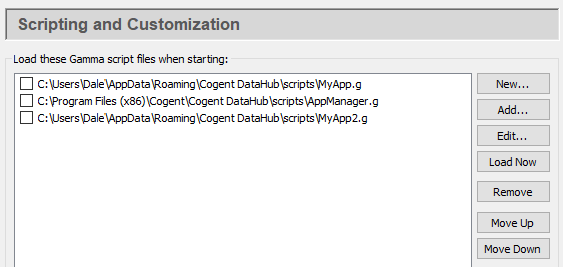
The button opens a file selector for you to add an existing script to the list. Scripts are kept in a DataHub
scriptsfolder. Scripts that come with the DataHub program are installed here (32-bit or 64-bit):C:\Program Files (x86)\Cogent\Cogent DataHub\scripts\ C:\Program Files\Cogent\Cogent DataHub\scripts\
All content in this directory will be replaced by the default content when the DataHub program is re-installed. If you plan to edit one of these scripts, or to write a new script, you should keep it in this folder for user-created scripts:
C:\Users\
Username\AppData\Roaming\Cogent DataHub\scriptsThe button opens the selected script in the Script Editor for editing.
You can view error message and printed output from a script in the Script Log. To open the Script Log, right click on the DataHub icon in the system tray, and select .
For complete information about DataHub scripting, please refer to the DataHub Scripting Manual
Check the database table to see the results. Once you have it working, you can modify the code as explained below.
The Code: ODBCTutorial2.g
/* All user scripts should derive from the base "Application" class */

require ("Application");

/* Get the Gamma library functions and methods for ODBC and/or
 * Windows programming.  Uncomment either or both. */

//require ("WindowsSupport");
require ("ODBCSupport");
require ("Time");
require ("Quality");

/* Applications share the execution thread and the global name
 * space, so we create a class that contains all of the functions
 * and variables for the application.  This does two things:
 *   1) creates a private name space for the application, and
 *   2) allows you to re-load the application to create either
 *      a new unique instance or multiple instances without
 *      damaging an existing running instance.
 */

/*
 * This application assumes that the table specified by the
 * "tablename" member variable exists in the DSN specified by the
 * "DSN" member variable below.
 * The table consists of at least the following columns:
 *    ID - integer, identity, non-null, counter
 *    PTVALUE - real, non-null
 *    PTTIME - datetime, null
 *    PTNAME - text string, null
 *    PTQUALITY - text string, null
 * Any other columns in this table must be allowed to take on a
 * NULL value.
 */

class ODBCTutorial2 Application
{
    /* User-defined values, may be changed as needed. */
    DSN = "DataHubTest";
    user = "test";
    password = "test";
    tablename = "datatable";

    /* These values get defined by the program.*/
    conn;
    env;
    tableclass;
    is_connected;
    is_connecting;
}

/* Connect to the DSN and create a class that maps the table. */
method ODBCTutorial2.Connect ()
{
    princ ("Connecting to database\n");
    .is_connecting = t;

    protect
    {
        /* Create the ODBC environment and connection */
        if (!.env)
            .env = ODBC_AllocEnvironment();
        if (!.conn)
            .conn = .env.AllocConnection();

        /* Attempt the connection. */
        ret = .conn.Connect (.DSN, .user, .password);
        if (ret != SQL_SUCCESS && ret != SQL_SUCCESS_WITH_INFO)
            error (.conn.GetDiagRec());

        /* Create a class from the table */
        .tableclass = .conn.ClassFromTable (#DataEntry, nil,
					    .tablename);

        /* Set the primary key.  This is redundant for MS-SQL and
	   MYSQL since they can figure it out themselves, but Access
	   requires it. */
        mykey = .conn.SetPrimaryKey (.tableclass, "ID");

        .is_connected = t;
    }
    unwind
    {
        .is_connecting = nil;
        if (.is_connected)
            princ ("    Connection successful\n");
        else
            princ ("    Connection failed\n");
    }
}

/* Disconnect from the database server */
method ODBCTutorial2.Disconnect ()
{
    if (.conn)
    {
        try
        {
            princ ("Disconnecting database\n");
            .conn.Disconnect();
            destroy(.conn);
        }
        catch
        {
            princ ("Disconnection failed: ", _last_error_, "\n");
        }
        .conn = nil;
    }
    .is_connected = nil;
}

method ODBCTutorial2.Reconnect()
{
    if (!.is_connected && !.is_connecting)
    {
        .Connect();
    }
}

/* Fill a database record with new information from a point change. */
method ODBCTutorial2.FillRecord (record, sym, newvalue)
{
    local   timestamp;

    timestamp = localtime (PointGetUnixTime(sym));
    timestamp = format ("%d-%02d-%02d %02d:%02d:%02d",
        timestamp.year + 1900, timestamp.mon + 1,
        timestamp.mday, timestamp.hour, timestamp.min,
        timestamp.sec);
    record.PTNAME = string (sym);
    record.PTVALUE = number (newvalue);
    record.PTTIME = timestamp;
    record.PTQUALITY = GetQualityName(PointMetadata(sym).quality);
    record;
}

/* Write a new record into the database based on a point change. */
method ODBCTutorial2.AddRecord (sym, newvalue)
{
    local    record = new (.tableclass);
    .FillRecord (record, sym, newvalue);
    try
    {
        .conn.Insert (record);
    }
    catch
    {
        princ
	  ("Write failed. Disconnecting. Record was not written.\n");
        .Disconnect();
    }
    record;
}

/* The mainline.  Connect to the database and begin storing data from
   the DataHub program into the database. */
method ODBCTutorial2.constructor ()
{
    local    ret;

    /* Start a timer that will reconnect to the database
       every 5 seconds if the connection has been lost. */
    .TimerEvery(5, `(@self).Reconnect());

    /* Try connecting now.  If this fails, the timer will
       try again later. */
    .Reconnect();

    /* Add a record when a point changes.  */
    .OnChange (#$DataSim:Square,
	       `(@self).AddRecord (#$DataSim:Sine, $DataSim:Sine));

    /* Add more points like this:
     *  .OnChange (#$DataSim:Square,
     *  	   `(@self).AddRecord
     *  	   (#$MyDomain:MyPt, $MyDomian:MyPt));
     * Have the trigger point's value get written like this:
     *   .OnChange (#$DataSim:Square,
     *              `(@self).AddRecord
     * 	            (#$DataSim:Square, $DataSim:Square));
     */
}

/* Any code to be run when the program gets shut down. */
method ODBCTutorial2.destructor ()
{
    .Disconnect();
    if (.env)
        destroy(.env);
}

/* Start the program by instantiating the class.  If your
 * constructor code does not create a persistent reference to
 * the instance (self), then it will be destroyed by the
 * garbage collector soon after creation.  If you do not want
 * this to happen, assign the instance to a global variable, or
 * create a static data member in your class to which you assign
 * 'self' during the construction process.  ApplicationSingleton()
 * does this for you automatically. */
ApplicationSingleton (ODBCTutorial2);
Modifying the Code
There are several ways you can modify the code. These modifications are made in
the ODBCTutorial1.constructor method, towards the end of the
script.
Add more DataSim points using this format:
.OnChange (#$DataSim:Square,
           `(@self).AddRecord (#$DataSim:pointname,
              $DataSim:pointname));
Where
pointnameis the name of a point in DataSim.Change the trigger point like this:
.OnChange (#$DataSim:
pointname, `(@self).AddRecord (#$DataSim:Sine, $DataSim:Sine));Where
pointnameis the name of a point in DataSim.Add your own points You can add your own points using this syntax:
.OnChange (#$
domain:pointname, `(@self).AddRecord (#$domain:pointname, $domain:pointname));where
domainis the domain that the point is in, andpointnameis the name of the point.