3.9. Database
 | The Database option lets you configure the DataHub program for writing data or making queries to any ODBC compliant database. |
![[Note]](images/note_1156523861.png) | |
For more information about data logging, please refer to Chapter 10, Write to a Database, and to learn more about making database queries, please refer to Chapter 11, Query a Database. |


Write to a Database (ODBC)
- Enable logging to ODBC database
Globally enables or disables all ODBC logging activity.
- Reconnection delay (s):
Specifies the number of seconds before a reconnect is attempted if the ODBC connection is broken.
- Maximum transaction queue
The DataHub instance maintains an in-memory queue of pending operations. This queue helps to avoid writing to disk during busy periods or during short database or network outages. You can modify the depth of this queue to reduce the chance of involving the disk during busy periods. The queue depth for logging defaults to 100 messages.
- Show diagnostics in the Script Log
Puts diagnostic messages about the connection in the Script Log.
- button
The button opens the ODBC Data Logging Window.
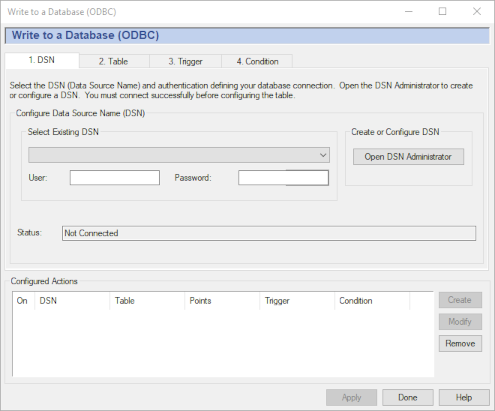
For detailed instructions on using this interface, please refer to Chapter 10, Write to a Database.
Store and Forward
The term store and forward refers to a type of database connection where the data is stored locally to disk and then later forwarded to the database. The DataHub program performs an advanced form of store and forward that only writes to disk if the database is not connected, or has been paused. If the database is available, the data will be transmitted directly to the database. This means that there is no penalty for using store and forward during normal operation. The DataHub store and forward mechanism uses two levels of disk caching to ensure that all data gets logged, and nothing is lost.
| |
When the database first becomes available after an outage, the DataHub instance starts writing cached values to the database, and continues writing new values to the cache. In this way, the values are inserted into the database in the order in which they are generated by the system. Once the cache is cleared, the DataHub instance then starts writing new values directly to the database. |
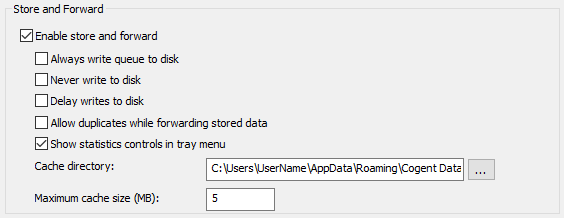
- Enable store and forward
Activates the store and forwarding feature.
- Always write queue to disk
Data in the transaction queue will be written to disk cache first, and from there to the database. The safest protection against a crash is to check this box, and uncheck Delay writes to disk (below).
- Never write queue to disk
The data in the transaction queue will be only stored in memory, and never written to disk.
- Delay writes to disk
Data in the transaction queue will be written to disk at the most opportune times. The safest protection against a crash is to uncheck this box, and check Always write queue to disk (above).
- Allow duplicates while forwarding stored data
If the network breaks while transmitting data from a cache, the DataHub instance needs to know how to handle any already-sent data when it reconnects. Leaving this box unchecked will require the DataHub instance to track its cache position at all times, and modify that information each time a value is sent. This will impact the speed of every transmission, but it will ensure that no values get transmitted twice.
Checking this box will cause the DataHub instance to simply start from the beginning of the queue or cache on each reconnect, and retransmit some data. This significantly reduces data-handling complexity and decreases transmission rates. This option is particularly useful if network breaks are frequent and some duplication of logged data is acceptable.
- Show statistics in tray menu
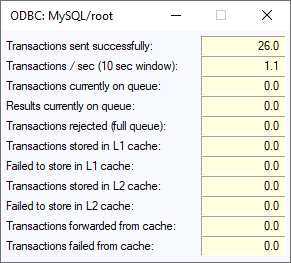
Adds a entry to the DataHub instance's system tray menu, which lets you open a statistics window:
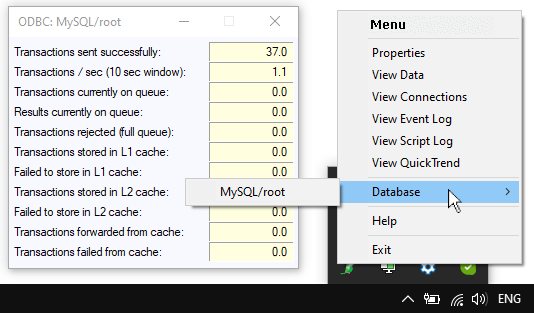
- Transactions sent successfully:
The number of transactions that were sent, either directly to the database, or to the disk cache.
- Transactions / sec (10 sec window):
The sending rate for transactions, calculated over the past 10 seconds.
- Transactions currently on queue:
The number of transactions in the queue.
- Results currently on queue:
Not yet documented.
- Transactions rejected (full queue)
The number of transactions that were rejected from the queue because it was full.
- Transactions stored in L1 cache
The number of transactions taken off the queue and put into the first-level cache. An internal algorithm determines which of the two caches is most appropriate for storing a given transaction.
- Failed to store in L1 cache
The number of transactions that were not able to be stored in the first-level cache.
- Transactions stored in L2 cache
The number of transactions taken off the queue and put into the second-level cache. An internal algorithm determines which of the two caches is most appropriate for storing a given transaction.
- Failed to store in L2 cache
The number of transactions that were not able to be stored in the second-level cache.
- Transactions forwarded from cache
The total number of transactions forwarded from both caches. This number should be the sum of L1 and L2, once all transactions have been forwarded, and as long as the DataHub instance was started up with no cache on disk.
- Transactions failed from cache
The number of transactions attempted from cache, could not be successfully delivered, and were stored for later transmission. This phenomenon may occur the first time that the DataHub instance learns that the database is not available. For example, you'll see this for every network break if you've checked Always write queue to disk.
- Cache directory:
The path and directory name for the cache.
- Maximum cache size (MB):
The amount of disk space to allocate for the cache, in megabytes.
Query a Database (ODBC)
In addition to writing data to a database, DataHub program also allows you to query a database and add the resulting values to the DataHub data set.
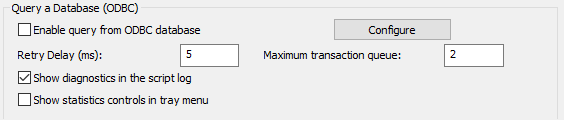
- Enable query from ODBC database
Globally enables or disables all ODBC query activity.
- Reconnection delay (s):
Specifies the number of seconds before a reconnect is attempted if the ODBC connection is broken.
- Maximum transaction queue
The DataHub instance maintains an in-memory queue of pending operations. This queue helps to avoid writing to disk during busy periods or during short database or network outages. You can modify the depth of this queue to reduce the chance of involving the disk during busy periods. The queue depth for queries defaults to 2 messages.
- Show diagnostics in the Script Log
Puts diagnostic messages about the connection in the Script Log.
- Show statistics controls in tray menu.
Creates a new entry in the DataHub system tray menu that lets you open a statistics control window.
- button
The button opens the ODBC Data Logging Window.
For detailed instructions on using this interface, please refer to Chapter 11, Query a Database.