15.5. LDAP Authentication
For enterprises that want to use LDAP to administer application security, DataHub software supports the creation of ‘proxy’ accounts. With the Import Accounts dialog, you can import LDAP User or Group accounts. Unlike ‘BuiltIn’ accounts, which rely upon native DataHub authentication, these LDAP proxy accounts rely upon an external LDAP server for authentication. This allows users to log in with their LDAP user name and password.
During login, the DataHub instance will first check to see if it recognizes the user credential. If it matches a DataHub-defined LDAP User account, it forwards the authentication request to the associated LDAP server. If the LDAP server deems it valid, the DataHub identity will then be granted the permissions associated with the appropriate User Principal.
If the DataHub instance does not recognize the user credential, it can also check with known LDAP servers to determine if there is a matching user with LDAP Group membership that matches a DataHub-defined LDAP Group account. This optional check is controlled by the Security setting called Try unrecognized identity as LDAP account which is enabled by default.

Creating an LDAP Group account proxy in the DataHub configuration allows a user to log in with their LDAP user name and password—even though the DataHub instance knows nothing about the particular credential. If the LDAP server successfully authenticates the login credential, it returns the list of known groups of which that LDAP user is a member. If one of those groups matches a DataHub-defined LDAP Group account, then the user identity effectively impersonates that Group account (or Group accounts) and is granted permissions associated with that DataHub-defined Group account(s).
This allows the DataHub administrator to focus on importing and authorizing LDAP Group accounts and not worry about dozens or hundreds of LDAP User accounts. Since the DataHub instance can forward authentication requests to LDAP and then authorize the user based on DataHub-defined Group account permissions, the LDAP Administrator can subsequently add and remove LDAP users without touching the DataHub security configuration.
When using LDAP to authenticate DataHub-imported credentials, it is important that the external LDAP server(s) is online and accessible. Otherwise, delays will occur during the authentication process before the DataHub instance eventually handles the timeout and notifies the user.
You create proxy user accounts for an LDAP server using the Import Accounts dialog, as follows.
In the DataHub Properties window, select the option and click the button.
In the organization, under Users, click the button and select .
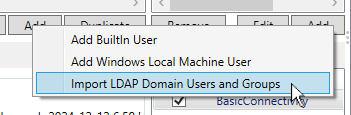
This opens the Import Accounts dialog.
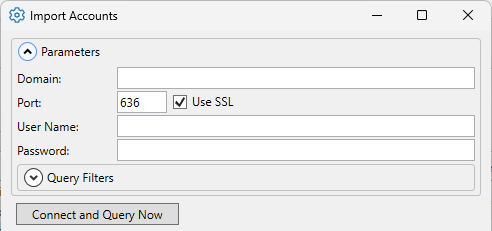
Enter the Domain and Port information as provided by your network security administrator.
Enter your LDAP user name and password credential that is authorized to connect to and query the LDAP server.
Press the button to populate the Account List.

Filtering the List
The Query Filters section of the dialog lets you create filters to show specific parts of the list.
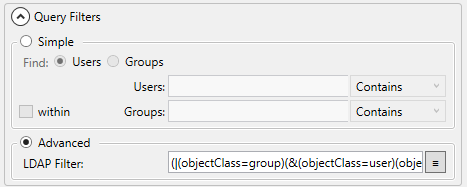
The options allow you to filter on just Users, just Groups, or Users within Groups. Entering a string in either box will show just those items that contain that string. You can use the drop-down options on the right to specify an exact match, or starting, or ending with the string you've entered.
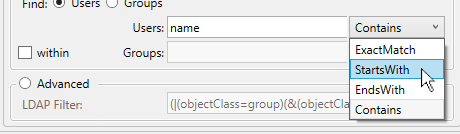
The Advanced filter lets you create and apply custom filters, using standard LDAP filter syntax.
In the list itself, you can use the Find search bar with its Match case and Show options to focus in on parts of the list. In most cases, the Simple query filter options should be adequate.

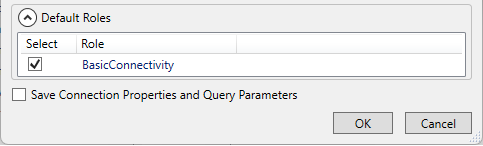
Default Roles
After you have successfully connected to the LDAP server you can assign default roles for all selections.
![[Note]](images/note_1156523861.png)
You can add to the Default Roles list in the Settings tab by entering additional role names, separated by commas.

You can check this box to avoid having to re-enter the parameters each time you want to import an account.
Once you have filtered the list and set these options as needed, you can continue.
Check the Select box for each user or group you would like to import.
Press the button to confirm and close the dialog.
Now any user on the LDAP server that you've authorized has access to the corresponding principles, roles, and permissions.
| |
|