Chapter 12. Using MQTT
MQTT is a publish/subscribe messaging protocol. It allows data sources and users called clients to connect to a server called a broker, and exchange their data through it. Clients can act as both publishers and subscribers simultaneously. The DataHub program provides both MQTT client and MQTT broker functionality.
Because it is a messaging protocol, MQTT is different from a data communications protocol. MQTT acts as a data transport layer, similar to TCP, but it does not specify a particular format for the data payload. The message format is specified by a client when it connects. Any clients that want to connect to each other must use the same message format. The broker, of course, must also use that same message format.
12.1. Connecting Incoming MQTT Clients
The DataHub MQTT Broker offers two modes of operation: standard and gateway.
![[Important]](images/important_2051192373.png) | |
You must allow Remote Connections in Security for any incoming connections over the network. |
Standard MQTT Broker Mode
In standard MQTT broker mode the DataHub MQTT Broker simply passes messages from one client to another, and the messages remain completely independent of the DataHub program's data set.
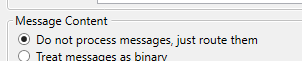
To configure the DataHub MQTT Broker as a stand-alone broker, simply select the Do not process messages, just route them option in the Message Content section of the MQTT Broker configuration.
Gateway Broker Mode
In gateway mode you can integrate MQTT messages with the DataHub data set, as normal DataHub data points. Here is how you configure a DataHub instance for each of these modes. There are three options for gateway mode:
Binary messages are Base-64 encoded and stored in DataHub points as strings.
Text messages are interpreted as UTF-8 text stored in DataHub points as strings.
JSON messages get interpreted by the DataHub instance as data point values that can have associated quality, timestamps, and so on.
For more information about these options, please refer to Message Content for the MQTT Broker.
Changing the JSON client message format
The DataHub MQTT Broker's default JSON message format looks like this:
{ "Value": {value}, "Quality": {quality},
"Timestamp": {jsontimestamp}, "SenderId": {sender} }
This JSON format allows the DataHub instance to assign an MQTT topic to a data point, and send or receive a value, quality, timestamp, and sender ID for that point. To connect a client that uses a different JSON message format, you need to change this default format for that client's format, as follows:
With a DataHub instance running, right click on the DataHub system-tray icon and choose .
In the Properties window, select MQTT Broker.

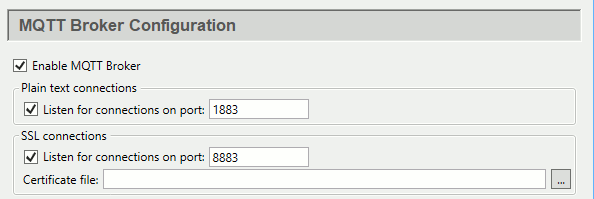
In the Message Content section ...
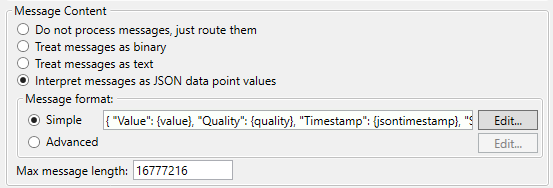
press the button to open the Configure Parser window:
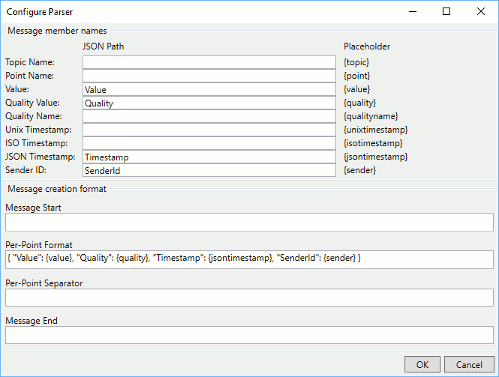
If you know the client message format
In the Per-Point Format field, enter your MQTT client message format.
Click and then to save your settings.
Make any other desired changes to the MQTT Broker configuration as described in Section 3.13, “MQTT Broker”.
The DataHub MQTT Broker is now configured for your MQTT client.
If you want to accept any client message
In the Per-Point Format field enter just the string:
{value}.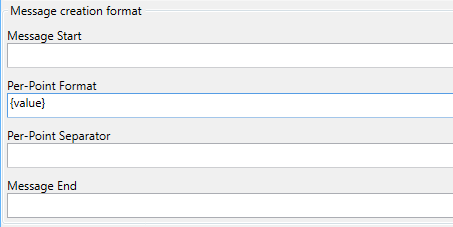
Delete any entries in the Message Start, Per-Point Separator, and Message End fields.
Click and then to save your settings. Your Message format should now look like this:

Now the DataHub instance will accept any client message, parsing it as follows:
Numbers without decimal points become integer values.
Numbers with decimal points become real values.
Everything else becomes a text string.
If you want to discover and use the client message format
If you don't know the client message format, but want to use it as the DataHub MQTT message format, you can use the
{value}message format to discover it, as follows:Ensure that the DataHub MQTT Broker is configured with the
{value}message format, as described above.Start your MQTT client, connect to the MQTT Broker, and send a message. For example, here is a message that is not in the DataHub program's default message format, but can write to the point
MQTTBroker:DataPid.PID1.Mvin the DataHub instance.[{ "VAL": 33, "TPC": "DataPid/PID1/Mv", "TS": 1548276263.866, "QTY": 192, "ID": "" }]When the DataHub MQTT Broker receives this message, you will be able to see the entire, unparsed string as the value for a point in the Data Browser. The point is in the domain that you have configured for the MQTT Broker.
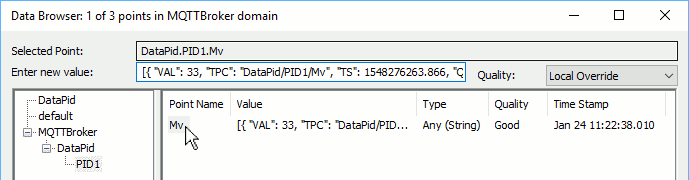
Click on the point name to display the value in the Enter new value field.
Copy the complete string and paste it into the Per-Point Format field of the Configure Parser window of the DataHub MQTT Broker configuration.
Remove the outer pair of square brackets (
[and]) from the string, and replace the values of the parameters with the placeholder values, like{topic},{value},{quality}, etc.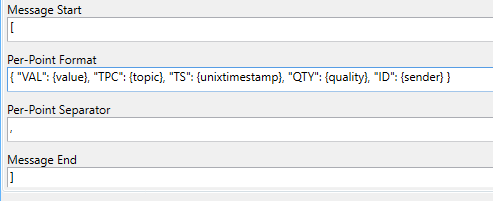
Restore the entries for Message Start (
[), Per-Point Separator (,), and Message End (]) fields.Click and then to save your settings.
Make any other desired changes to the MQTT Broker configuration as described in Section 3.13, “MQTT Broker”.
The DataHub MQTT Broker is now configured for your MQTT client. If you push a message from the client with a new value, that value should appear in the Data Browser.
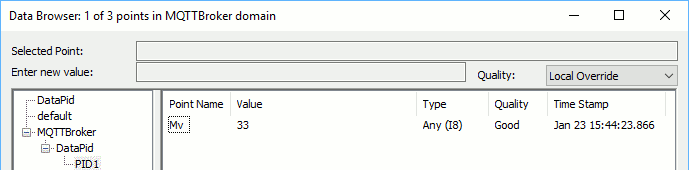
To make the MQTT connection, use the IP address of the computer running the DataHub instance, and the port that you have configured. The defaults are
1883for plain text and8883for SSL.![[Note]](images/note_1156523861.png)
The DataHub MQTT Broker does not support WebSocket connections for MQTT.