3.3. OPC UA
 | The OPC UA option lets you configure the DataHub program to act as an OPC UA (Unified Architecture) server, an OPC UA client, or both simultaneously. For more information on OPC, please refer to Section 21.3.1, “OPC Protocol” and Appendix 6, OPC Overview. |
![[Note]](images/note_1156523861.png) | |
For step-by-step instructions to configure a DataHub instance as an OPC UA client or OPC UA server, along with more information about the DataHub program's implementation of the OPC UA standard, please refer to Chapter 7, OPC UA Connections. |

OPC UA Client
The DataHub program can act as a client to OPC UA servers.

Check the box to activate OPC UA client functionality. Since a DataHub instance can be a client to more than one OPC UA server, you need to specify server information for each OPC UA client connection. Once you have a server listed, you can activate or deactivate the connection using its On check box.
To add a server, press the button to open the Configure OPC UA Data Access Server window described below. To edit a server, double-click it or select it and press the button to open that window. To remove a server, highlight it and click the button.
The Configure OPC UA Data Access Server Window
To define or change an OPC UA server connection, click the or button to open the Define OPC Server Window:
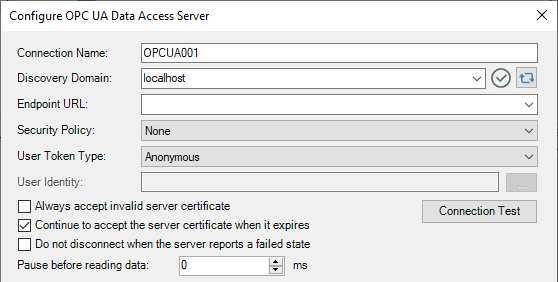
- Connection Name
A name used by this DataHub instance to identify the connection. It doesn't matter what name is chosen, but it should be unique to other connection names.
- Discovery Domain
A list of UA Discovery Servers to which you can connect.
- Endpoint URL
A list of available Endpoint URLs for the chosen Discovery Server. For each Discovery Domain, the system will attempt to list its endpoint(s), providing feedback as follows:

Indicates that the endpoint discovery is in process. 
Indicates that the endpoint discovery has failed. 
Indicates that the endpoint discovery has succeeded. If a connection has already been configured, and the Configure OPC UA Data Access Server Window is opened for editing. the Endpoint URL will first appear as previously configured. The DataHub instance will then attempt to validate the endpoint, with the status icon changing first to In Process (
), and then to either Failure ( ) or Success ( ). If at any time you initiate a search by pressing
the server refresh button (  ), and the system fails to locate an endpoint URL,
then it will leave the Endpoint URL entry field
empty.
), and the system fails to locate an endpoint URL,
then it will leave the Endpoint URL entry field
empty.DataHub software supports OPC UA over both IPV4 and IPV6.
- Security Policy
A list of available security policies available on the OPC UA server for this connection.
- User Token Type
The log-in method used for this OPC UA server and session. Some possible options are:
- Anonymous
The UA server allows any user to connect.
- User Name
The UA server requires a user name and password.
- Another Certificate
The UA server requires a certificate other than your DataHub instance's own certificate.
- My Certificate
The UA server allows you to use your DataHub instance's own certificate.
- User Identity
This will change depending on the User Token Type (above), allowing for the entry of a certificate file path or a user name and password, as appropriate.
- Always accept invalid server certificate
Tells the client to always accept the server certificate, even if the certificate is invalid, or if it changes in the future.
![[Warning]](images/warning_2116355759.png)
Selecting this option will disable server certificate verification for this connection, exposing the connection to man-in-the-middle attacks. Use with extreme caution.
- Continue to accept server certificate when it expires
This option allows a UA certificate to be accepted outside of its valid time window, meaning that expired certificates can continue to be used. Checking this box also keeps the UA server and client connected if their system clocks ever get out of synch. And this option also supports connectivity for OPC UA clients running on embedded systems without system clocks, or whose system clocks cannot be adjusted.
If you are using the http protocol along with a security policy, then the clocks on the UA server and client machine must match within 5 minutes at all times. This is a requirement of the WCF subsystem that implements the HTTP security. If you are not able to synchronize the clocks on the server and client machines this closely, you should try either the opc:tcp or https protocol, which do not rely on WCF for the underlying security and so do not exhibit this problem.
- Do not disconnect when the server reports a failed state
By default, if the server is in a non-
RUNNINGstate the DataHub instance disconnects and puts a message in the Event Log. Checking this box lets you override that behaviour and maintain the connection to the server.- Pause before reading data
Specifies a time for the DataHub instance to pause before reading the OPC server's data set. Some OPC servers report that they are running, but have not yet constructed their full data set. If the DataHub instance attempts to browse the server immediately after connecting, it might get a partial data set. This option tells the DataHub instance to wait the specified amount of time after a successful connection before it browses the server’s data set.
- Connection Test
To test the connection, click the button. The system will open the Connection Test window, and you can watch as it checks the parameters, then creates a channel and session, and then activates the session.

If there is a problem at any point, the Message box will provide some trouble-shooting tips. The button restarts the test.
Data Transfer
There are several options for specifying how the data is to be transferred:
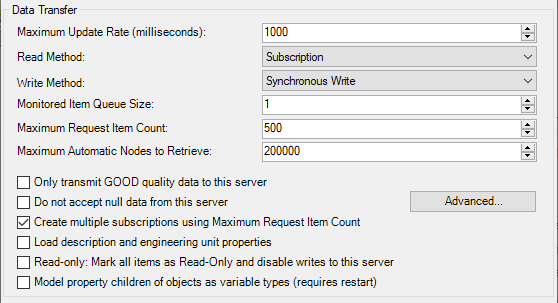
- Maximum update rate (milliseconds)
This option lets you specify an update rate, useful for slowing down the rate of incoming data. The minimum value is
10. This value is also used as the polling time for asynchronous and synchronous reads (see below).- Read Method
Choose how to read data from the OPC UA server:
Subscription The DataHub instance registers with the UA server for all configured points, to be received on an event-driven basis. Whenever a point value changes, the new value is sent immediately to the DataHub instance. This option is more efficient than Synchronous Read or Asynchronous Read, and has lower latency than either of them.
Asynchronous Read The DataHub instance polls the UA server for all configured points on a timed interval (set by the Maximum update rate), and does not wait for a reply. This option is less efficient than Subscription, and has higher latency.
Synchronous Cache Read and Synchronous Device Read The DataHub instance polls the UA server for all configured points on a timed interval (set by the Maximum update rate), and this thread waits for a reply. The difference between Synchronous Cache Read and Synchronous Device Read is the maximum age (maxAge). This mimics the cache and device reads in OPC DA, where a device read requests a new read from the underlying device. A device read can be substantially slower than a cache read.
Synchronous Cache Read is approximately equivalent to Asynchronous Read in terms of efficiency and latency. If you are trying to read data at a rate that is near the limit of the server's capability, Synchronous Cache Read is a better choice because it will naturally slow down to what the server can handle, whereas Asynchronous Read will generate overlapping requests that could ultimately result in the connection being closed by the server. For this reason, given a choice between these two, we recommend Synchronous Cache Read.
- Write Method
Choose how to write data to the OPC UA server:
Asynchronous Write The DataHub instance writes to the UA server and does not wait for a response. This provides the highest overall performance.
Synchronous Write The DataHub instance writes to the UA server and waits for a response each time. This elicits a quicker response for a given item from the UA server, but results in lower overall performance. This option is useful if the UA server doesn't support asynchronous writes at all, or if it can't handle a large number of them.
- Monitored Item Queue Size
The maximum number of items between polls that get stored on this server.
- Maximum Request Item Count
The OPC UA spec allows a UA server to specify the number of items it will allow per request. Here you can adjust the DataHub default of
500to what the server allows, if necessary.- Maximum Automatic Nodes to Retrieve
Allows you to change the number of nodes that the DataHub instance will attempt to retrieve when you choose Load All Nodes on Server. If you are working with a server with a large number of nodes, you can increase this value. Be aware that very high OPC UA point counts will have a substantial effect on the DataHub instance’s memory usage.
- Only transmit GOOD quality data to this server
Restricts point updates from the DataHub instance to the server to only those with "Good" quality.
- Do not accept null data from this server
Restricts point updates from the server to the DataHub instance to only those with non-null values.
- Create multiple subscriptions using Maximum Request Item Count
The Maximum Request Item Count (above) specifies the maximum number of nodes per subscription. With the Create multiple subscriptions... option checked (the default), the DataHub instance will use this number to decide the maximum number of nodes per subscription. However, if this number is small and the total number of nodes is large then the number of requested subscriptions could exceed the subscription count limit of the server. Unchecking this box will solve that problem by putting all of the nodes into a single subscription.
- Load description and engineering unit properties
causes the DataHub instance to load any engineering unit and range information associated with each point. These values are then made available to all DataHub clients, and are displayed in the DataHub Data Browser. Activating this feature will increase the time needed for making the initial connection to the server.
- Read-only: Mark all items as Read-Only and disable writes to this server
Lets you specify that the connection to the OPC server be read-only, regardless of how individual items are specified. Items in the DataHub instance that originate from such an OPC server will be read-only to all DataHub clients. The DataHub instance will reject any attempt to force the value of a point when the server is marked as read-only.
- Model property children of objects as variable types (requires restart)
Normally an OPC UA property will be modeled in OPC DA as a property. In OPC UA properties can be direct children of either structural nodes, like objects, or value nodes. Similarly in OPC DA, properties can be direct children of branches or leaves. The DataHub program attempts to preserve this structure as much as possible. However, many OPC DA clients cannot subscribe to properties, making the UA properties inaccessible to those OPC DA subscriptions. Selecting this option will promote OPC UA properties that are direct children of structural nodes to become values, which will in turn promote them to leaf items in OPC DA. This option will not have an effect if the parent of the property is a value node in OPC UA, because promoting the property to be a value child of a value would make it unrepresentable in OPC DA.
Changing this option may require restarting the DataHub instance for its effects to apply.
OPC UA communication is governed by a number of timeout and length limits. Normally you do not need to adjust these, but in some cases you may need to extend timeouts for poorly behaved networks, or to reduce message length limits to accommodate servers with limited buffer sizes. Most commonly you would need this with resource-constrained embedded servers.
Clicking the button opens the Advanced Connection Settings window:
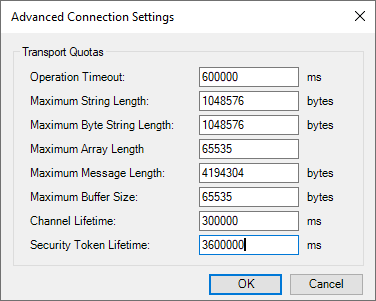
Here you can enter the following Transport Quotas:
Operation Timeout: If a network operation does not complete within this time, abandon the operation. This will normally cause the DataHub instance to drop the connection and re-attempt it after a few seconds.
Maximum String Length: The longest permissible string, in bytes. UTF-8 strings may use up to 5 bytes per character.
Maximum Byte String Length: The longest permissible byte string (data type
Byte
										String
), in bytes. Byte strings are uninterpreted sequences of bytes that may represent any data.Maximum Array Length: The maximum number of array members for any data value.
Maximum Message Length: The longest permissible message, in bytes.
Maximum Buffer Size: The maximum buffer size, in bytes. The buffer size determines how much data can be read in a single network read call and does not limit the maximum size of a message. You could use this setting to optimize memory usage or reduce the number of network reads in this DataHub instance.
Channel Lifetime: The lifetime of the client channel, in milliseconds. This specifies how long the server will keep a broken channel around while waiting for a client to reconnect.
Security Token Lifetime: The lifetime of a security token, in milliseconds. This specifies how long a security token can be used without renewal.
Item Selection
You can select all nodes, select nodes manually, or both.

- Load All Nodes on Server
With this option you can load all data nodes on the OPC UA server, or filter for groups of nodes.
When you choose this option, the DataHub instance is configured to provide all data nodes, but not the Server nodes. This is done as a convenience, because in most cases few, if any, Server nodes are needed. To additionally get Server nodes, you can select them manually.
- Manually Select Nodes
Select the option and press the button.
This opens the Configure Nodes window, where you can specify exactly which nodes you wish to use:
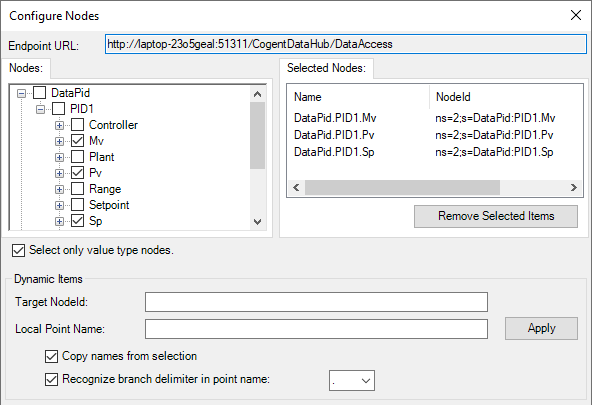
You can browse through the tree in the left pane, selecting points as you go. The selections will appear in the right pane. To view sub-branch and leaf items, click the
+sign in front of the item to show the children. You can select many items together like this:Expand all of the branches containing points that you want to add.
Click the name of the first point (not the check box).
Go down to the last point, hold down the Shift key and click the name. All of the names should become highlighted.
Press the Space Bar.
That should select all of the highlighted points. It will not select nodes that are not visible.
Selecting just a branch by itself will not include any of its sub-branches or leaves, but selecting a leaf item will automatically include all of its branches.
In the Remote Config tool, the following options are available:
Left-click the checkbox to select/deselect only that item.
Right-click the checkbox to select/deselect all direct children of that item, but not the item itself.
Control-right-click the checkbox to select/deselect all children of that item recursively, but not the item itself.
Checking the box will ensure that the only nodes you choose are data nodes.
A
+in front of an item does not necessarily mean that the item has children. You must click the+sign to find out.- Dynamic Items
This feature allows you to explicitly map OPC UA nodes to DataHub point names. Use this when you cannot find the node by browsing, or when the OPC UA server supports dynamically created nodes.
- Target NodeId
A text string to identify the node in the OPC UA server.
- Local Point Name
The name of the point within the DataHub instance to map to the Target NodeId.
- Copy names from selection
When checked, automatically fills in the Target NodeId and Local Point Name fields whenever you select a node in the Selected Nodes list.
- Recognize branch delimiter in point name
When checked, the Local Point Name will be split using the delimiter character, and a DataHub point hierarchy will automatically be created. For example, if the point name is
Plant1.Tank2.Temperatureand the delimiter is a dot character, then this will automatically create a root branch namedPlant1and a sub-branch withinPlant1namedTank2, then add a point namedTemperaturewithin theTank2branch. When unchecked, the point name will be created without modification in the root of the target data domain.
Changes in this Dynamic Items section are applied to the Selected Nodes list when you press the button.
- Data Domain Name
The name of the DataHub domain into which the data points will be placed.
Alarms and Conditions
This feature allows the DataHub instance to function as an OPC UA Alarms and Conditions client. It will read alarms and conditions from the server and write the resulting information to the specified data domain. The data generated from this connection is compatible with DataHub OPC A&E Classic data format, allowing the DataHub instance to convert OPC UA Alarms and Conditions to OPC A&E.

| |
The Alarms and Conditions feature requires a separate license, in addition to the OPC UA license. |
- Read alarms and conditions
Enables OPC Alarms and Conditions support. You can keep the default DataHub domain,
OPCAE, or enter a different one. If you configure the DataHub OPC A&E and/or OPC A&C servers to use the same data domain, then these alarms and conditions will be made available to any attached OPC A&E and OPC A&C clients.- Accept incomplete acknowledgement information
This option tells the DataHub A&C feature to acknowledge an alarm when a non-zero value is written to the
OPCAE:Ack.point. Normally, you must write a complete acknowledgement string that includes a user name, message, timestamp and cookie in order for an acknowledgement to be accepted. This option will accept any non-zero value as sufficient information for acknowledgement.condition_name- Append NodeIDs to condition names
Some OPC UA servers generate conditions that have identical condition and source names, but different node IDs. These conditions represent independent conditions, but overlap because they share the same source and condition name. Selecting this option appends the UA
NodeIdto the condition name to make it unique.
A connection status point is available for monitoring the connection. Please see A&E / A&C Connection Status Point for more information.
OPC UA Server
The DataHub program can act as a server to any number of OPC UA clients.

| |
Any changes made here will restart the OPC UA server when you click the button. |
Check the box and click the button to have the DataHub instance function as an OPC server. You can choose one or more of the available protocols, modify the default selection using the option (explained below), or change the port number by double-clicking or using the button. You can also use the button to make a copy of this server's endpoint.
- Computer Name/IP
The host name or IP address of the computer on which the DataHub instance is running. This will be integrated into the server URL visible to a connecting client. The default is the host name.
- Endpoint Name
The endpoint name that will be integrated into the server URL visible to a connecting client. The default is
CogentDataHub/DataAccessServer.Some UA clients cannot connect to a UA server unless the server name is left blank. For these cases, the DataHub program can be configured with a blank server name as follows:
Clear the Endpoint Name entry field so that it is blank.
Uncheck the and protocols, as these are not supported when the Endpoint Name is blank.
Click to save the changes.
The DataHub UA server will restart with a blank user name, allowing a UA client to connect to it using a simple Endpoint URL, for example:
opc.tcp://192.168.1.1:52310/
Some UA clients may require some or all of the following information about the DataHub OPC UA server:
Namespace http://www.cogentdatahub.com/DataHub
Namespace ID
2ID type This information should not be exposed to the user.
NodeID syntax The syntax of NodeIDs in a DataHub instance is
ns=2;s=. The namespace is alwayspointname2. For example:ns=2;s=DataPid:PID1.Mv.Type Typically the canonical type of the node (ID above) retrieved from the server through a client request.
Access to data point The client application developer will need to provide this information, such as read-only or read-write.
DataHub software supports OPC UA over both IPV4 and IPV6.
- Advanced
The default configuration covers most typical client connection requirements. If you need to modify these, you can click the button.
Advanced
Clicking the button opens the UA Server Properties window:

This window allows you to configure the following options for how DataHub instance functions as a UA server: Some of these settings will require you to restart the OPC server, others will not, as indicated.
- General
Allows you to specify the security policies for each endpoint.
Any changes made here will restart the OPC UA server when you click the button.
- Server URL
Allows you to choose the server endpoint for the security and user token policies explained below. The URL for the service endpoint is constructed from the Protocol, Computer Name/IP, Port and Endpoint Name, shown and/or described above.
- Security Policies
- None
Authentication, but no encryption.
- Basic128Rsa15
Authentication and encryption (AES, key length 128).
- Basic256
Authentication and encryption (AES, key length 256).
- User Token Policies
The authentication options available, which are used when starting a session. Multiple options can be selected, and are applied consecutively.
- Anonymous
No authentication.
- UserName
Authenticates with a user name and password.
- Certificate
Authenticates using a certificate.
- Client Certificate Receiving
- Automatically accept untrusted certificates
Checking this box will allow any client on the network to connect to this DataHub instance without verification. Use with extreme caution.
If this option is selected, any client attempting to connect will be accepted temporarily. Its certificate will be placed in the Temporary Certificate Store, and stay there as long as DataHub instance continues to run. When the DataHub instance shuts down, all certificates in the Temporary Certificate Store get deleted.
To become permanent, a certificate in the Temporary Certificate Store must be accepted, which puts it into the OPC UA Client Certificate Store. Any client whose certificate is in the OPC UA Client Certificate Store can connect whenever this DataHub instance is running, whether Automatically accept untrusted certificates is selected or not.
- Continue to accept client certificates when they expire
This option allows a UA certificate to be accepted outside of its valid time window, meaning that expired certificates can continue to be used. Checking this box also keeps the UA server and client connected if their system clocks ever get out of synch. And this option also supports connectivity for OPC UA clients running on embedded systems without system clocks, or whose system clocks cannot be adjusted.
If you are using the http protocol along with a security policy, then the clocks on the UA server and client machine must match within 5 minutes at all times. This is a requirement of the WCF subsystem that implements the HTTP security. If you are not able to synchronize the clocks on the server and client machines this closely, you should try either the opc:tcp or https protocol, which do not rely on WCF for the underlying security and so do not exhibit this problem.
- Alarms and Conditions
This feature allows the DataHub instance to function as an OPC UA Alarms and Conditions server. It reads its alarm information from the specified data domain, which in turn can be populated by any attached OPC A&E server, OPC A&C server, DataHub tunnel, redundancy pair or DataHub Notification action. Among other things, this allows the DataHub instance to convert OPC UA Alarms and Conditions to OPC A&E, and vice-versa.

The Alarms and Conditions feature requires a separate license, in addition to the OPC UA license.
- Enable OPC Alarms and Conditions server
Check the box to enable OPC A&C server functionality. You can keep the default DataHub domain,
OPCAE, or enter a different one. If you use the same data domain here that you use for the OPC A&E server, the OPC A&E client and the OPC A&C client settings, then the DataHub instance will automatically convert among OPC A&E and OPC A&C clients and servers.
A connection status point is available for monitoring the connection. Please see A&E / A&C Connection Status Point for more information.
- Advanced
Changes made here will not restart the OPC UA server.
- Server Diagnostics

Allows you to enable or disable diagnostics, which may appear in the Event Log or node configuration.
- Operating Limits

The Operating Limits allow you to limit the number of sessions and subscriptions on the UA server. A session is a connection, made over a secure channel, which offers the UA client a means to create one or more subscriptions. Each subscription is a selection of monitored items, or in our case, DataHub points. If either of these boxes is not checked, then no limit is applied.
- Options

The option helps to ensure a connection gets made despite any differences in clock times between the client and server.
The option is provided to allow this DataHub instance to dynamically add items as clients request them. To be OPC compliant, the DataHub program would normally return an error if a client requests an item that does not currently exist. The primary purpose of this option is to eliminate a start-up race condition where a client using a data item starts before the data item is available from its source. With this option checked, this DataHub instance will create the item with a null value and bad quality, and return it to the client. Later, when the item's source becomes available, the DataHub instance will be able to update the client with the correct value.
![[Important]](images/important_2051192373.png)
This box must be unchecked for the DataHub instance to be fully OPC UA compliant.
The option is on by default. Disabling it prevents the UA server from adding the point name to the OPC UA description field. Instead, a value of
nullwill be sent as the node description.
- Registration of UA Server

The Discovery Server URL default entry of
localhost:4840is used when this DataHub instance acts as the Discovery Server. As4840is the OPC UA specified port for a Discovery Server, we don't recommend changing it without good reason.
- HTTP Access Rules

A list of HTTP endpoints for which permission is granted to OPC UA clients to connect. These cannot be added to or modified, but can be removed from the list by selecting one or more, and pressing the button.
- SSL/TLS Bindings

Provides the details about available SSL/TLS bindings, including the IP Address, Port, and Subject Name, in which
CNis the "Common Name" or application name, andDCis the machine name. The Thumbprint is the output of the certificate’s hash function.
Server Information

- Status
Indicates the server status, such as
Shutdown,Start Server,Running,Stopping, etc.- Sessions
The total number of connections from all UA clients, each of which may include one or more subscriptions.
- Subscriptions
The total number of subscriptions from all clients, each of which may contain one or more selections of monitored DataHub points. Subscriptions may migrate from one session to another, if a session gets terminated.
- Server Status...
This button opens the OPC UA Server Status window:

This window provides more information about each session. Clicking on a session displays details about each of its subscriptions.
Certificates

OPC UA security is managed using certificates. When an OPC UA client and server communicate, they exchange certificates to ensure each other's validity. The following options let you determine which certificates are used, and how they are managed.
- Rejected Certificates
The number of security certificates in the Rejected Certificate Store. This status can be changed by clicking , or .
- Temporary Certificates
The number of security certificates in the Temporary Certificate Store. This status can be changed by clicking , or .
- Manage Certificates
This button opens the Manage Certificates in Certificate Store window:

- Certificate Store
Lets you choose which certificate store to display:
(not trusted)
(not in the Windows certificate store)
(in the Windows certificate store)
(valid for this session only)
- Filters
Allow you to filter the certificates listed according to name, domain, and issuer name, as well as certificate type, and whether the certificate has a private key.
- Actions
Using the buttons or the right-click context menu, you can other certificates, or select a certificate and , , it. You can also it for the private store or it for the Windows certificate store.
- Reload Configuration
Reloads your entire OPC UA configuration

- Application Certificate
Allows you to view the certificate assigned to this DataHub instance.
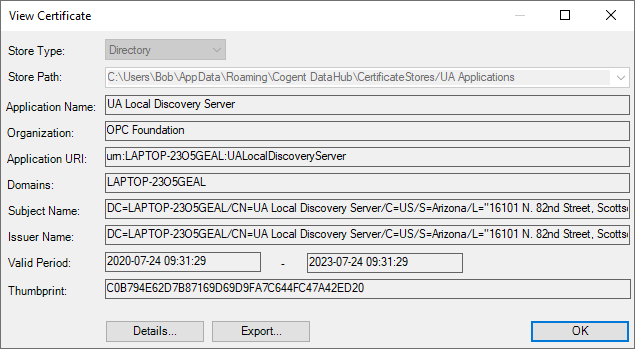
- Store Type
The type of store for this certificate.
- Store Path
The file path to the directory store. If the Store Type is
Directory, it will be in the path.- Application Name
The name of the application, typically
DataHub Data Access Server.- Organization
The organization name.
- Application URI
A URI that uniquely identifies the application.
- Domains
The host name.
- Subject Name
The subject name of the certificate, in which
CNis the "Common Name" or application name, andDCis the machine name.- Issuer Name
The publisher of the Subject Name that issued the certificate.
- Valid Period
The period of time that the certificate is valid.
- Thumbprint
The certificate's thumbprint.
- Details
Opens the View Certificate Details window that displays the above information, and additional details.
- Export
Writes the certificate to a file in your file system, without a key. This is necessary when a UA application needs to manually install the certificate.
- Assign
Lets you assign a different certificate to the DataHub program. It must contain a private key to be able to be assigned.
- Regenerate
Regenerates the certificate. This is useful if you think that the certificate has been compromised, or if you change your computer name. Regenerating the certificate automatically restarts the OPC UA server.