3.4. OPC DA
 | The OPC DA option lets you use the DataHub program as an OPC DA server, an OPC DA client, or both simultaneously. For more information on OPC, please refer to Section 21.3.1, “OPC Protocol” and Appendix 6, OPC Overview. |
![[Note]](images/note_1156523861.png) | |
For step-by-step instructions to configure the DataHub program as an OPC DA client, please refer to Section 2.3, “Connect to an OPC DA server”. |

OPC DA Client
The DataHub program can act as a client to one or more OPC DA servers.
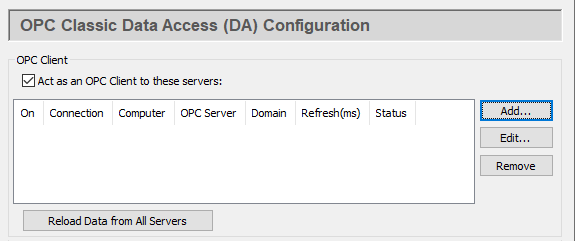
Check the box for OPC DA client functionality. Since a DataHub instance can be a client to more than one OPC server, you need to specify server information for each OPC client connection. Once you have a server listed, you can activate or deactivate the connection using its On check box.
To add a server, press the button to open the Define OPC Server window described below. To edit a server, double-click it or select it and press the button to open that window. To remove a server, highlight it and click the button.
Pressing the button causes the DataHub instance to disconnect from all OPC DA servers, and then reconnect and refresh the data set for each server.
The Define OPC Server Window
To define or redefine an OPC DA server connection, click the or button to open the Define OPC Server Window:
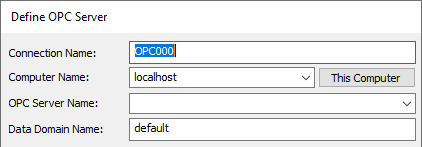
- Connection Name
A name used by the DataHub instance to identify the connection. There should be no spaces in the name. It doesn't matter what name is chosen, but it should be unique to other connection names.
- Computer Name
The name or IP address of the computer running the OPC server you want to connect to. Select it from the drop-down list, or type it in.
- OPC Server Name
The name of the OPC server that you are connecting to, selected from the list of available servers.
- Data Domain Name
The name of the DataHub domain in which the data points are received.
Data Transfer
The DataHub program supports OPC DA 2.0 and OPC DA 3.0 client protocols. DA 3.0
support consists of browsing support and support for the
WriteVQT (Value, Quality, Timestamp) methods of the DA
3.0 specification. Normally, a DataHub instance will determine whether a particular
server is DA 3.0 compliant based on the registry entries made by the server when it
was installed.
If the server is DA 3.0 compliant, then the DataHub instance will always use DA 3.0 browsing, as it is substantially faster than DA 2.0 browsing. If the server claims to be DA 3.0 compliant, but does not offer the DA 3.0 browsing interface, the DataHub instance will attempt to drop back to the DA 2.0 browsing interface.
In some cases, the server's DA 3.0 compliance cannot be determined. This is true
if the server name is specified as a GUID in the form
{nnnnnnnn-nnnn-nnnn-nnnn-nnnnnnnnnnnnn
| |
For testing purposes, there is also a registry key that can be used to
globally override the use of DA 3.0 browsing for all OPC connections. If the
HKEY_CURRENT_USER\Software\Cogent\Cogent DataHub\BrowseDA3 exists, its value will be interpreted as follows:
Since this key is global to all OPC client connections, it should not be created at all unless a particular testing scenario requires it. The setting will take effect the next time a connection to the OPC server is made. |
With all of these considerations in mind, you have several options for specifying how the data is to be transferred:
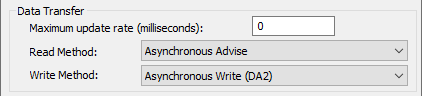
- Maximum update rate (milliseconds)
This option lets you specify an update rate, useful for slowing down the rate of incoming data. The default is
0, which causes values to be updated as soon as possible. This value is also the polling time used by asynchronous and synchronous reads (see below).- Read Method
Choose how to read data from the OPC server:
Asynchronous Advise The OPC server sends a configured point's data to the DataHub instance immediately whenever the point changes value. This is the most efficient option, and has the least latency.
Asynchronous Read The DataHub instance polls the OPC server for all configured points on a timed interval (set by the Maximum update rate). This option is less efficient than Asynchronous Advise, and has higher latency.
Synchronous Cache Read The DataHub instance polls the OPC server for all configured points on a timed interval (set by the Maximum update rate), and this thread waits for a reply. This option is less efficient than Asynchronous Advise or Read, and has higher latency than either of them.
Synchronous Device Read The DataHub instance polls the PLC or other hardware device connected to the OPC server for all configured points on a timed interval (set by the Maximum update rate), and this thread waits for a reply. This is the least efficient of all of these options, and has the highest latency.
- Write Method
Choose how to write data to the OPC server:
Asynchronous Write The DataHub instance writes to the OPC server and does not wait for a response. This provides the highest overall performance.
Synchronous Write The DataHub instance writes to the OPC server and waits for a response each time. This elicits a quicker response for a given item from the OPC server, but results in lower overall performance. This option is useful if the OPC server doesn't support asynchronous writes at all, or if it can't handle a large number of them.
For these options, the DA 2.0 write methods only transmit a point's value, allowing the server to assign a quality and timestamp as it sees fit. The DA 3.0 methods (
WriteVQT, supported by DA 3.0 servers only) transmit the Value, Quality, and Timestamp of a point.
Options
There are several optional entries:
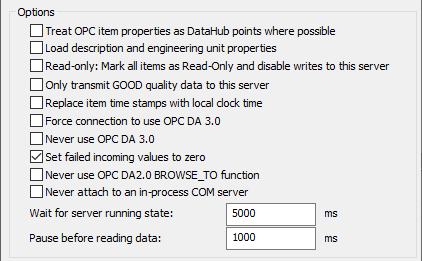
- Treat OPC item properties as DataHub points
This option lets you register and use each OPC item property as a point in the DataHub instance.
![[Important]](images/important_2051192373.png)
Some OPC servers are slow to register their OPC items and properties. Using this option with one of these servers can significantly slow the start-up time of the DataHub program.
- Load description and engineering unit properties
This causes the DataHub instance to load any engineering unit and range information associated with each point. These values are then made available to all DataHub clients, and are displayed in the DataHub Data Browser. Activating this feature will increase the time needed for making the initial connection to the server.
- Read only: Mark all items as Read-Only
Here you can specify that the connection to the OPC server be read-only, regardless of how individual items are specified. Items in a DataHub instance that originate from such an OPC server will be read-only to all DataHub clients.
- Only transmit GOOD quality data to this server
This option prevents any data except that with a quality of
Goodfrom being sent to the OPC server.- Replace item time stamps with local clock time
This option allows you to set the timestamps for the items from this server to local clock time.
This setting will allow the user to choose the DA 3.0 write methods from the Write Method drop-down box. It will also instruct the DataHub instance to attempt to browse the server using DA 3.0 browsing. This setting will override any automatic information that the DataHub instance may determine about the server based on the server's registry entries.
This setting will remove the DA 3.0 write methods from the Write Method drop-down box, and will instruct the DataHub instance to only use DA 2.0 browsing. This setting will override any automatic information that the DataHub instance may determine about the server based on the server's registry entries.
The OPC spec requires an OPC server to send an
EMPTY(zero) value whenever it sends a failure code in response to an item change or a read request. Some OPC servers, however, send a valid value with the failure code under certain circumstances. To ignore any such value from the OPC server and assumeEMPTY, keep this box checked (the default). If instead you want to use the value supplied by your OPC server, uncheck this box.Unchecking this box will make this DataHub instance's behavior non-compliant with the OPC specification.
This setting will disallow the
BROWSE_TOfunction when communicating with OPC DA 2 servers. Sometimes an OPC server will have problems with this function that prevent the DataHub program from connecting to it. Checking this box might allow the connection to be established in those cases.Most vendors include both an in-process and out-of-process COM server with their OPC server installation. If both options are available, the DataHub instance connects to the in-process server, as it is generally the better choice. This option forces the DataHub instance to consider only out-of-process servers.
Why is this useful? An in-process server is implemented as a DLL that is loaded into the client's address space. This makes the client very dependent on the good implementation of the server. If there is a crash in an in-process server, the client also crashes. An out-of-process server is implemented as a separate executable. The client communicates with an out-of-process server using the inter-process communication mechanisms in DCOM. In theory an in-process server will be faster than an out-of-process server, but sometimes the in-process server is less robust than the out-of-process server and leads to instability or malfunction in the client.
The
VT_EMPTYcanonical type may be incompatible for a particular combination of OPC server and client. For example, some clients or servers that were built before 64-bit integers were common may fail when presented with a 64-bit number. These options ( and ) allow you to enable or disable theVT_EMPTYcanonical type, either for trouble-shooting or as a permanent part of your configuration.See above.
Every OPC server takes a little time to initialize before it will allow client connections. This option lets the user specify the time to wait for the OPC server to initialize. The wait time is a maximum; if a server initializes before this time, the DataHub instance will connect right away. If the server doesn't initialize within this time, the DataHub instance will report this in the Event Log, and then try to connect anyway.
This parameter specifies a time for the DataHub instance to pause before reading the OPC server's data set. Some OPC servers report that they are running, but have not yet received the full data set from the process. If the DataHub instance attempts to connect right away, it might get a partial data set. The pause is fixed; it will always last for the full time specified.
The two above times are added together. The DataHub instance will wait until the server is initialized (or until the specified "wait" period is complete) and then pause for the specified "pause" time, before trying to read data from the server. For example, with the defaults of
5000and1000, at least 1 second and at most 6 seconds will elapse before the DataHub instance tries to read the data set.
Item Selection
You can select all items, filter for specific items, or select items manually.
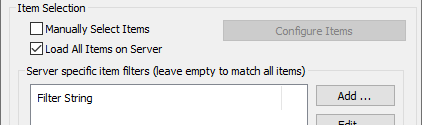
- Manually Select Items
Check the box and press the button to open the OPC Item Selection window, where you can specify exactly which points you wish to use:
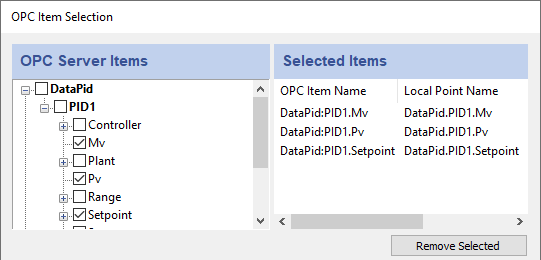
You can browse through the tree in the left pane, selecting points as you go. The selections will appear in the right pane. Follow these guidelines for making selections:
To select a server item from the right-hand pane, click its check-box.
To highlight a list of consecutive server items, click the first item, hold down the Shift key, and then click the last item. To highlight separate server items, hold down the Ctrl key as you click each item. To select a group of highlighted items, use the Spacebar.
Selecting a server item does not automatically add any of its child items. Each child item must be added separately. To view child items, click the
+sign in front of the item. If an item has one or more children that have been selected, the item name(s) will appear in bold.To delete selected items from the right-hand pane, highlight them and press the button. Use the Shift and Ctrl keys as above to highlight groups of selected items.
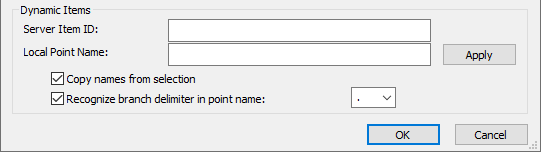
You may also configure dynamic items on the server. As you type in the Server Item ID, the system will fill in an identical DataHub Point Name for you (which you can change at any time). Press the Enter key or the button to create the item. Checking the box will fill in the entry with the name you select from the Selected Items list (above). The option lets you select and apply a point delimiter for your dynamic items.
- Load All Items on Server
In addition to manually loading items, you have the option in the Define OPC Server dialog to register all points, or filter for groups of points, from the OPC server.
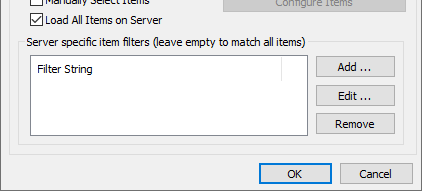
In the Server specific item filters area you can enter one or more strings to filter for groups of items in the OPC server. Use the or button to open the Edit a filter string window:

Enter a string that matches an item name, or a pattern to match multiple names. Each OPC server has its own syntax for pattern matching, so you may have to experiment a little to get exactly the points you need. Commonly, the symbol
*matches any number of characters, while the symbol?often matches a single character. In that case, an entry of?a*would bring in all items withaas the second letter in their names.
OPC DA Server
The DataHub program can act as a server to any number of OPC DA clients.

Check the box to have the DataHub program function as an OPC DA server.
| |
If your OPC client requires that you hand-enter the OPC server name, use
either |
The option tells the DataHub instance not to alter its registry settings. This is useful if you want to use the DataHub instance with a redundancy server or some other program that modifies DataHub registry independently. Without this box checked, the DataHub program will overwrite any external changes when it starts or when a change to the status is applied.
These two boxes work together, because turning the OPC server behavior on or off necessarily makes changes to the registry. Here is how you can change OPC DA server behavior when you also need to maintain registry settings:
Uncheck . This will make the checkbox visible.
Check or uncheck the as needed, and click .
Check and click .
The options
allow the DataHub instance to send VT_EMPTY canonical data types for
OPC DA2 clients, OPC DA3 clients, or both. By default the DataHub instance does not
send data with a canonical type of VT_EMPTY because many OPC DA2
clients will not accept that data type.
Leaving the option unchecked forces the server to send all values of
VT_EMPTY canonical type as 32-bit numbers.
Normally clients tell the server what number format they intend to accept, and
the server has the responsibility to provide that number format. However, a client
can send VT_EMPTY as the requested type, which means that the client will accept any
number format. Some clients that do this were built before 64-bit integers became
common, and fail when presented with a 64-bit number, even when they have requested
VT_EMPTY. Keeping this box unchecked (the default setting) prevents this from
happening. The options allow the DataHub instance to send
VT_EMPTY canonical data types for OPC DA2 clients, OPC DA3
clients, or both. By default the DataHub instance does not send data with a canonical
type of VT_EMPTY because many OPC DA2 clients will not accept
that data type.
The option is provided to allow the DataHub instance to dynamically
add items as clients request them. To be OPC compliant, the DataHub program would
normally return an error if a client requests an item that does not currently exist.
The primary purpose of this option is to eliminate a start-up race condition where a
client using a data item starts before the data item is available from its source.
The DataHub instance will create the item with a null value and bad quality, and return
it to the client. Later, when the item's source becomes available, the DataHub instance
will be able to update the client with the correct value. If the OPC client requests
an item ID without a colon character ( : ) to denote a domain,
the DataHub instance will assign the domain dynamic, inserting a
point called dynamic:, and
return success. pointname
The Serve only one data domain option configures the DataHub OPC
DA server to serve the data in just one DataHub data domain. Specify the domain name in
the drop-down list. Setting this option enables the Exclude domain name
from item IDs option, which when checked exposes the OPC items
without the DataHub-assigned domainname:
COM Security
If you need to connect a DataHub instance over a network and for some reason you can't use tunnelling, here is an option to facilitate COM configuration

Check the box Attempt to override application DCOM setting with minimum security settings to relax COM security. This setting will override the COM permission settings for the application, but will not override the system's global COM restrictions. It is common for OPC DA servers to operate at minimal DCOM security settings, since high security interferes with connectivity and most control systems do not operate in hostile network environments. If in doubt, consult your system administrator.