Chapter 4. Other Windows and Programs
4.1. Data Browser
4.1.1. Overview
This window gives a real-time view into the DataHub program. You can open this window in either of two ways:
Click the button in the Properties window.
Right click the DataHub icon in the system tray and select from the pop-up menu.
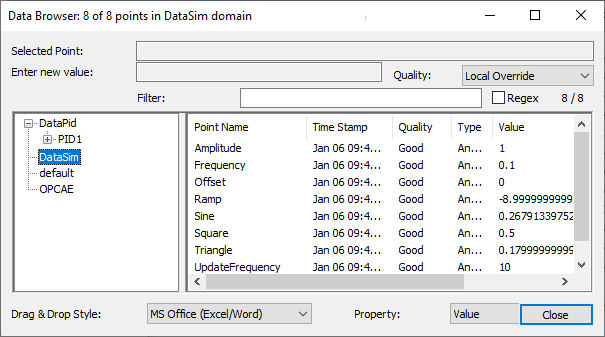
All data domains in the DataHub program are shown in the tree on the left, and all the points of the selected data domain are listed on the right. Clicking on a point name selects it, and puts its name into the Selected Point field at the top of the window. A snapshot of the value of the point at the time you clicked appears in the Enter new value field. You can change the value of the point by entering a new value in this field (i.e. type in the value and press the Enter key). You can also drag the column headers to change the order of the columns.
Point Filter
You can use the Filter option to display subsets of points, according to what you type in the entry field. Checking the box causes the DataHub instance to treat your entry as a regular expression. The native DataHub Properties window interface uses PCRE (Perl-Compatible Regular Expression) format, whose use and syntax can be found here. The Remote Config tool uses .NET regular expression format, whose use and syntax can be found here.

Origin column
The Origin column displays information about the source of the most recent change to the point. This information will be different depending on the type of the source.

The information in this column comes from the Connection Viewer window.

Drag and Drop Style and Property
There are several options for the drag and drop style, depending on the program in which you want to place the data. In addition, there is a Snapshot (Plain Text) option that allows you to put in labels and data properties that don't change.
The Data Browser also provides a way to select the Property of a data point to drag and drop, such as timestamp, quality, and point type.
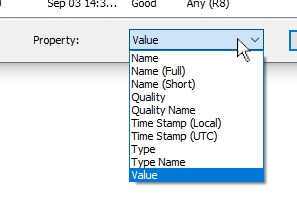
The following properties are available:
- Name
The name of the point, including its data hierarchy of assemblies, subassemblies, attributes, and properties, if any. For example:
PID1.Range.Amplitude
- Name (Full)
The name of the point, including its data hierarchy and also domain name. For example:
DataPid:PID1.Range.Amplitude
- Name (Short)
The short name of the point, without any of the data hierarchy. For example:
Amplitude
- Quality
The quality of the point, an integer.
- Quality Name
A text string that corresponds to the integer value of the quality of the point.
- Time Stamp (Local)
The local time stamp, in seconds. In Excel, you can format this using a custom format for the cell. For example, to display the data and time to the nearest millisecond in a worksheet cell, you can use
m/d/yyyy h:mm:ss.000as your custom format. Note that the milliseconds use a dot, not a colon.- Time Stamp (UTC)
The UTC time stamp, in seconds. You can format this in Excel using a custom format, as explained above.
- Type
The type of the data contained in the point, as an integer.
- Type Name
A text string that corresponds to the integer value of the data type.
- Value
The value of the point.
4.1.2. Point meta information
It is possible to copy meta information such as name, value, and a JSON representation from a data point or any level of a branch.
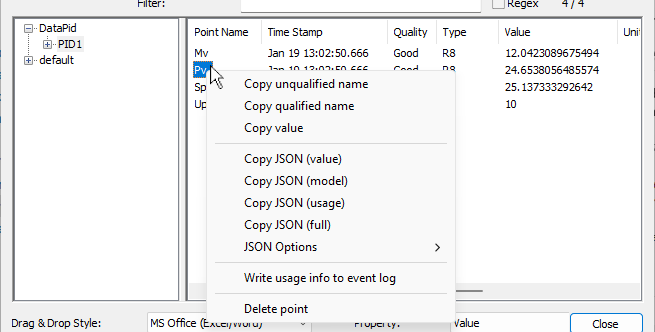
In the Properties window Data Browser you can use the Shift key to select multiple points.
In the Remote Config Data Browser, you can drag the mouse to select multiple points.

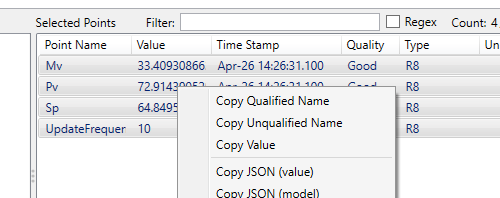
The following options are available:
| Option | Description | Example |
|---|---|---|
| The full point or branch name without the domain name. | PID1.Pv | |
| The full point or branch name including the domain name. | DataPid:PID1.Pv | |
| The value of the point. This is not available at the branch level. | 32.1794894015197 | |
| A JSON representation of value and meta data associated with the point or branch. | {
"name":"DataPid:PID1.Pv",
"leafname":"Pv",
"value":38.708488241669947,
"quality":192,
"timestamp":
"2024-01-19T18:07:51.228Z"
} | |
| A JSON representation of model meta data associated with the point or branch. | {
"name":"DataPid:PID1.Pv",
"leafname":"Pv",
"modeltype":2,
"type":"R8",
"access":"rw"
} | |
| A JSON representation of all subscribers and writers to the point. | {
"name":"DataPid:PID1.Pv",
"leafname":"Pv",
"subscribers":[
{
"label":"",
"description":"Built-in
Data Viewer",
"user":"",
"type":"Built-in
Data Viewer"
},
{
"label":"127.0.0.1:51924",
"description":"Incoming
plain text (1c9ad7d8)
from 127.0.0.1:51924",
"user":"TCP",
"host":"127.0.0.1",
"type":"TCP Incoming"
}
],
"writers":[
{
"label":"127.0.0.1:51924",
"description":"Incoming
plain text (1c9ad7d8)
from 127.0.0.1:51924",
"user":"TCP",
"host":"127.0.0.1",
"type":"TCP Incoming"
}
]
} | |
| A JSON representation of all value and meta data associated with the point or branch. | Similar to above examples, with all information. | |
| Displays each element in a new line. | Similar to formatted examples above. | |
| Displays the full name of each element, otherwise just an initial letter. | {"name":"DataPid:PID1.Pv",...}
vs
{"n":"DataPid:PID1.Pv",...} | |
| Includes all branches and points below the current selection. | Similar to above examples, including all lower branches and points. | |
| Writes subscriber and writer info for the point to the DataHub Event Log when the point is first registered. | ||
| Hides the point and all associated information. | See Deleting points for details. |
4.1.3. Deleting points
You can delete points from the Data Browser by right-clicking the point name and selecting . If you right-click on a branch in the left-hand tree and select , the branch and all its children will be deleted recursively.
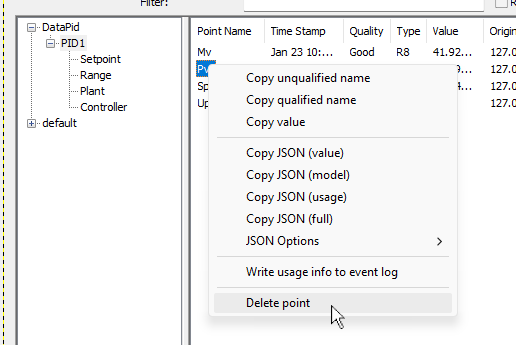
When a point is "deleted" in the Data Browser, it is not really deleted. It is hidden. It behaves as much as possible as if it does not exist, but not entirely. Here's what happens internally:
When a point is deleted, it is marked as hidden. Any memory associated with the point is retained. Deleting a point will not release memory back to the system.
When a point is deleted, a data change event is sent to all subscribed clients with a quality of
Not Connected.When a point is deleted, an explicit
(delete
								pointname)
message is sent to clients that maintain their own copy of the model. This message is sent even if the client is not currently subscribed to the point.A deleted point is marked internally as uninitialized. This ensures that re-creating it will cause it to behave as if it is a new point.
When an application reads, writes or subscribes to a deleted point, the point is undeleted and behaves as if it had been newly created.
When a point is undeleted, an explicit
(undelete pointname)message is sent to clients that maintain their own copy of the model. This message is sent even if the client is not currently subscribed to the pointSending
(delete)or(undelete)to DataHub v10 or lower will generate an error in the Event Log, but will cause no harm.