4.9. Service Manager
The Service Manager is a program that provides access to Cogent software that can be installed to run as a Windows service. With this program you can select and configure how the service runs and change its status.
![[Important]](images/important_2051192373.png) | |
Please see Installing as a Service first if you are not yet running the service. Please see Remote Config for the most convenient way to configure a DataHub instance while it is running as a service. |
![[Note]](images/note_1156523861.png) | |
If your are upgrading to a newer major version of the DataHub program, please refer to Running a DataHub Instance as a service in Windows 10 and Server 2016 in Known Issues on the Cogent DataHub website for more information. |
Starting the Service Manager
The Service Manager can be started from the program group in the entry of the Windows menu.
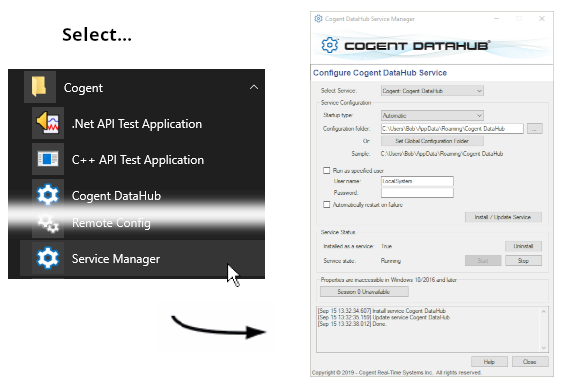
Once started, you can choose the service you need to configure from the Select Service dropdown list at the top. Then you can configure, install, and check the status of the service, as well as view the DataHub Properties window. The scrolling list at the bottom maintains a record of activities.
Service Configuration

- Startup type:
Choose between Automatic, Manual, or Disabled to specify how you want the service to start when Windows starts.
- Configuration folder:
Allows you to specify a folder in which to put the configuration files for the DataHub program. Typically this does not need to be changed. If you do change this entry, you must manually move all the files from the existing configuration folder to the new one. Please refer to Configuration Files for more information.
The button lets you specify the configuration file through the registry. This will override the default configuration folder, but will not override a configuration folder supplied on the DataHub command line with the -H option. You can use environment variables to make this folder dependent on the system and user configuration. The Sample field gives an example of what the folder path will likely be, but it is not necessarily accurate. If the DataHub instance is run as a specified user, and the path is dependent on the user, then the Sample will display a path based on the current user, not the executing user, and will therefore show an inaccurate path. You can find the true configuration path in the DataHub About panel, by clicking the About button in the DataHub Properties window.
- Run as specified user
If you run the DataHub instance as the local SYSTEM (
LocalSystem) user, then you will be able to access the Properties window and make changes to the DataHub instance while it is running as a service. If you run as any other user, then you will need to access the Properties window using the Remote Config option.- Automatically restart on failure
Have the service restart should it fail or be stopped for some reason.
When the above configuration is complete, press this button to install the DataHub program as a service. This will also start the DataHub service, though on some systems the service may need to be started manually if it doesn't start with the install operation. If the service is running and you make changes to the configuration, pressing this button will cycle through a service shutdown and restart to apply your changes.
Service Status

- Installed as a service:
Indicates whether the selected program is installed as a service or not (True or False). The button allows you to uninstall the DataHub program as a service.
- Service state:
Indicates the run status of the service (Stopped, StartPending, Running, etc.) . The and buttons allow you to start or stop the service.
Show Properties Dialog
This option appears differently for different versions of the Windows operating system:
- Windows XP and Windows Server 2003
A button allows you to open the Cogent DataHub Properties window.

The DataHub Properties window is only visible on the primary console of the computer running the DataHub instance. If you are currently logged in via a remote desktop session, you will see a pop-up dialog indicating that you must be connected to the computer's primary console. You can do this by using the
/adminor/consoleoptions on the Microsoft Remote Desktop client.If you are already connected to the primary console, the DataHub Properties window and system tray icon will be displayed when you press button.
- Windows Vista, Windows 7, Windows 8, Windows Server 2008, and Windows Server 2012
The button displays the Windows Service Console, which is where the DataHub Properties window appears when running as a service. This allows you to view data and make changes to the DataHub configuration while it is running as a service.

The Service Console is a special display console provided by Microsoft Windows, also known as the "session 0 console". This was introduced in Windows Vista as a security mechanism to limit access to the user interface of high-permission processes. When you switch to the Service Console, your desktop will be hidden and the screen background will change color to indicate the special status of the Service Console.
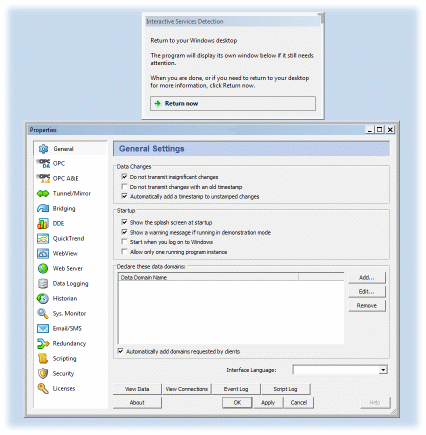
While the Service Console is open, your other applications will continue to run normally, but you will not be able to see or interact with them. A dialog box will be visible while you are viewing the Service Console that will allow you to switch back to your regular desktop at any time. If you have other system services running on your computer that also have user interface windows, those services will also be available to you while viewing the Service Console.
When you have finished viewing or editing the DataHub properties, before returning to the normal user console, you should click the and buttons to close down the DataHub Properties window. Also be sure to close any other DataHub windows. This prevents the Windows Interactive Service Detection program from displaying pop-up messages when you return to the normal user console.
Once all the DataHub windows are closed, you can return to the normal user console by pressing the button in the Interactive Service Detection window.
If you forget to close any of the DataHub windows while working in the Service Console, Windows will begin popping up messages in the user console telling you there is a program requiring attention in the Service Console.
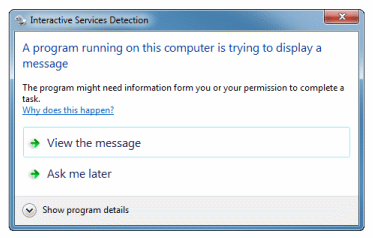
You can stop these messages and close down the Service Console by clicking on the button in the DataHub Service Manager. Clicking this button will not stop the DataHub service.
When you close the Service Manager it will automatically disable the service console. This will stop Windows from periodically displaying the Interactive Services Detection dialog on your system.