3.28. Licenses

|
The Licenses option lets you view and install licenses for the Cogent DataHub program. When it starts up, a DataHub instance will run in demo mode (one hour time limit) if no licenses are found. If a valid license is found, the DataHub instance switches to license mode, and every connected DataHub instance then also requires a license. |

Licenses
This table lists each kind of license, and its current usage.
![[Note]](images/note_1156523861.png) | |
Running a DataHub instance on a Microsoft Azure virtual machine requires a special license key. Contact Cogent for details. Normal practice is to use the Cogent DataHub service for Azure. |
- License
All of the kinds of licenses available.
- In Use
How many of each kind of license are currently being used.
- Available
How many of each kind of license are not being used and are still available.
- Maximum
The maximum number of each kind of license currently installed.
- Peak Use
The highest number of each kind of license that has been used since the beginning of the current session.
Details
The Details list shows some of the information embedded in each license string currently installed.

- Product Code
One or more codes for the license pack or add-on license product(s) that correspond to this license string.
- License #
The license number.
- Count
The maximum number of licenses available in this license string.
- Type
Either node (unlimited) or connection (a per-connection license).
- Expiry
If this is a time-limited demo license, the date on which it expires, or
neverfor a permanent license.
There are two general viewing options for licenses:
- Hide icons for unlicensed components
Completely removes the greyed-out property icons for DataHub features that are not licensed.
- Show unused license keys
It is possible that a license file may contain upgrade licenses for several different versions or instances of the DataHub program. If one or more license files have been loaded, checking this box will show in the Details list all the licenses available, including those that might be for older versions or other DataHub installations.
Installing Licenses
Licenses can be entered individually or loaded from a file.
The button opens the Enter License String window:
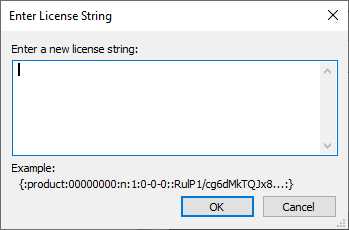
Here you can paste or manually enter the text string for the license provided by Cogent.
For DataHub version 10 and later, select everything including the
{:and:}characters.For DataHub versions 8 and 9, select everything including the first and last
:characters.
Running a DataHub instance on a Microsoft Azure virtual machine requires a special license key. Contact Cogent for details. Normal practice is to use the Skkynet DataHub managed application for Azure.
The license string may contain the characters
l(lower case L) and1(one) which can look nearly identical in some type fonts. If possible, it is best to copy and paste the string, rather than retyping it.The button opens a Windows file selection window. Browse to find the directory and license file that you want to load. License files end with a
.licextension. Once you have found the license file, click the button to load the file. (Please refer to Configuration and License File Locations in Configuration Files for more information on license file locations.)
To remove a license from your system, select one or more licenses in the Details window, then click the button.
Troubleshooting License Installation
The possible causes of a license installation problem are:
Different DataHub version. Each DataHub version (v7, v8, v9, v10, etc.) has a different license.
Running on Azure. The DataHub program requires a special license key when running on a Microsoft Azure virtual machine. Contact Cogent for details. Normal practice is to use the Skkynet DataHub managed application for Azure.
A typographical error. If you are hand-entering the license key, watch out for mistakes between lower case letters
Land1, and between the upper case letterOand the numeral0.A copy/paste error. If you are copying and pasting the key, make sure that you include the correct leading and trailing characters in the key.
For DataHub version 10 and later, include the
{:and:}characters.For DataHub versions 8 and 9, include the first and last
:characters.
If you are having trouble with a copy/paste, try opening Notepad and copying the license keys into it. Once the license keys are in Notepad, replace all of the "-" (minus sign) characters in the license keys by selecting and re-typing the - sign. You might notice that minus signs in the key are actually converted to something else, like a box or an exclamation mark. You need to change them back, then try adding the license code to the DataHub instance again.
Unicode characters. If you copy a space into the entry field, it may be a Unicode space instead of an ASCII space. The entry field will automatically strip ASCII spaces, but it cannot distinguish Unicode spaces. This could happen if you are working with a non-English character set that defines its own space, such as Japanese.
Invalid duplicate key. The DataHub
licenses.licfile may contain an invalid license key with the same license number. To fix:Delete the
licenses.licfile from the DataHub configuration folder (usuallyC:\Users\).username\AppData\Roaming\Cogent DataHubRestart the DataHub instance.
Install the new license key.
If none of these are helpful, please contact [email protected] and send a copy of the licenses.lic
file, along with the version number of the DataHub instance you have installed it on.