3.15. External Historian

|
The External Historian option allows you to configure a connection to an external historian such as AVEVA Historian or Insight, InfluxDB, or Amazon Kinesis. |
![[Note]](images/note_1156523861.png) | |
Please see the Using the External Historian chapter for how-to information. Before configuring the External Historian options, you will need to first ensure that you have configured an external historian. InfluxDB can be installed with the DataHub program, and its configuration is documented here. Amazon Kinesis is a service available through Amazon Web Services (AWS). Its configuration is documented on the AWS website. AVEVA Historian and AVEVA Insight are available from AVEVA. Need to use InfluxDB and Chronograf? Please see Connecting to InfluxDB to get started. |
3.15.1. General Configuration
Write data to Historians
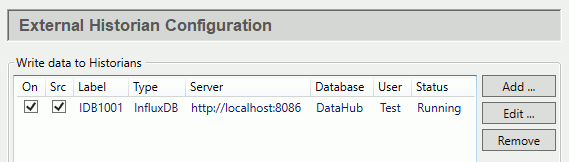
Use the On checkbox to activate or deactivate a configured historian. The Src checkbox allows you to use the selected historian as a data source for DataHub clients, as explained below. The other columns display information about the connection.
Clicking the or button opens the Edit Historian Connection window:
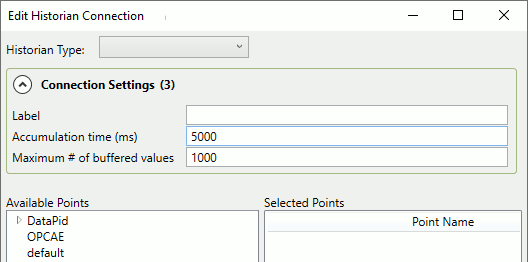
Use the Historian Type drop-down list to choose the historian that you want to connect to. The options currently available include:
| Amazon Kinesis |
| AVEVA Insight |
| AVEVA Historian |
| InfluxDB V1 |
| InfluxDB V2 |
| OSIsoft PI |
| REST Client |
| Tunnel (Push) |
| Tunnel (Pull) |
You can now go to the sub-section corresponding to the historian you want to configure, and them return here when finished.
Picking Points
For any external historian that you configure, you can pick the points from the list:
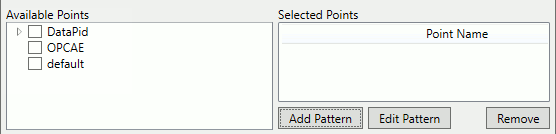
You can pick individual points one by one, or click the button to open the Enter Pattern window:
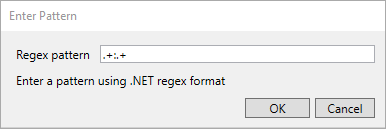
Here you can enter a regular expression, using the .NET regex format (documented here), to select a group of points with common
characteristics. For example, the expression: ^DataPid:.*$
would select all of the points in the DataPid domain.
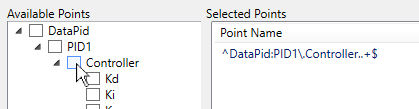
To add a regular expression based on a branch or point, hold down the Ctrl key while clicking on the checkbox.
Read from Historian
This option lets you choose which historian a DataHub client will get its historical data from.

The Read values from this connection drop-down list lets you select which historian (DataHub Historian or external) will be used by any DataHub client that consumes historical data, such as WebView, QuickTrend or OPC UA HDA. The DataHub instance allows only one historian to be used at any given time. To use an external historian for this purpose, you must check its Src checkbox in the Write data to Historians list.
| |
Some programs that interact with the DataHub data set are able to consume historical data. WebView, for example, uses historical data from the DataHub program to populate its Trend control. Other programs include QuickTrend, the OPC-UA Historical Data server, and any Gamma scripts that are written to support the External Historian. The default source for this historical data is the DataHub Historian. But you can use this option to configure an external historian to supply that data instead. |
Forwarding Strategies
In addition to writing data to a local historian, the External Historian feature can also forward that data to a remote instance of the same historian product. Here you define a forwarding strategy, and when you configure forwarding for an external historian, you can activate it.

Clicking the or button opens the Forwarding Strategy window:

- Strategy label
A text string to identify this strategy that consists of only letters, numbers and the underscore (
_) character, with no spaces or other characters.- Local historian label
A label assigned to the historian connection, as displayed in the Write data to Historians list, above.
- Maximum values per message
Data is forwarded to the remote historian in chunks, with multiple values in a single message. Here you can specify up to how many values get transmitted in each message.
- Custom value query
Instead of forwarding all the logged data to the remote historian, you can construct a query on the historian to forward a subset of the data.
- Do not require acknowledgement
Check this box if you do not want the remote historian to send acknowledgements for each data message received.
This completes the general options common to all historians. The following sections cover the unique options for each supported historian.