3.15.3.7. REST Client
From the Edit Historian Connection window you can select . In this implementation of the External Historian the DataHub instance acts as a REST client, transmitting data to a REST server. The DataHub instance makes HTTP calls containing data point values as a payload. The server responds with a success or fail indication.
Connection Settings
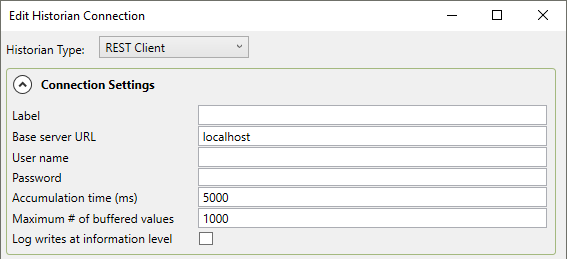
- Label
A unique text string used to identify this connection. This label is used to identify the connection when configuring store and forward, and to create the database name or retention policy in some historians, like InfluxDB. The label can contain only letters, numbers and the underscore (
_) character.- Base server URL
The URL for the REST service. This is a prefix that is combined with the Relative path entry to form the complete URL to which to send data.
- User name
The user name for the DataHub instance REST client.
- Password
The password associated with the User name.
- Accumulation time (ms)
The number of milliseconds that the DataHub instance will buffer data in memory before sending it to the REST server. Setting this value to zero means that no accumulation time will be enforced.
![[Note]](images/note_1156523861.png)
The DataHub instance writes data by batches to the REST server. You can change the batching behaviour with these settings. If both this value and Maximum # of buffered values (below) are specified, then the DataHub instance will write all buffered values to the REST server whenever the first of these two limits is reached.
- Maximum # of buffered values
The maximum number of values that the DataHub instance will buffer in memory before transmitting them to the REST server. Setting this value to zero means that no values will be buffered until the accumulation time is reached.
- Log writes at information level
Checking this option causes messages regarding successful writes to the database to be logged at the level in the DataHub Event Log. If this is not checked then these messages are logged at the level and are therefore normally hidden from the user.
Document Settings
The attributes of the JSON, XML, or other document used to establish the REST connection.

- Max points per message.
The REST client can send the accumulated data in one or more messages. This setting determines how many points can be sent in a single HTTP message. If the accumulated points (set with Accumulation time and Maximum # of buffered values, above) exceeds this number then the values will be split into multiple messages. A value of
0means that all accumulated points will be sent in a single message.
The following three entries (Relative path, HTML headers and Document definition) define their values using a script that is processed through an ASP processor. This allows you to specify these settings in a way that varies with the data or other information that changes at runtime. See below for the syntax and examples of document definitions.
- Relative path
This is the path portion of the URL to which messages are sent. This is appended to the Base server URL. The relative path can be left blank, in which case the base server URL completely specifies the URL to which messages are posted. If the relative path is not blank then it is a script that returns a string. A trivial example could be:
<%= "/input" %>
or just
/input
Use this entry when the REST server URL changes, based on other information.
- HTML headers
The HTML headers to be added to the HTTP POST message. This is a document consisting of a list of strings in the form
name:valueContent-Type: text/json
Use this entry when the REST server requires special HTTP headers, typically for authentication.
- Document definition
A script that constructs the POST message body using ASP notation. This allows you to construct JSON, XML or custom message bodies that mix point data values with message structure.
- Document contains multiple points
This option allows you to choose whether the document is generated once for each point, or operates on a list of points. If this option is set, the variable
pointsis defined when processing the document. If this option is cleared, the variablepointis defined when processing the document.
Modify Point Names, Data Sampling and Forwarding
Please see Modify Point Names, Data Sampling or Forwarding in Connection Configuration for how to configure these options.
Once you have completed the REST Client-specific configuration, you can return to Picking Points in General Configuration to continue.
ASP Document Definition
ASP values are defined in the following dialog:
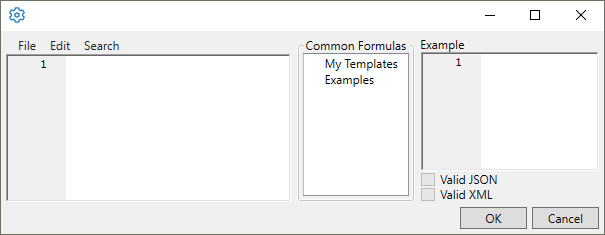
The left-hand pane contains the ASP document that defines the value. Type your document here.
The center pane contains saved examples and templates that you can load by double-clicking on the template name. Once you have created a document definition you can save it by selecting -> to give your template a name. It will then appear in the My Templates list.
The right-hand pane contains the result of processing some example point change events using the document definition in the left-hand pane. The two check-boxes, Valid JSON and Valid XML, will be checked automatically if the resulting document in the Example pane is valid JSON or valid XML. This is to help you identify errors in the document definition when the result should be JSON or XML.
An ASP document is any text document that combines normal text with
special ASP directives. The content of an ASP directive is a script, written
in S-Sharp. Script expressions and script statements are any valid S-Sharp
expressions and statements respectively. S-Sharp is documented here. There are two ASP directives, differing only by
an equals sign ( = ). These are:
-
<%one or more script statements> This directive instructs the ASP processor to run the script and produce nothing in the output document. You can use this directive to define functions, initialize variables, log messages, etc., where no text should be added to the output document. Script statements can be broken up across multiple
<% %>directives so long as the sum of all the directives results in a sequence of valid expressions, including the trailing semicolon character if necessary.-
<%=one or more script statements> This directive instructs the ASP processor to execute the script expression and insert the result into the output document. You can use this directive to insert point names, values, timestamps, quality, etc. The script expression must not be a statement—that is, it must not end in a semicolon or a brace that would indicate the end of a statement.
JSON Example
This is an example of a JSON document that is valid for transmitting data to Microsoft Power BI:
[
<%
  var point; var i;
  for (i = 0; i < points.Length; i++)
  {
    point = points[i];
%><%= i == 0 ? "" : ",\n" %>  {
    "<%= point.Name %>": <%= point.JsonValue %>,
    "Date": "<%= point.IsoTimestamp %>"
  }<% } %>
]
| |
There is an XML example below. |
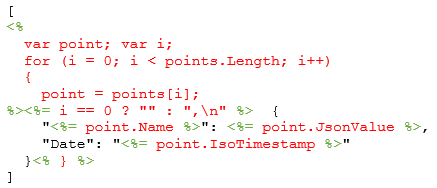
Breaking down the PowerBI example makes it easier to understand. The
outermost square brackets [ ] are literal brackets that
surround a JSON array. Within the array we want to iterate through the list
of points that need to be transmitted. The array of points is provided
automatically in the variable points. The loop through
the array of points contains both literal text and scripts within ASP
directives. Colorizing the code helps to understand it:
 |
|
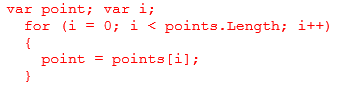
The text within |
 |
|
The document content is a combination of literal text
and the result of evaluating code within |
 |
The directive  inserts a comma and a newline character into the
resulting document for all items in the points list except the first
one.
inserts a comma and a newline character into the
resulting document for all items in the points list except the first
one.
The directive  inserts the point name within double quotes into the
resulting document. Note that we must explicitly add the double quote
characters. This will fail for point names that contain double quote or
backslash characters. If you need to escape point names with backslash and
double quote characters, use:
inserts the point name within double quotes into the
resulting document. Note that we must explicitly add the double quote
characters. This will fail for point names that contain double quote or
backslash characters. If you need to escape point names with backslash and
double quote characters, use: 
The directive  inserts the point value in JSON format into the output.
If the point value is a string this includes surrounding the string in
double quote characters and escaping quote and backslash characters.
inserts the point value in JSON format into the output.
If the point value is a string this includes surrounding the string in
double quote characters and escaping quote and backslash characters.
The directive  inserts the point timestamp in ISO 8601 format.
Data points contain several members that can be inserted into the document:
Value – the point value as an object. This
can contain any string or numeric type. |
IntVal – the point value converted to
integer. |
DblVal – the point value converted to
double. |
StrVal – the point value converted to
string. |
Name – the full name of the point, including
the domain name, as a string. |
DomainName – the domain name portion of the
point name, as a string. |
Quality – the point quality as a PointQuality
value. Can be converted to integer or string. |
Timestamp – the point timestamp in UTC as
OADate, a double (days since midnight, December 30, 1899). |
DateTime – the point timestamp in UTC as a
DateTime. |
IsoTimestamp – the point timestamp in ISO
8601 format, as a string. |
JsonTimestamp – the point timestamp in JSON
format, the number of milliseconds since the UNIX epoch start
(January 1, 1970 00:00:00 UTC). |
UnixTimestamp – the point timestamp in UNIX
epoch, including decimal milliseconds. |
JsonValue – the point value in valid JSON
format. Strings are surrounded in double quotes with quote backslash
characters escaped. |
XML Example
This is an example of an XML document that sends a global timestamp and then a series of data points including name, value, quality and timestamp:
<DataPoints>
  <Timestamp><%= DateTime.UtcNow.ToString("o") %></Timestamp>
  <Points>
  <%
    var point; var i;
    for (i = 0; i < points.Length; i++)
    {
      point = points[i];
  %>  <Point>
      <Name><%= point.Name %></Name>
      <Value><%= point.Value %></Value>
      <Quality><%= (int)point.Quality %></Quality>
      <Timestamp><%= point.IsoTimestamp %></Timestamp>
    </Point>
  <% } %>
  </Points>
</DataPoints>