
Assign Meaningful Control Names
When a control is added to the page, it is assigned a default name derived from its type and suffixed by an integer. For example, the first time you add a 'SimpleButton' to the page, it is named 'SimpleButton1' -- unless the page already has a control with that name, in which case the counter is incremented until an available name is found.
Clearly, with a page like the one pictured below, script like this becomes hard to understand and harder to troubleshoot.
 if (GETP("Symbol23@Condition") > GETP("Symbol72@Condition"))
   SETP("TextLabel2@Input", "Overflow");
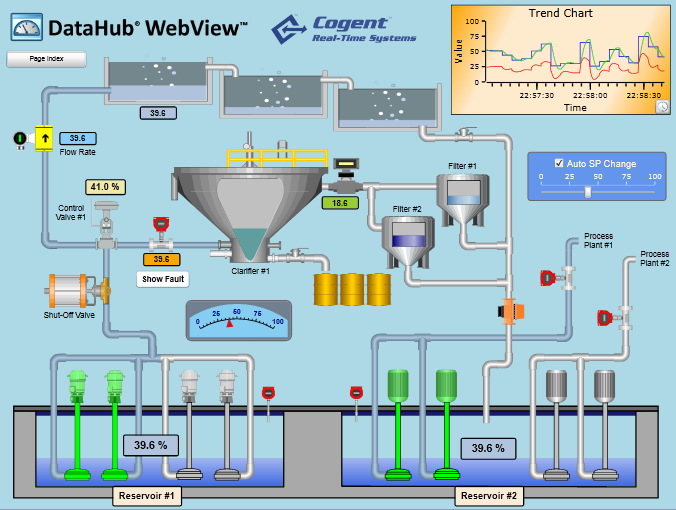
Control names are used in script expressions and simple binding expressions. It is a good idea to give each control an appropriate, meaningful name when it is initially added to the page.
Use the Correct Variable Scope
Declare and initialize variables with var. This applies to script bindings, event handlers and script functions.
Without var, variables get added to the global script context, which means variables are
available to other scripts on the same page and to other pages. Unless this is your intent,
it's better to use local variables to avoid cluttering the global namespace and to avoid
quirky S# behavior.
Use Meaningful Names for Global Variables and Script Cookies
Most scripts are short, so it's fairly easy to understand how local variables are used within a function, script binding or event handler. And since local variables are only available within the relevant script, there's little risk of confusion or name clash.
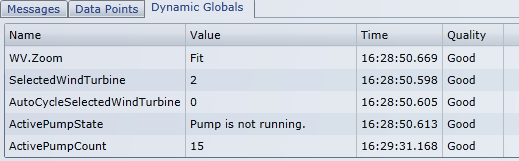
However, when using global script variables, dynamic global variables (via GET and SET), and script cookies, it's a good idea to use names that are easy to understand and that provide an indication of purpose. For example:
 /* These variables and cookies are not well-named */
 SET("c", 15);
 WV.SetCookie("st", "Pump is not running.");

 /* These are better */
 SET("ActivePumpCount", 15);
 WV.SetCookie("ActivePumpState", "Pump is not running.");
DataHub WebView dynamic globals and script cookies are listed in the Debug Window.
Presentation Logic in DataHub WebView; Production Logic in the DataHub
Like any client-server solution or Service Oriented Architecture, data and business logic should remain on the server. DataHub WebView should be used to manage the user interface (i.e., the presentation layer) to create engaging user experiences, while relying on the Cogent DataHub to represent the data and business logic of complex systems.
Organize Script into Reusable Functions
As your project grows, you'll likely realize the same script expression or block of code is needed in more than one place. To avoid inconsistent implementation and maintenance problems, consider creating script functions...and even your own script library. Script library files have a .ss file extension and reside in the installDirectory/Silverlight/Scripts/ folder on the web server. Script libraries can be added to the server by your DataHub administrator. The functions get automatically loaded and registered when the application starts.
Use PageData and InitParams to
The Cogent DataHub Properties dialog provides configuration options for the DataHub Web Server and for DataHub WebView. These configuration settings (e.g., 'Start in Run Mode' and 'Load a page at startup') affect the default DataHub WebView launch url, installDirectory/Silverlight/DataHubWebView.asp. However, you can also create your own HTML or ASP pages, and provide these urls to various groups to launch DataHub WebView differently. For example, you might have one url per department, each with a different start page. Or you might want a dedicated page to launch the application with Design Mode disabled.
In addition to specifying InitParams on the Silverlight <object> tag, you can also pass arguments on the url itself. For example, this url passes user credentials, sets a start page, and passes page data (which can be used by a script on the start page to bind the controls to data points that represent the requested process.
http://localhost/Silverlight/AnnualShowKioskOnly.asp&username=demo&password=demo&page=AnnualShow/Home&pagedata=process=mfg1
Two things to note...
1. Specifiying user credentials on the url or in the .ASP page is potentially a security risk. If you do choose to use this feature you should ensure the credentials are only authorized for Run Mode and only for for public, demonstration data. This feature is ideally used in an environment like a kiosk computer at a trade show where DataHub WebView needs to bypass the login screen because attendees will not have user credentials.
2. PageData is a set of name-value pairs. Each name becomes an S# global variable. In this case, the global variable
process will be assigned the string value "mfg1", which could be used in point binding expressions like this:
="demodata:" + process + "_LineSpeed"; to produce a point binding of demodata:mfg1_LineSpeed.
Create Templated Pages with Dynamic Point Bindings
Rather than creating several pages that are the same except for different point bindings, consider building templated pages, i.e., pages that use script expressions to set point bindings. Examples and videos are included in the section on Binding.
Remember User-selections with Script Cookies
It is common to present users with comboboxes and listboxes to offer choices. In certain situations, user choices should persist so that when the same page is next opened, the same choice does not need to be made again. Most often, these choices are user-specific and should not be shared with other users. Script cookies are ideal for this purpose.
Improve Page Maintenance with Design Mode Explanations
The design of complex pages can be a challenge to understand and maintain, especially when the person trying to support the page is not the person who created it. Detailed comments can be added using standard Text Label controls. To ensure users do not see the comments while in Run Mode, just set the 'Visible in Run Mode' property to false (listed under 'Common Properties: Content Visibility and Appearance').
Provide Run Mode User Help with Control ToolTips
It's not always possible to create a simple and intuitive page design. Some processes are just naturally complex. To help operators understand the purpose of the page and how to interact with the controls, consider adding ToolTips to your controls (listed under 'Common Properties: ToolTip and Tags'). You can even use script to set ToolTips dynamically, perhaps to provide contextual information for alarms and other situations.