Parameters
- categoryKey
-
Type: string
The unique identifier for this category of options.
- optionKey
-
Type: string
The identifier for this option, which must be unique within the category.
- label
-
Type: string
The text for this option in the Options dialog.
- defaultValue
-
Type: object
The initial value for this option.
There are important differences between predefined options used by the application and dynamic options registered via script:
- Predefined Options - automatically persist to Silverlight Isolated Storage.
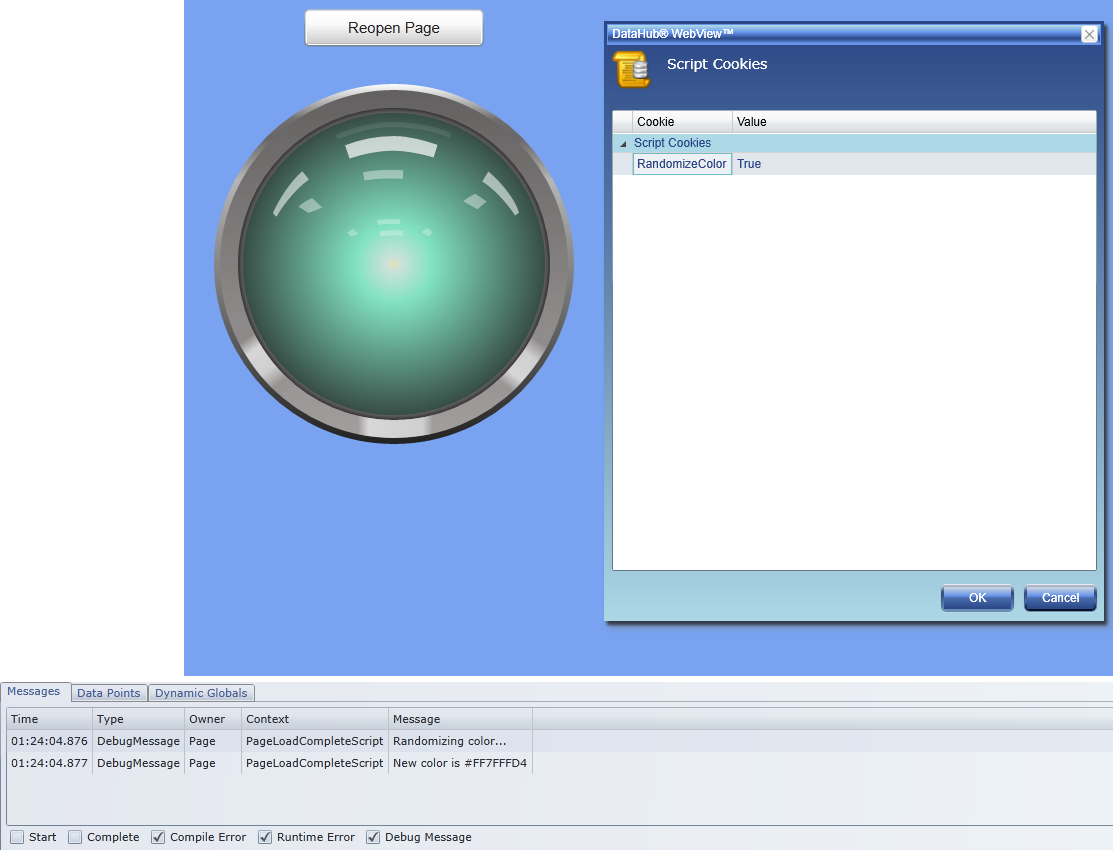
- Dynamic Options - must be registered and initialized each time WebView starts. They do not persist. However, they can be initialized by using Script Cookies, which do persist.
Both predefined and dynamic options integrate with the application Options dialog, which means the user can configure options interactively.
Scenario: Each time a certain page is opened, the color of the ShiningLight element should change to a random color in the color set. However, the user should be able to control this affect by setting an option.
Step 1: Initial Option Settings
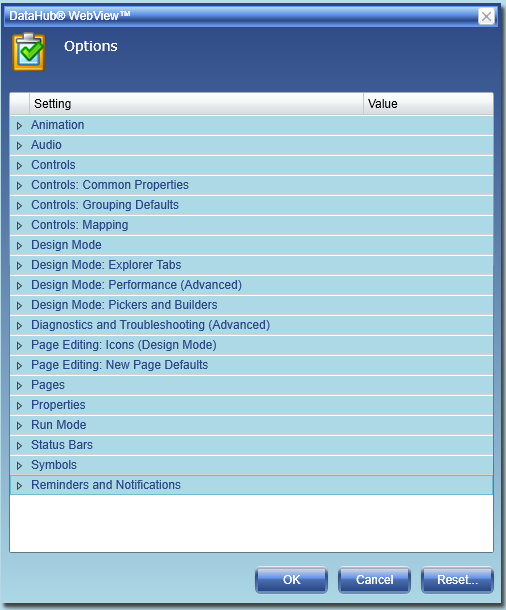
When the application first starts, the custom dynamic options are not registered. Notice the Options dialog does not include a 'Randomizer' option category.
Step 2: Page Layout
The basic layout of the new page includes a Simple Button and a ShiningLight. The OnPageLoadComplete event handler includes the following code:
 RegisterRandomizer();
 ApplyRandomizer();
The code for the OnClick event handler of the Simple Button is:
WV.ExecuteCommand("OpenPage", Page.PageFullPath);
Step 3: Randomizer Functions
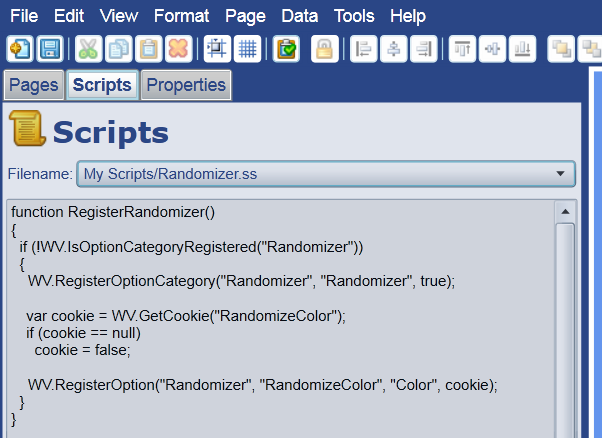
The Randomizer functions are defined inside the Randomizer.ss file, which is a custom, application-level script file maintained on the server. The list of such scripts can be accessed on the Scripts tab, as illustrated in the following picture.
For more information about application-level scripts and creating reusable script libraries, see Application Events.
The full source code of Randomizer.ss is displayed below. Note: this file is not included when DataHub is installed.
 function RegisterRandomizer()
 {
   if (!WV.IsOptionCategoryRegistered("Randomizer"))
   {
     WV.RegisterOptionCategory("Randomizer", "Randomizer", true);

     var cookie = WV.GetCookie("RandomizeColor");
     if (cookie == null)
       cookie = false;
     WV.RegisterOption("Randomizer", "RandomizeColor", "Color", cookie);
   }
 }

 function UnregisterRandomizer()
 {
   if (WV.IsOptionCategoryRegistered("Randomizer"))
     WV.UnregisterOptionCategory("Randomizer");
 }

 function ApplyRandomizer()
 {
   var random = new Random();
   if (WV.IsOptionCategoryRegistered("Randomizer"))
   {
     var isSet = bool.Parse(WV.GetOptionValue("Randomizer", "RandomizeColor"));
     if (isSet)
     {
       DEBUG("Randomizing color...");
       var colors = WV.GetColorSet();
       var idx = random.Next(colors.Count);
       var cd = colors[idx];
       DEBUG("New color is " + cd.Color);
       SETP("ShiningLight1@PrimaryLightColor", cd.Color);
     }
     WV.SetCookie("RandomizeCookie", isSet);
   }
 }
Step 4: Opening the Page
The first time this page is loaded, the OnPageLoadComplete event fires, which triggers calls to RegisterRandomizer() and
ApplyRandomizer(). The following image illustrates the situation after the page has been opened the first time.
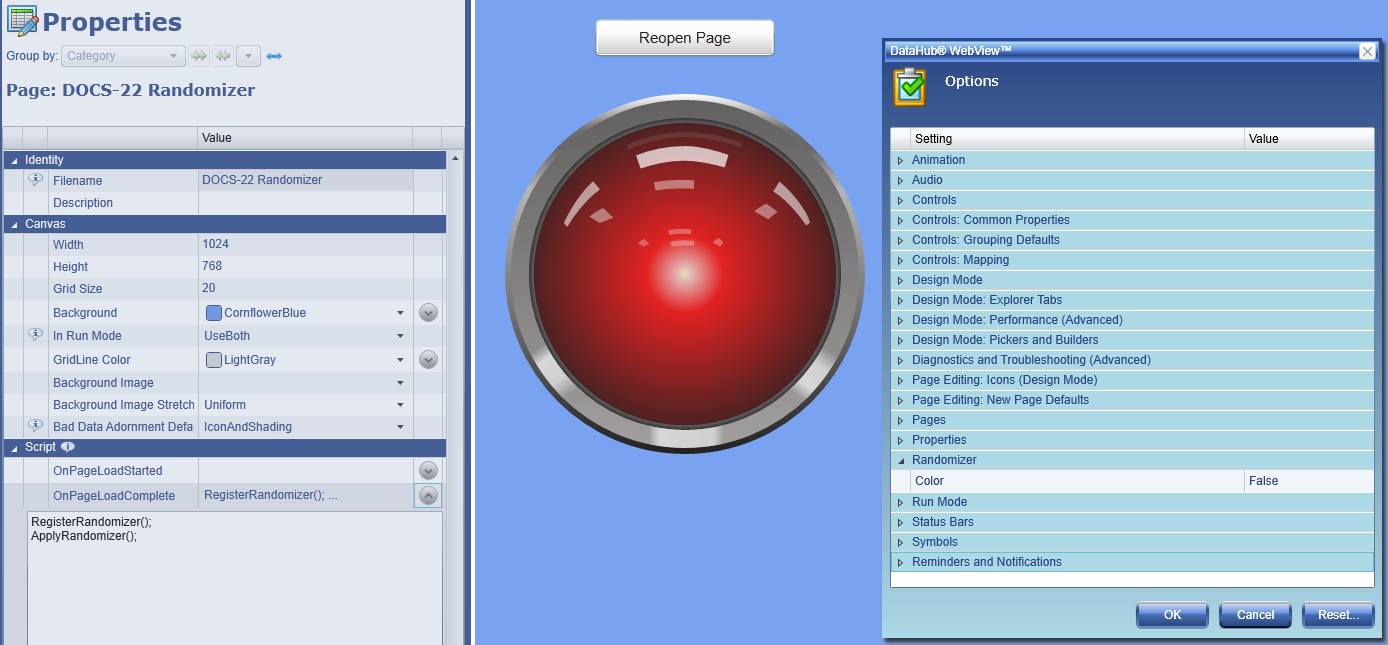
Notice the Options dialog now includes the 'Randomizer' options. Since the Randomize Color option is False, the light is still red.
Step 5: Reopening the Page
At this point, the user changes the Randomize Color option to True, switches to Run Mode, and clicks the Reopen Page button.
Each time the page opens, the color of the light is different and the Debug Window
includes the DEBUG messages that were emitted from inside the ApplyRandomizer function.