4.8. Remote Config
The Remote Config tool lets you connect to a DataHub instance while it is running as a Windows service, or when it is running on a different computer on the network.

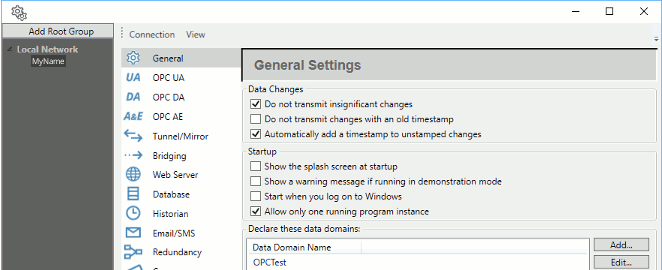
When running a DataHub instance as a Windows service it is commonly not possible to access its configuration dialog. Windows services have restricted ability to interact with the Windows desktop. You can use the Remote Config program to conveniently configure the DataHub instance while it is running as a Windows service.
![[Note]](images/note_1156523861.png) | |
All DataHub installations that are configured to allow remote configuration must also enable the DataHub Web Server. Thus, all DataHub licenses for V9 and above now enable the Web Server for one Remote Config connection, with no additional licenses necessary. The Web Server will not operate for any other purpose without the normal Web Server license, which can be installed separately. Additional connections can be made using TCP Link licenses. If you need to restrict that behavior to free up TCP Link licenses for other intended purposes, see Remote Config TCP Link license restriction in Configuration Files Advanced Settings. |
The remote configuration tool includes the ability to store access credentials to many DataHub installations at once. You can now easily manage many DataHub program installations anywhere on your network from a single location.
4.8.1. Preparation
Before connecting to a DataHub instance remotely to configure it, you must first run it as a normal program, not a service, and prepare it in two ways:
Security
Here is how to enter the basic security settings for Remote Config. To implement TOTP, please see Example: RCUser.
In the DataHub Properties window, select the option and click the button.
Set the Organization to , and in the Users tab, under Users, click the button and select .
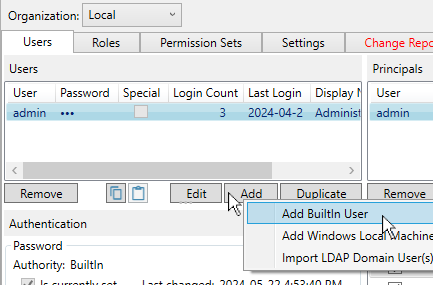
Enter a User Name like
RC-Serviceand an eight-character (letters and digits, upper/lower case) password likeAbcd1234.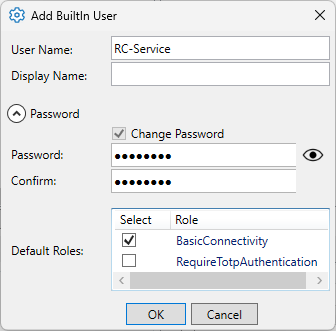
In the Default Roles section, uncheck the button because this is an automatic, non-interactive connection.
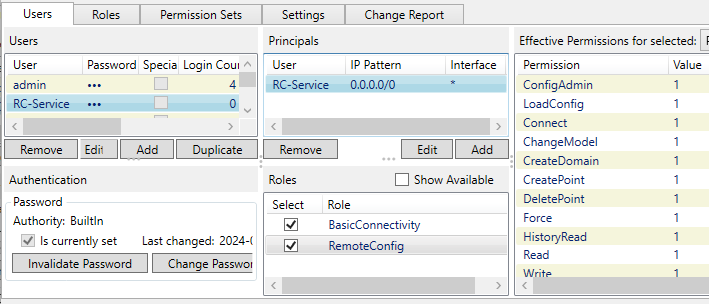
Click the button. The user name will appear in the Users list, as well as in the Principals list.
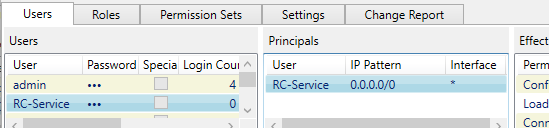
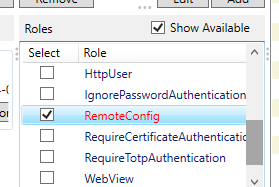
With that new user still selected, in the Roles section check the button to display all the available roles. Scroll down to the role and check that box.
Notice that more permissions now appear in the Effective Permissions panel, showing what the user can do from the Remote Config app.
Click the button to apply your changes.
Click button to close the Security configuration.
For more information about security, please refer to DataHub Security and Using Security.
Features
You must configure the DataHub instance to allow remote configuration for any features that you wish to be able to remotely configure. For example, you may want to remotely configure Tunnel connections, but not allow scripts to be configured except from the local computer. You specify the configurable features as follows:
In the DataHub Properties window, select Remote Config.

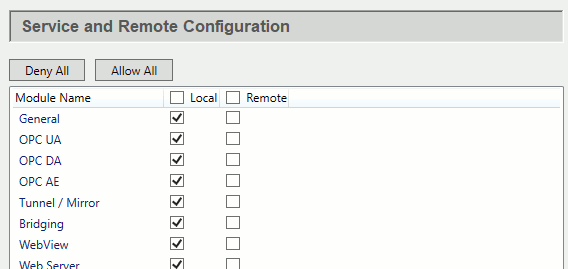
Check the boxes of the features you want to be configurable. Checking a box in the Local column allows connections only from a DataHub instance running on the same machine, whereas boxes in the Remote column allow connections from a Remote Config instance running on a remote machine. If you uncheck Local and check Remote, then a user on the local machine will not be able to configure that feature.
Your DataHub instance is now ready to accept connections from the Remote Config program. Now you can go to Configuring a Local DataHub Instance for configuring a local connection, such as when running a DataHub instance as a service, or to Configuring a Remote DataHub Instance for remote connections.
| |
The Remote Config tool can connect to DataHub Version 8 but cannot configure its settings. The only purpose in connection to DataHub V8 would be to remotely view the Data Browser, Event Log, Connection Viewer or Script Log. To make such a connection, use the button when authenticating the connection. |