Chapter 3. Getting Started
3.1. How to Run a Script
DataHub scripts run on the Gamma scripting engine, which starts up whenever a DataHub instance starts and runs continuously as long as the DataHub instance runs. You can access DataHub scripts and scripting capabilities by pressing the button in the Properties window.

This will display the Scripting and Customization screen. The upper half of the screen shows the Gamma files currently configured in the DataHub instance:
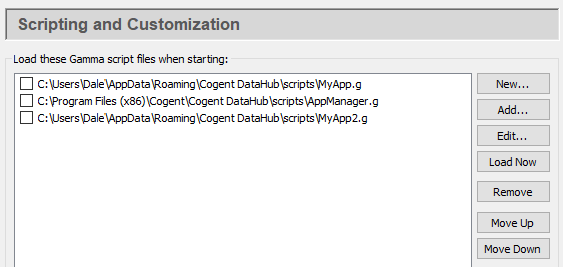
To run an existing script for the first time, you will need to first add it to the list of scripts. To create a new script, please refer to Section 4.1, “Creating a Script”
To add a script to the list, press the button and choose the script from the file selector. Scripts are kept in the DataHub
scriptsfolder. Scripts that come with the DataHub program are installed here (32-bit or 64-bit):C:\Program Files (x86)\Cogent\Cogent DataHub\scripts\ C:\Program Files\Cogent\Cogent DataHub\scripts\
All content in this directory will be replaced by the default content when the DataHub program is re-installed. If you plan to edit one of these scripts, or to write a new script, you should keep it in this folder for user-created scripts:
C:\Users\
Username\AppData\Roaming\Cogent DataHub\scriptsIf you need to edit the script before running it, press the button to open the selected script in the Script Editor.
To run the script manually, press the button.
To see any script output or error messages, you can press the button near the bottom of the Properties window to open the Script Log.
To configure a script to run automatically at startup, check the checkbox next to it
 . The next time you start a DataHub instance, this script
will load and run automatically.
. The next time you start a DataHub instance, this script
will load and run automatically.Once a script is started, it will continue running until the DataHub instance shuts down. To stop the script without shutting down the DataHub instance, press the button to open the Script Application Manager.
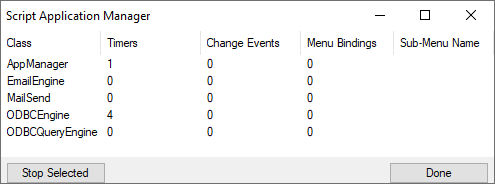
Highlight the script you want to stop, and press the button.