11.4. Configuring a Database Query
After you have set up a DSN you can create a database query.
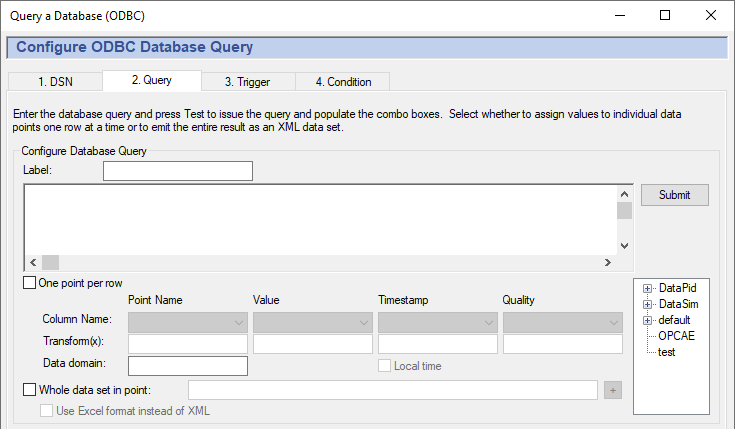
Preparing the Query
![[Note]](images/note_1156523861.png) | |
For this and other queries in this chapter, we will use a simple example
database named |
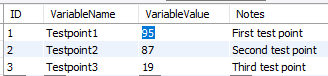
In the Label: field, enter a name for this query, such as
TestQuery. This can be any string.Enter a valid SQL query.

The submits your query to the database for a check. If the query is not valid, a message will pop up informing you about any errors. You can also open the Script Log to see more information about your connection to the database, and the results of your query.
Write One Point Per Row to a DataHub Instance
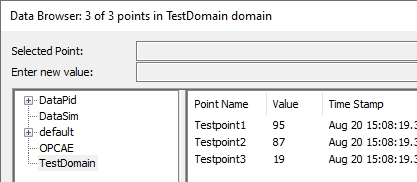
The One point per row option lets you assign one point in the DataHub instance for each uniquely named item in one column of a database.

The drop-down Column Name lists allow you to chose the columns that contain the point name and its value that will appear in the DataHub instance, as well as an associated time stamp and quality.
The Transform(x) fields let you to perform transformations on the data in each row of the corresponding column. These transformations are written in the Gamma language, the DataHub Scripting language.
For example, an entry of
string("MyTag", x)under the Point Name would change points labelledPump1andPump2toMyTagPump1andMyTagPump2. Or, an entry of10 * xunder the Value would multiply each value by10.The output of One point per row for our example database would appear in the DataHub Data Browser like this:
Put a Whole Data Set into One DataHub Point
The Whole data set in point option lets you put the entire results of the query into one DataHub point.

The results can be written in XML format (the default), or for Excel by selecting the option.
For example, using the XML option, running our query of SELECT * FROM
test.querytest LIMIT 3; on our example database would write the
following XML-formatted data as the value of a single point:
<TableData>
  <column name="ID" type="int" datatype="-6" />
  <column name="VariableName" type="string" datatype="-9" />
  <column name="VariableValue" type="double" datatype="8" />
  <column name="Notes" type="string" datatype="-9" />
  <row>
    <ID>1</ID>
    <VariableName>Testpoint1</VariableName>
    <VariableValue>95</VariableValue>
    <Notes>First test point</Notes>
  </row>
  <row>
    <ID>2</ID>
    <VariableName>Testpoint2</VariableName>
    <VariableValue>87</VariableValue>
    <Notes>Second test point</Notes>
  </row>
  <row>
    <ID>3</ID>
    <VariableName>Testpoint3</VariableName>
    <VariableValue>19</VariableValue>
    <Notes>Third test point</Notes>
  </row>
</TableData>
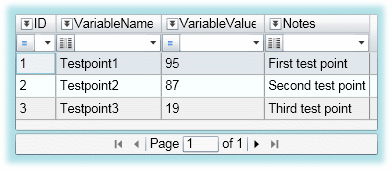
This data can be parsed by an XML parser, and is particularly useful for displaying in the WebView application, using the WebView Filtered Data Table control. In the WebView application, you would add a Filtered Data Table to a page, and configure this point as the Items Source:

The data would then appear in the control:
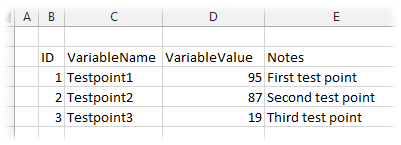
The Excel output generated with the option would look like this when dragged and dropped into an Excel worksheet:
Dynamic Database Queries
It is possible to create dynamic database queries by inserting Gamma expressions into the query. The value, time, and quality attributes of the DataHub points are accessed by using the following syntax:
| Button | Syntax | Example |
|---|---|---|
| DataSim:Sine | |
<%=
$ | <%= $DataSim:Sine %> | |
<%= PointTimeString
(#$ | <%= PointTimeString (#$DataSim:Sine)
%> | |
<%= PointQualityString
(#$ | <%= PointQualityString (#$DataSim:Sine)
%> |
In this syntax, the special characters are used as follows:
| Character | Use |
|---|---|
<% ... %> | The enclosed expression will be evaluated by the Gamma engine, DataHub scripting processor. |
$ | Indicates to the Gamma engine that this is a DataHub point name. |
PointTimeString() | A Gamma function that returns the timestamp of a DataHub point in an easily readable format. |
PointQualityString() | A Gamma function that returns the quality of a DataHub point, as a text string. |
# | Protects the DataHub point from being evaluated by the Gamma engine until the function is called. |
The query string is processed using the "asp" Gamma processor, so you can insert any Gamma string into the query.
Example
A query using a selection criteria based on the point
PLC1.ResourceX in data domain records
would look something like this:
select top 1 OrderNo, from.Orders
where Resource=<%= $records:PLC1.ResourceX %>
and Priority=10 order by DueDate asc