2.4. Controls
2.4.1. Add, Copy, Resize, and Move Controls
To add a new control to your page, you have two options:
From the menu, select to open the Control Explorer.
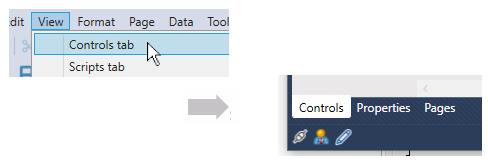
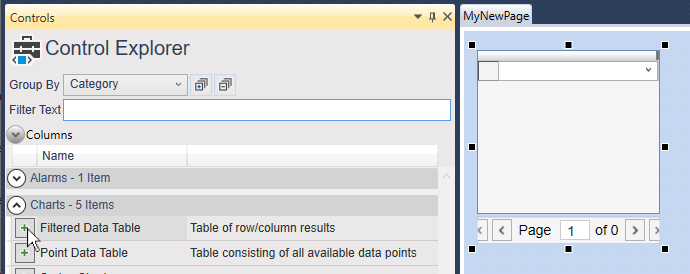
In the Control Explorer, find the control in its appropriate group and click the Add button
 .
.
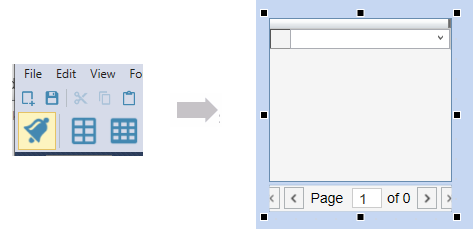
Alternatively, you can click that control's button in the Control Toolbar at the top of the page to put the control in the center of the page.
![[Note]](images/note_1156523861.png)
Pressing the Shift key while you click on the control button lets you manually position the control on the page. While positioning the control, pressing Ctrl + Shift and turning the mouse wheel allows you to zoom in and out.
To copy a control select it, and from the menu choose , or press Ctrl + Shift + C.
To paste a control select it, and from the menu choose , or press Ctrl + Shift + V.
To resize a control select it and resize it with one of the black resize handles. Or, enter a width and height in the W: and H: entry fields at the bottom right corner of the editing window.

To move a control select it, and move it with the mouse. For precise movements, you can show gridlines, and snap controls to the grid. Or, enter X and Y coordinates (distance from the top-left corner) in the X: and Y: entry fields at the bottom right corner of the editing window. Alternatively, you can use the cursor keys as follows:
move by 1 pixel: Ctrl + arrow keys
move by 10 pixels: arrow keys
move by 100 pixels: Ctrl + Shift + arrow keys