1.2. Making a Connection
Once the Vine Add-in is installed, you are ready to make a connection.
In Excel, click on the Skkynet Vine tab, and then choose Open Configuration from the ribbon menu.
In the Connection tab you can configure a connection to the Vine Server program, the Cogent DataHub program, or the SkkyHub service.
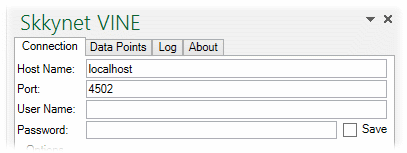
Enter the Host Name or IP address and the Port number for the host computer for your Vine Server instance or DataHub instance, or the IP address for your SkkyHub service.
If you will be making a WebSocket connection (see below), the port number is typically
80, and if you are using SSL (with or without WebSockets), it's typically443. Connections to the SkkyHub service must use these port numbers. They must also use WebSocket, and SSL is recommended.Enter your User Name and Password for the Vine Server program or DataHub program (if any) or SkkyHub service. You can check the Save box to save your password with this worksheet.
In the Options, you can select WebSocket and/or SSL as appropriate. The Accept invalid certificates option is there in case your certificate has expired.
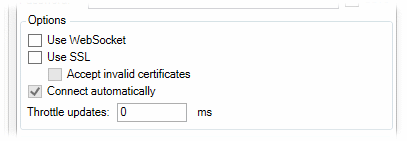
Checking the Connect automatically box tells the Vine Add-in to make the connection to the data source as soon as the worksheet is opened. To activate this option, you need to check the Saved box for the Password entry, even if you have not entered a password.
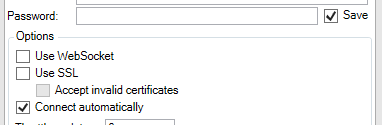
You can configure Throttle updates to control the rate (in milliseconds) at which updates come into Excel over this connection. This is helpful for reducing bandwith or system resource use. The default (
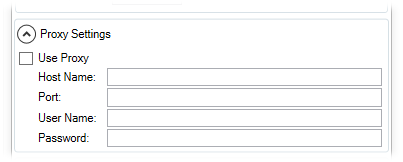
0) allows updates as fast as possible.You will need to configure Proxy Settings if there is a proxy between you and your Vine Server program, DataHub program or SkkyHub service. Enter the Host Name, Port, User Name and Password for the proxy here.
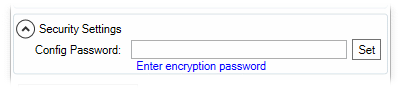
The Security Settings are not yet documented.
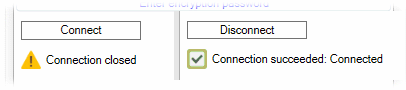
When you are ready to connect, click the button. The status should evenatually change to Connection succeeded: Connected.
If the connect attempt fails, you can check the Log to see what the connection steps were, and get an indication of what might have gone wrong.
Once your connection is established, you are ready to add some data points.