6.3.2. Configuring the Control
To configure the File Transfer control, in WebView design mode, click on the control and select the Properties tab:
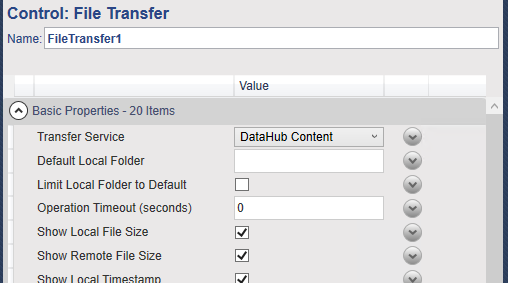
Edit the properties according to these guidelines:
- Transfer Service
Specifies the DataHub service used for the Remote Files. Services available may show DataHub content or files on a connected device. See File Locations for DataHub content.
- Default Local Folder
Determines the local folder shown when the control opens. Enter a full Windows folder path, or leave it blank to use the current Windows user's Documents folder. A path that cannot be interpreted is replaced by the Documents folder. A path that does not exist is shown as empty or not found.
- Limit Local Folder to Default
Controls whether users can work outside the Default Local Folder. Checking this box limits the control to the default folder and its subfolders. Leaving it unchecked lets users browse to other local folders. When checked, all of the following are true:
The button is hidden.
Any path outside the default folder is rejected.
Uploads from outside the default folder are blocked, including files dragged from Windows File Explorer.
Downloads to a folder outside the default folder are blocked.
The configured default folder itself cannot be deleted or renamed through the control.
Users can still type or open the path of a subfolder inside the default folder.
This setting controls navigation in the File Transfer control. You should also use Windows folder permissions when access to other folders must be securely prevented.
- Operation Timeout (seconds)
Sets a waiting limit for remote operations that support the timeout setting, not a time limit for the complete multi-file job. Enter a whole number of seconds. Use
0for no control-specific time limit. Negative or unrecognized values are treated as0.- Show Local/Remote File Size
Displays or hides the Size column for the local or remote files.
- Show Local/Remote Timestamp
Displays or hides the Modified column (timestamps) for the local or remote files.
- Allow Upload
Shows or hides the upload button, and enables or disables drag and drop, to allow or prevent uploads.

- Allow Download
Shows or hides the download button, and enables or disables drag and drop, to allow or prevent downloads.

- Allow Local/Remote Delete
Shows or hides the delete button to allow or prevent the user from deleting files or folders.

![[Note]](images/note_1156523861.png)
Enabling the , , or buttons for Remote Files makes the action available in the control, but the selected transfer service and the user's permissions must also support it. If they do not, the action reports an error. Remote top-level locations cannot be renamed or deleted.
- Allow Local/Remote Rename
Shows or hides the pencil button to allow or prevent the user from renaming files or folders.

- Allow Local/Remote Creation
Shows or hides the plus button to allow or prevent the user from creating folders.

- Confirm Local/Remote Delete
Enables a pop-up confirmation dialog for file deletions.
The confirmation prompt applies to the transfer or deletion as a whole, rather than asking about each file separately. Choosing cancels the operation before it starts.
- Confirm Local/Remote Overwrite
Enables a pop-up confirmation dialog for file renaming.
Example Configurations
Download only
| Property | Value |
|---|---|
| Uncheck | |
| Check | |
| Uncheck | |
| Uncheck | |
| Uncheck |
Upload only
| Property | Value |
|---|---|
| Check | |
| Uncheck | |
| Uncheck | |
| Uncheck | |
| Uncheck |
Transfer without file management
Keep and checked, then uncheck all six , , and properties. Users can transfer files and refresh the lists, but cannot manage files through the control.
Simpler file lists
Uncheck any of the four properties when users do not need size or modified-time information. This gives more room to file names, especially when the control is narrow.
Restricted local folder
Set to the approved Windows folder and check . Users can work in that folder and its subfolders but cannot use this control to browse, upload from, or download to another local location.