4.2. Dynamic Control and Symbol Binding
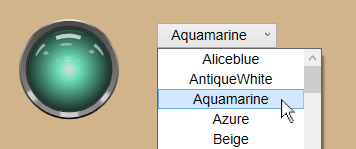
Dynamic control and symbol binding allow you to change bindings on a control or symbol at run time. This tutorial shows how to use a Combo Box to change the color of a Shining Light, and then how to change a light switch symbol to appear as if it is being switched on and off.
4.2.1. Control Binding
Open the WebView application, open a new page, and add a Combo Box control
 to the page.
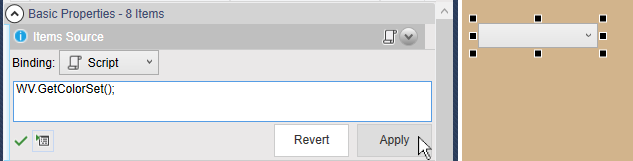
 In the Basic Properties of the Combo Box, for the Items Source, select the Script binding type and edit the default script to read:
WV.GetColorSet();
Then press the button.
For Display Member Path, choose Name.
For Selected Value Path, choose Color.
Add a Shining Light control
 to the page.
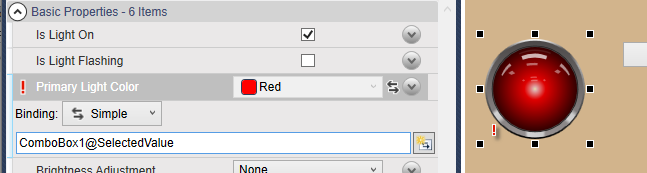
In the Basic Properties of the Shining Light, for the Primary Light Color, select the Simple binding type and enter the value:
ComboBox1@SelectedValue
Switch to Run mode and choose selections from the List Box and see the results in the Trend Chart.