3.2. Script Editor
The Script Editor provides an intuitive coding environment with advanced features like syntax highlighting and search/replace.
To use the Script Editor:
Go to the Properties tab of a page or control and expand the Script property group.
Select a script, and click the arrow button at the end to view the script in the basic script editor.
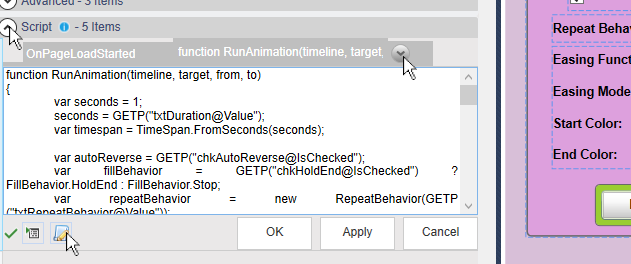
Click the Open in Editor button (
 ) to open the Script Editor.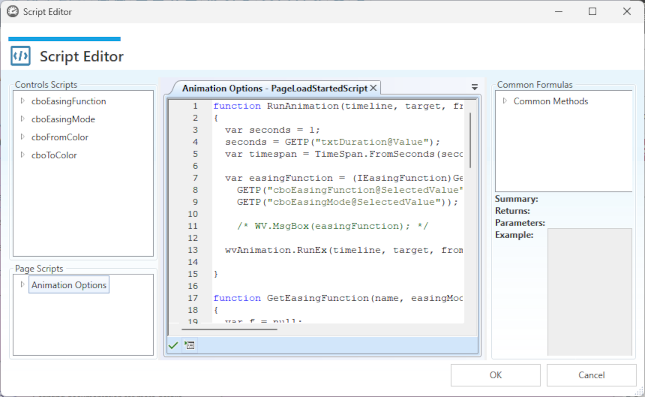
Panels
- Main editing panel
The script is displayed with newlines, indentation, and syntax highlighting, ready for editing. You can access all of the scripts that are saved with the page, including the ones for controls on the page, and add scripts as needed. Multiple scripts are displayed in tabs, and you can copy and paste between them.
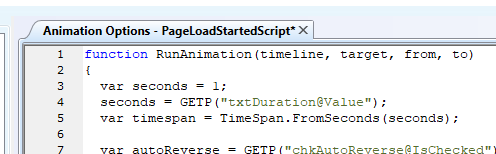
A button in the bottom left corner of this panel lets you execute the script at any time. Any error messages will display in this area.

- Controls Scripts
A list of the scripts associated with controls. You can open them by double-clicking on them.
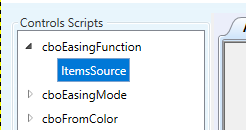
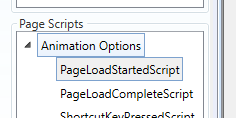
- Page Scripts
A list of scripts associated with the page. You can open them by double-clicking on them.
- Common Formulas
A complete list of all the
WVand point-related method calls with descriptions, return values, parameters and examples provided below.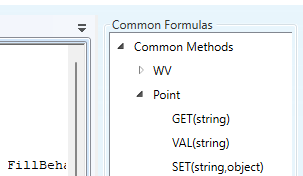
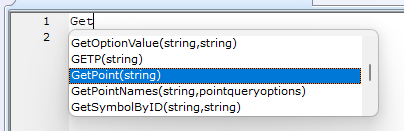
These functions are also available through the auto-completion feature.
Clicking the button applies all changes and closes the editor. Clicking the button reverts all changes and closes the editor