2.6. Connect to remote data
You can connect to Cogent DataHub service for Azure for testing. To configure your DataHub instance to receive that test data, just follow these steps:
Right click on the DataHub system-tray icon and choose .
In the Properties window, select Tunnel/Mirror.

In the Tunnelling/Mirror Slave section, check the box.

Click the button to open the Tunnel/Mirror Master Configuration window:

Fill in these entry fields as follows:
Primary Host
demo.skkynet.comPort will be set automatically by the system to
443for Secure (SSL) (see below).Local data domain
cloudRemote data domain
DataPidRemote user name
demo/guestRemote password
guestWebSocket must be selected.
Secure (SSL) must be selected.
There is no need to make or change any other entries.
Click to close the Tunnel/Mirror Master window, and then click in the Properties Window.
Open the Data Browser and click the cloud data domain name and the PID1 branch in the left-hand pane of the window.
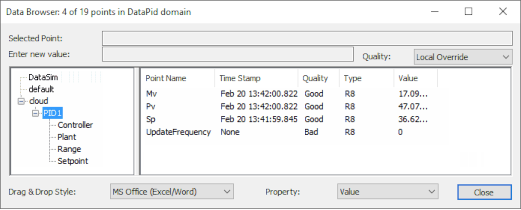
The Data Browser window should show some data updating in real time. Any delays in updates to these points are due to slow network speed or high traffic volumes.
![[Note]](images/note_1156523861.png)
You can also use the Connection Viewer to see all active connections in the DataHub program.
For more information on tunnelling/mirroring, please refer to Section 3.6, “Tunnel/Mirror”.