8.2.2. Making transformations
Specify the type of transformation by clicking one of the three radio buttons:

makes no transformations. It just copies the point.
lets you multiply by one value and add another value, such as in the equation
y = mx + bwhere the destination point isy, the source point isx, the multiply by value ism, and the then add value isb. For example to transform a Celsius source point to a Fahrenheit destination point, you would multiply by1.8and add32, orFahrenheit = (1.8 X Celsius) + 32
If you have selected the direction for a transformation, you will get the inverse of the transformation. In this example, you would get a conversion from Fahrenheit to Celsius, or the results of this equation:
Celsius = (Fahrenheit - 32) / 1.8
As an alternative to entering transformation values, the DataHub program also offers Linear Range Mapping.
lets you enter a range for the source and destination, and the DataHub program automatically calculates the corresponding linear transformation. For example, to create the same Fahrenheit to Celsius transformation, you could use the defaults of
0and100for the Min and Max of the source point. Then you would enter32and212for the Min and Max of the destination point. As soon as you make these entries, the correct values get entered automatically in the Linear Transformation.When you use linear range mapping, you can limit the transformed value to the maximum and minimum by checking the boxes. The clamps get applied to the point being changed, i.e.. to the destination point for forward direction, to the source point for inverse direction, and to both points for bidirectional bridges.
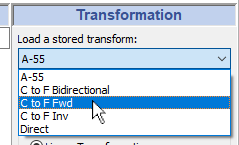
If you want to save this transformation for future use, click the button at the top of the Transformation panel, and enter a name in the box that pops up.

Once stored, the transformation will become available by name in the drop-down list.
To load a transformation, simply select its name from the drop-down list.