2.2. User Access
2.2.1. Configure User Permissions
Working with the Cogent DataHub program, user permissions and passwords are assigned according to groups in the Security option of the DataHub Properties window. Here is an example of how to configure two different groups: operators and page designers, and then assign users to them.
Open the Security option of the Properties window and click the button.
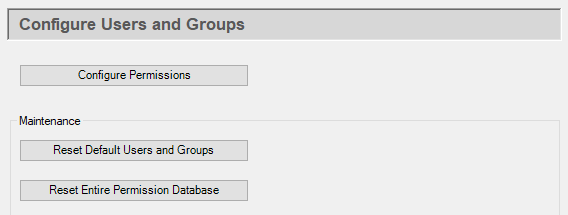
Click on the Groups tab. This will allow you to configure a group of users that will all inherit the same permissions.

Create a new group by typing in the name:
Operator.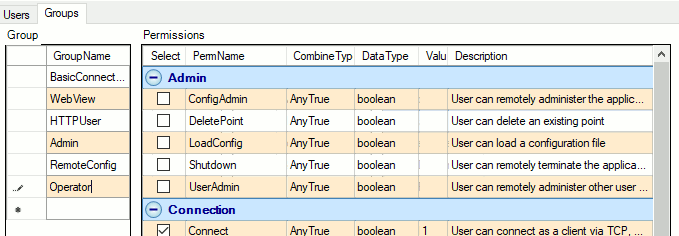
Select the following permissions:
In the Connections section, to allow a connection, select Connect.
In the Data section, to give access to real-time data, select Read, and Write.
In the HTTP section, select Connect to allow the WebView application to connect to the DataHub Web Server.
In the Web section, to allow access to web pages, select: ViewPage and ViewOtherOwnerPage.
And in the DataHub WebView section, to allow basic interaction with the WebView application, select: Connect, BrowseInternet, and ViewOnlineHelp.
Click on the Users tab.
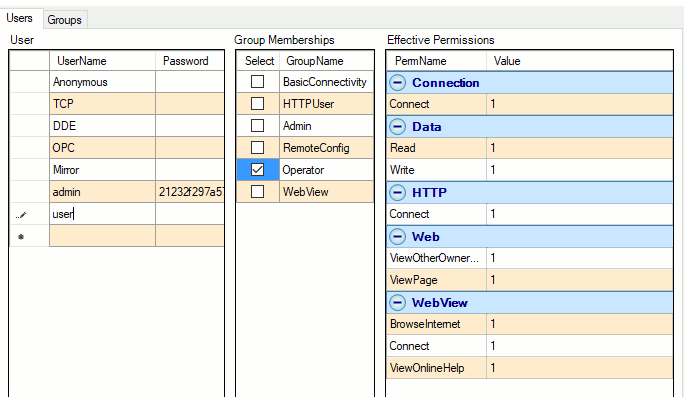
Add a user name, with no spaces in it, for example,
JohnDoe, and enter a password for him.![[Note]](images/note_1156523861.png)
The password is not stored in the system. If a user forgets his password, you cannot retrieve it. You will need to assign him a new password.
Check the Operator box to make
JohnDoea member of the Operator group. Notice that all of the group's permissions are given toJohnDoe.Another useful group to create would be Designers, who have permission to design pages. These users would need the same Connection and HTML permissions as above but could take more, even all, of the DataHub WebView options, as needed.
Once that group is created, you can assign designer users to the group.
When finished, press the button to write your configuration to the DataHub permissions database.
Now, when you launch the WebView application and log in as
JohnDoe, you should go straight to the Start page in
Run mode, and have no access to Design mode. If you log in as a designer, you
will be placed in Design mode.