Chapter 5. Customizing the WebView Application
![[Note]](images/note_1156523861.png) | |
Long strings in some examples have been wrapped. The code examples in this chapter, and possibly others, may include very long strings that do no render well in the printed output of this documentation. For this reason, we have wrapped those strings in the examples. Please be aware that those examples may not work properly in your code if you copy them verbatim. You may need to unwrap the strings. |
5.1. Simple Branding
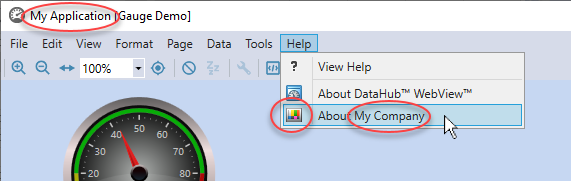
Simple branding allows a WebView administrator to create a branded login page, to specify the application title, and to add company-specific links to the menu. Simple branding is intended for site administrators who want to provide their users with a general sense that the application is an integral part of the company's software solution for systems and processes.
| |
In addition to simple branding options, OEM branding allows a distributor to replace Cogent-specific logos and references with icons and text of its own choosing. This level of branding is intended for Cogent partners and licensed distributors who need to re-brand the application to leverage their own corporate brand and to capitalize on specific market opportunities. For more information on OEM Branding, please contact Cogent. |
Here's how to make changes.
Copy all the files that were installed in the DataHub Branding directory, here:
C:\Program Files\Cogent\Cogent
DataHub\Plugin\WebServer\html\Content\Common\Branding\Default
Put the copies into your user's Branding directory, here:
C:\Users\
username\AppData\Roaming\Cogent DataHub\WebContent\Content\Organizations\Local\Branding\DefaultAdd into that directory your own images for the company logo, product logo, and background, as desired, to be used in place of the existing
CogentLogo.png,WebViewLogo.png, andLoginBackground.pngimages.Edit the
LoginPage.xamlfile to change what the user sees when they first log in. Simply change the relevantBitmapImagecode for the company logo, product logo, and background image for your new image file names. For example, to change the Cogent logo image toMyCompanyLogo.png, you would need to change this:... <Image.Source> <BitmapImage UriSource="CogentLogo.png"/> </Image.Source> ...to this:
...
<Image.Source>
    <BitmapImage UriSource="MyCompanyLogo.png"/>
</Image.Source>
...
To see the changes, you need to shut down the WebView application and restart it.
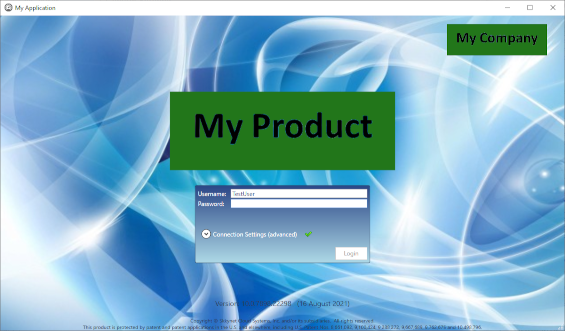
You can also edit the
Branding.xmlpage, changing theApplicationName,CompanyName,CompanyImageSource, andCompanyUrlvariables.To see the changes, you need to shut down and restart both the DataHub instance and WebView application.