3.2. Using Remote Config
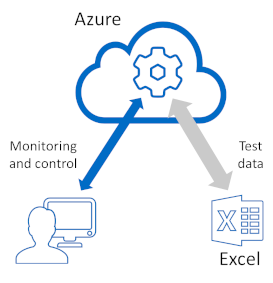
You can use the Remote Config application to access your DataHub service and view data.
Download and run the Skkynet Web Application Manager by clicking the Web Launch Page link in the email you received from Skkynet.

Click the button.

Click the button for Remote Config.

![[Important]](images/important_2051192373.png)
The first time you run this, a dialog will ask if you want to switch to the Web Application Manager. If so, click , and use the Web Application Manager as described here to enable the launch of the Remote Config application.
The Remote Config application will launch:

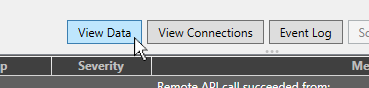
Click the button to open the DataHub Data Browser.
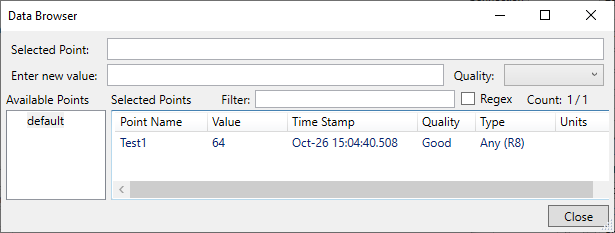
You should see the data point and value from your worksheet.
![[Note]](images/note_1156523861.png)
The data shown here was created previously in the Connecting Test Data section.
You can try changing the value of the point by clicking on the point name, and then entering a new value.
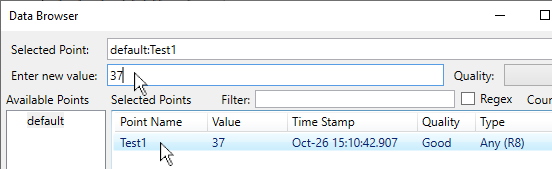
The value should propagate to your worksheet.

Please see Remote Config for more information about using Remote Config.