2.4. Importing Configuration
The Remote Config application allows you to import configuration from CSV files. Each of the Remote Config interfaces for OPC DA, OPC UA, Bridging, MQTT Client, Modbus, and Historian has an button in its client configuration window that allows you to import configuration from CSV files in bulk. Each of these is found in a different place within the Remote Config interface.
![[Note]](images/note_1156523861.png) | |
The import feature is only available in the Remote Config application, not in the DataHub Properties window. |
Locate the button for the feature you need, as listed below: OPC DA, OPC UA, Bridging, MQTT Client, Modbus, External Historian, Historian.
Use the button to open the Import Items window, as explained in Configuring.
Use the Property Lists to see which properties are available for each feature.
2.4.1. Opening the Configuration Dialog
The button is located as shown for each feature.
OPC UA
In the OPC UA option, click the button.

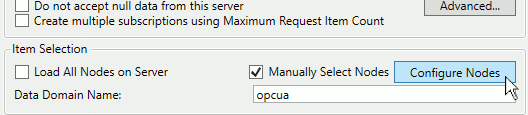
In the Configure OPC UA Data Access Server dialog, check the box and click the button.
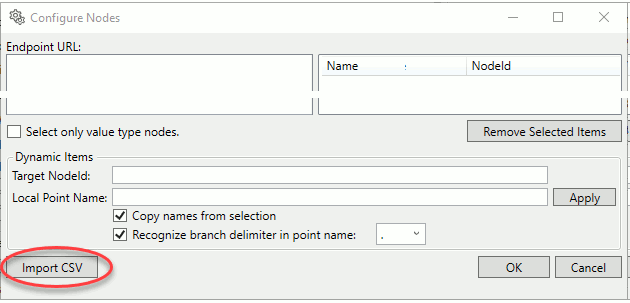
The button is near the bottom of the Configure Nodes dialog.
OPC DA
In the OPC DA option, click the button.

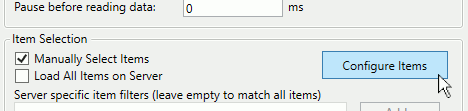
In the Configure OPC DA Server Connection dialog, check the box and click the button.
The button is near the bottom of the OpcDaItemSelector dialog.

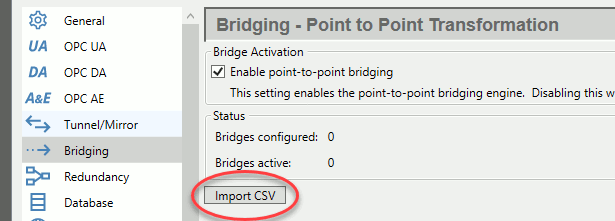
Bridging
The button is at the bottom of the Bridging options.
MQTT Client
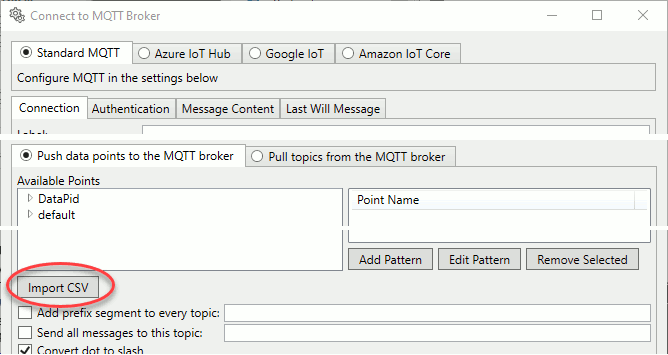
In the MQTT Client option, click the button.

In the Connect to MQTT Broker dialog, the button is in the Push data points to the MQTT broker section.
Modbus
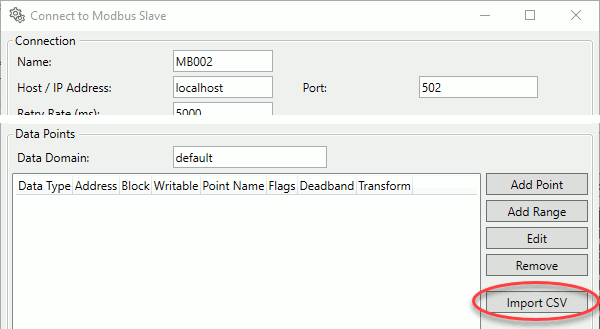
In the Modbus option, click the button.

In the Connect to Modbus Slave dialog, the button is in the Data Points section.
External Historian
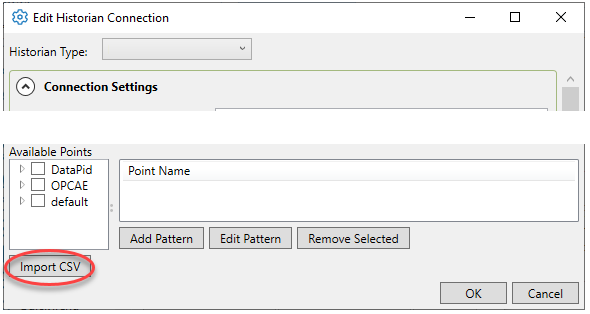
In the External Historian option, click the button.

In the Edit Historian Connection dialog, the button is at the bottom of the point selection options.
DataHub Historian
In the Historian option, click the button.
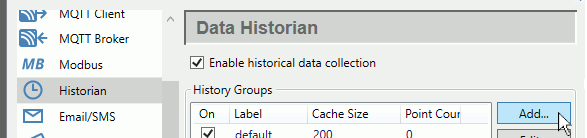
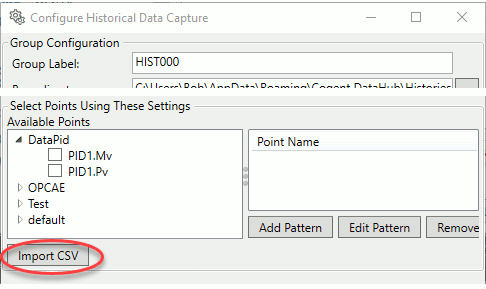
In the Configure Historical Data Capture dialog, the button is at the bottom of the point selection options.