14.3. Store and Forward
The External Historian feature supports store and forward capability for networked connections, which helps prevent data loss should connectivity be temporarily suspended. Data is continually collected and stored on a local copy of InfluxDB, and forwarded to the target historian whenever the network connection is or becomes available.
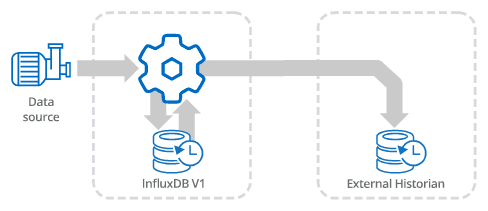
Here is how to configure store and forwarding to a remote historian:
Configure a local connection to InfluxDB, as explained in the previous section. This instance of InfluxDB will be used to collect and store the data, and can also be used to access and view the data locally.
The External Historian requires a strategy for forwarding the data. In the External Historian option of the Properties window, go to Forwarding Strategies and click the button.

For the Strategy label enter
FwdToRemote, and set the Local historian label toInflux1because that is the source of the data you will be forwarding.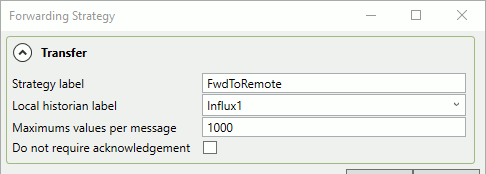
When finished, click and .
Now you need to configure the target historian. In the Write data to Historians area click the button.

Choose a historian type, and configure it for the relevant entries specific to your target database. Please refer to Supported Historians for more information on the various options. In this example we are using InfluxDB V1.
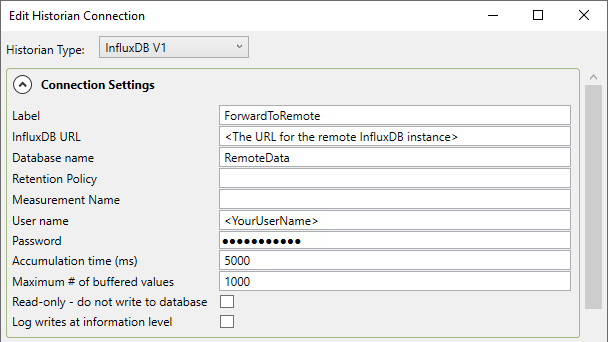
Further down in the same dialog, you will need to configure Forwarding by checking the Enable historical data forwarding box. For the Forwarding Stategy select FwdToRemote that you configured above.
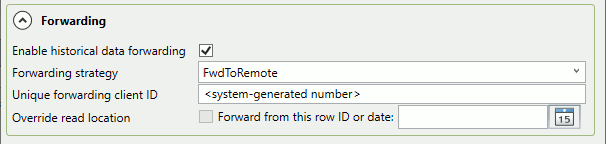
Notice that enabling data forwarding deselects the Available Points in the point picker. This is because you will be forwarding all of the points from the data.
When finished, click and . Your data should now be forwarding to the remote historian.