
For example, you could create a page that represents a PLC face-plate and populate the values using point name expressions. Elsewhere on the page you could provide a selection control that chooses from a set of different PLCs in your process. As you select a PLC, the faceplate will change the data points that it is displaying, allowing the user to move quickly among PLCs without changing pages.
Step 1: Page Layout
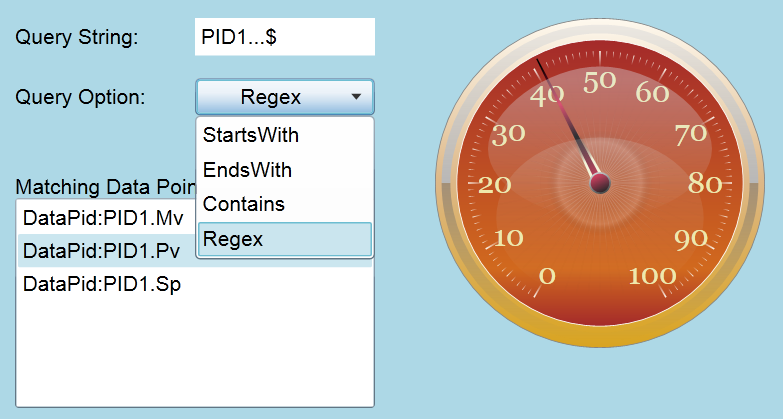
The page includes a Text Entry element (txtQueryString), a Combo Box (cbQueryOption), a List Box (lstMatchingPointNames), and a Simple Radial Gauge (gauge).
Step 2: Script Bindings
The Combo Box Items Source property is a Script Binding that returns a list of names from the PointQueryOptions enumeration.
WV.GetEnumNames(PointQueryOptions);
The List Box Items Source property is a Script Binding that uses GETP to get the user entered query string and selected query option, and then calls GetPointNames to return a list of matching data points.
 var query = GETP("txtQueryString@Value");
 var option = GETP("cbQueryOption@SelectedItem");
 WV.GetPointNames(query, Enum.Parse(PointQueryOptions, option, true));
Step 3: Dynamic Point Binding
The gauge's Needle Value property uses a Point Binding that dynamically references the selected item from the List Box of matching data points.
=GETP("lstMatchingPointNames@SelectedValue");
When the user enters a query string and chooses a query option, the list of matching data points gets populated. Selecting a data point in the list triggers a reevaluation of the gauge's Needle Value Point Binding expression and the gauge starts to reflect the value of the selected data point.