
When a script executes, it has access to some special variables depending on the context in which it runs. These special variables are known as intrinsic objects. In addition, all scripts have access to variables in the global scope, dynamic global variables, and data points (via accessor functions). The contexts can be:
- The DataHub WebView page (page context)
- A control on a page (control context)
- An event handler for a control on a page (control event context)
Page Context
Page event handlers run in the page context and have access to the Page and EventName intrinsic objects.
Control Context
A script is associated with a control when that script is a point name expression, a script binding, or an event handler. When the script executes, the control itself is accessible using the Element intrinsic object. This object references the container that hosts the control's visual representation.
Note: Throughout this documentation, the term 'control' and 'element' are synonymous and used interchangeably.
The Element object exposes several _members--properties and methods that can be used to manipulate the control's properties.
All controls have a special information store called ElementData.
This is a special expando object whose member variables are dynamically created as they are accessed.
This allows a script writer to add new items to ElementData easily and naturally.
For example, this script assigns a value to the LastInput property of ElementData:
ElementData.LastInput = the_value;
Subsequently, ElementData.LastInput will be available to all script that runs in the same script context
(i.e., script associated with the same control). Each control has its own ElementData,
which is only available to script associated with that control.
Any number of members can be added to ElementData.
Event Handler Context
Some event handlers have access to additional intrinsic objects. For more information, see Events and Event Handlers.
EventName and a reference to Element, which
is the control that owns the event handler script. The function sets a property of the control to a color depending upon
the name of the event that triggered the call.
Step 1: Declare the Function
Start a new WebView page and add the following code to the OnPageLoadComplete event handler.
 function SetLightColor(eventName, elm)
 {
   if (elm.ControlName == "Shining Light")
   {
     var color;
     switch (eventName)
     {
       case "MouseEnter": color = Colors.Green; break;
       case "MouseLeave": color = Colors.White; break;
       case "MouseLeftButtonDown": color = Colors.Red; break;
       case "MouseLeftButtonUp": color = Colors.Green; break;
     }
     SETP(elm.PageElementName + "@PrimaryLightColor", color);
   }
 }
SetLightColor function gets registered.
To register the function immediately, the 'Execute Now' button can be clicked (as illustrated below).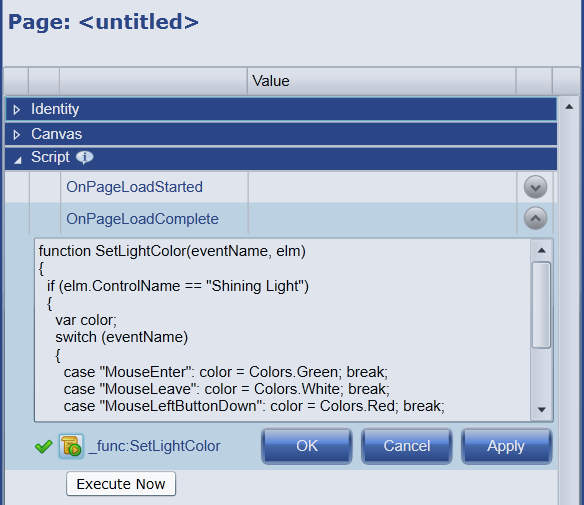
Step 2: Add Event Handlers
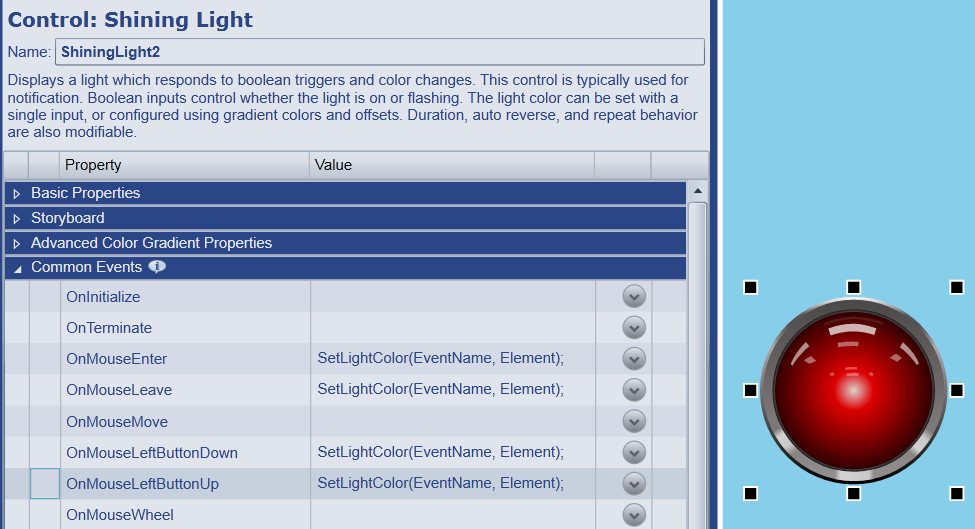
Add an instance of the Shining Light control to the page and add the following code to four mouse events: OnMouseEnter, OnMouseLeave, OnMouseLeftButtonDown, and OnMouseLeftButtonUp.
SetLightColor(EventName, Element);
Step 3: Trigger the Events in Run Mode
Enter Run Mode. As you move the mouse over a light, and click and release the left mouse button,
the light will change color. Only the light that receives the event will change color because a reference to
Element is passed to the SetLightColor function.