16.2. Define a Template
Ensure that you are at the DataHub Properties Notification
 Configuration and that you have already configured a
Notifier.
Configuration and that you have already configured a
Notifier.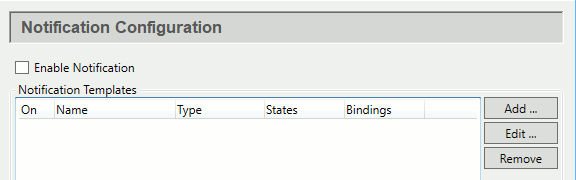
In Notification Templates click the button to open the Configure Template window.

For the Label, enter a name for this template, like
TestAction.For Type, choose . (Please see the Notification Type reference for information on this and other options.)
Click the button to add a new variable definition.

Enter the name
Inputfor the Variable Name, and ensure that both the Is Trigger box is checked and the Type is set to .Click the button to save the variable.
Now you are ready to create a state with a couple of corresponding scripts.
In the Notification Templates list, highlight the TestAction you just created, and click the Edit button to reopen the Configure Template window.

In States, click the Add button to create a new state.

Down below, in State Properties, Settings, change the name from
NewStatetoLow.
In Scripts, Entry condition

click the button with the three dots
 to open the Edit Script window:
![[Note]](images/note_1156523861.png)
The scripting language is S-Sharp, which is documented here.
Enter the formula:
Input.DblVal < 50. Notice that theInputvariable is listed in the right-hand panel. Also in that panel are the attributes of DataHub points. Since yourInputvariable is a DataHub point, you have access to those variables. In this case, for example,Input.DblValis the value of the point, as a double.Click the button to save the script.
Again in Scripts, click the 3-dots button
for the OnEntry script.Create an on-entry script by entering the following in the script composition area:
 var subject = Input.Name + " is low.";
 var body = Input.Name + " = " + Input.DblVal;
 Emailer.Send(null,"[email protected]",subject,body);
This script will send an email to
[email protected]with the subject line stating that the value of whatever DataHub point gets assigned to this template is low, and containing a single line showing the name and value of that point. The formula for theEmailer.Sendfunction can be found in the Common Formulas panel of the Edit Script window, under Notifiers.
Click the button to save the script. You are now ready to bind a variable.