2.2.6. Page Viewer Control
The Page Viewer control allows you to display multiple pages side by side, or to allow the viewer to switch between pages displayed in one place. To use the control, in Design mode click the Page Viewer button.

|

|
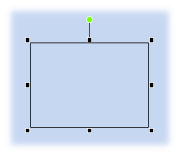
|
To display a page, open the Basic Properties, and select a page name from the Uri dropdown list.

You can add multiple Page Viewer controls to see multiple pages on a single page.
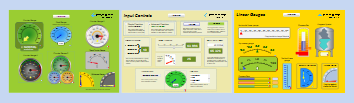
With a Combo Box
You can also use a Page Viewer control to display several pages in one place, using a Combo Box to choose which page is visible. Here's how:
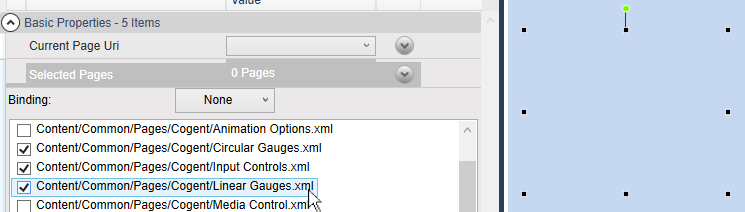
Add a Page Viewer control to the page, and in the Selected Pages drop-down list, choose a few pages.
Add a ComboBox to the page.


In the Combo Box Basic Properties, for Item Source choose . Then click the icon, select the Page Viewer control, and from the pop-up menu choose and .
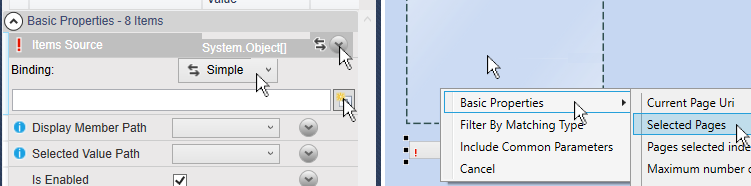
This tells the Combo Box to use the values that you have selected from the Page Viewer control.
Still in the Combo Box properties, for Display Member Path choose , and for Selected Value Path choose .

Now you need to connect the Page Viewer to the Combo Box. Select the Page Viewer control, and in the Basic Properties, for the Current Page Uri select .
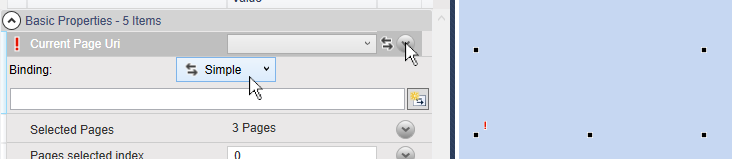
Then click the icon, select the Combo Box control, and from the pop-up menu choose and .
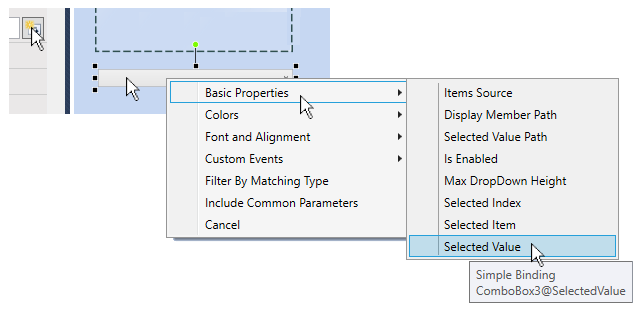
Switch to Run mode, and you should now be able to choose between your pages.
