2.4.3. Simple Binding - Property Picker
There are two ways to create a simple binding, either with the Property Picker, or by copy and paste. The following example shows how to use the Property Picker. In this example, we use a hexagon as the reference control, and a rectangle as the linked control.
On a blank page, add one hexagon and one rectangle, using the Simple Path and Simple Rectangle controls.

Select the hexagon (the reference control), and in the Basic Properties, Fill Color choose a color other than White, such as SandyBrown.

Select the rectangle (the linked control), and in the Basic Properties click the binding button on the right side of the Fill Color row.

A Binding selection box will appear, above the color selection dialog.
In the Binding box, select . A text-entry box will appear, and to the right, the Property Picker icon.

Click the Property Picker icon. The Properties area will turn gray, and when you move the mouse over the page, it will take the shape of the Property Picker.
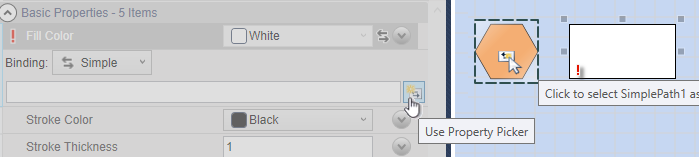
Click the hexagon. This will open the Property Picker menu. From here you can choose which property of the hexagon you wish to give to the rectangle.
From the submenu, choose .

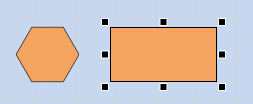
The rectangle will change to SandyBrown. It is now bound to the color of the hexagon, and will change whenever that color gets changed.
![[Note]](images/note_1156523861.png) | |
There are two options on the Property Picker menu:
|