3.16.2. Connection Configuration
Each of the supported historian connections includes Modify Point Names, Data Sampling, and Forwarding options.
Modify Point Names
This option allows you to specify how point names are represented in the
historian. When a DataHub instance writes to the historian or queries data from the
historian, it first transforms the point name using a regular expression match
and replace. The resulting name is used as the identifier for the point in the
historian. If either of these options is blank, or the name pattern does not
match the point name, the identifier in the historian will be the fully
qualified point name (with the domain: prefix) from the DataHub
engine.
The pattern and the replacement are a .NET regular expression used to match the point name and a replacement specifier to produce the historian identifier from the pattern match. These options follow .NET Regex.Replace format.
Point names are modified when writing data to the historian and when querying data for specific points from the historian. Historian identifiers are not modified when reading data from the historian for store-and-forward operations. That is, store-and-forward preserves the identifier names as found in the historian.

- Point name pattern
A regular expression that matches all or part of the fully qualified point name. This expression may include capture expressions that can be referenced in the replacement string.
- Point name replacement
A string that will replace all occurrences of the point name pattern within the fully qualified point name. Capture expressions in the pattern are referenced with a
$sign followed by a number. The entire matching substring is$0, and each capture expression within the match is numbered sequentially from left to right as$1,$2, etc.
Examples
Remove the first point path segment after the domain name:
Pattern:
([^:]+):[^.]*\.(.*)Replacement:
$1:$2Input:
DataPid:PID1.MvOutput:
DataPid:Mv
Remove the domain name:
Pattern:
[^:]+:(.*)Replacement:
$1Input:
DataPid:PID1.MvOutput:
PID1.Mv
Remove the domain name (alternate):
Pattern:
[^:]+:Replacement: none
Input:
DataPid:PID1.MvOutput:
PID1.Mv
Extract the first path segment and place it at the end:
Pattern:
([^:]+:)([^.]*)\.(.*)Replacement:
$1$3.$2Input:
DataPid:PID1.MvOutput:
DataPid:Mv.PID1
Data Sampling
You can configure the External Historian feature to send samples of the data for specified time intervals to the supported historian, rather than the full data set.

- Enable data sampling
Activates the data sampling feature.
- Sampling interval (ms)
The length of time for which each sample will be taken, in milliseconds. For example, a sample interval of
1000will produce a sample every second. Choosing this option will result in zero or more values being sent to the server based on the presence of data changes and the Sampling type.- Sampling type
Choose the criteria for the sample. This setting determines which values will be transmitted for each sampling interval. If there is no data (or no Good quality data) for a point within a sampling interval then no value will be transmitted. The following criteria are available:
None - no sampling is done and all values are transmitted. First - the first value in the sampling interval is transmitted. Last - the last value in the sampling interval is transmitted. Mean - the average of all (good) values in sampling interval are transmitted. Min - the minimum value within the sampling interval is transmitted. Max - the maximum value of the sampling interval is transmitted. MinMax - the minimum and maximum values of the sampling interval are transmitted, in time order. - Ignore bad quality data
If the data quality for that time interval is not Good then that data change will be ignored. Other samples within the time interval that have Good quality will still be processed normally.
- Sort data by timestamp
Sorts the sampled values in time order when constructing the message body using the document definition. Since sampling is done on a per-point basis, the resulting collection of values may not be in time order. For example, the maximum value of
point2might have occurred before the maximum value ofpoint1. This option sorts the resulting combined set of values.- Snapshot by accumulation time
Specifies that a complete snapshot of all configured data points will be periodically stored, before being sent as a batch to the historian. Please refer to the Accumulation time in your Connection Settings configuration. The snapshot period will be this accumulation time, not the sampling interval. Each data point will be stored with its source timestamp and current value.
- Set snapshot times to system time
When saving data using a snapshot, replace the source timestamp of every point value with the current system time. This applies to all points, whether or not they have changed within this accumulation interval.
Forwarding
In addition to writing data to a supported historian locally, the External Historian feature can also forward that data to a remote instance of the same supported historian product.
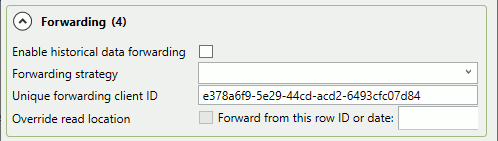
- Enable historical data forwarding
Activates the data forwarding feature.
- Forwarding strategy
Select a forwarding strategy that has been previously defined.
- Unique forwarding client ID
A text string unique to this forwarding configuration that allows the historian to identify it. You can use the system-generated string, or enter your own.
- Override read location
Allows you to forward a portion of the data set by resetting the start point to a more recent time. The date/time data format is
YYYY-MM-DD
									HH:MM:SS
Once you have completed this configuration, you can return to Picking Points in General Configuration to continue.