3.20. Camera
 | The Camera option allows you to stream images and videos from USB cameras, as well as from IP cameras that implement standard JPG and Motion JPG interfaces. This allows the DataHub program to collect video from any compliant camera on your network and make the video frames available as data points that can be tunneled and processed by any DataHub client. |

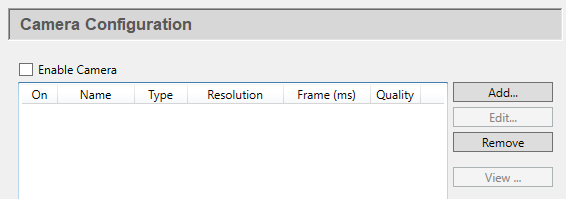
Check the box to enable a camera. You can configure as many cameras as your system resources will allow, and activate each one using its corresponding On check box in the list.
To add a new camera, click the button. To edit the configuration of an existing camera, double-click it here, or select it and press the button, which opens the Define Camera window (see below). To remove a camera configuration, highlight it and click the button. To view a camera's output, click the button.
Define Camera
To add a new camera, press the button, which opens the Define Camera window. Enter any name for the Connection Name.

Camera Type: USB
- Camera Name:
Choose a camera that is available on your system.
- Resolution
The resolution of the camera image, in pixels, along with the number of frames per second that a video image will be captured.
- Frame Timing (ms)
The time lag between each frame, in milliseconds.
Camera Type: MJPEG or JPEG
- URL
The URL for the camera data. An IP camera usually exposes multiple URLs, for different purposes. Check your camera documentation, and choose the URL that gives a client access to the raw JPG images, or to the Motion JPG feed.
- User name
The user name for this camera.
- Password
The corresponding password for this camera.
Image

- Scale
Allows you to scale the original image, according to these parameters:
- Width
A maximum width, in pixels.
- Height
A maximum height in pixels.
- Preserve aspect ratio
Ensure that the image keeps it original aspect ratio, potentially overriding one of the above entries.
- Quality
The picture quality, expressed as a percent. Where high resolution image quality is not needed, lowering this setting can significantly conserve system resources.
- Frame Timing (ms)
The time lag between each frame, in milliseconds.
Point Bindings
Enabling any or all of these point bindings allows you to monitor the camera settings as DataHub points. By checking the Writeable option, you can make changes to these settings at run time.

- Data Domain
Allows you to create or specify the DataHub data domain for these points.
- Prefix
Allows you to append an identical prefix to the name of each point. This is helpful when multiple cameras have been configured.
- On
Turns the point binding on or off.
- Property
The camera property associated with the point.
- Point Name
The point name for the camera property, which can be edited.
- Writeable
Determines whether a user can write back to this point to control the camera or modify its settings.
![[Note]](images/note_1156523861.png) | |
The Pan, Tilt, Zoom, Roll, Exposure, Focus, and Iris properties may or may not be supported, depending on the camera hardware. |