2.2. Test with simulated data
There is a data-generating program that comes with the Cogent DataHub software called DataSim. You can run DataSim locally to create data for various connection scenarios.
Start a DataHub instance if one isn't already running.
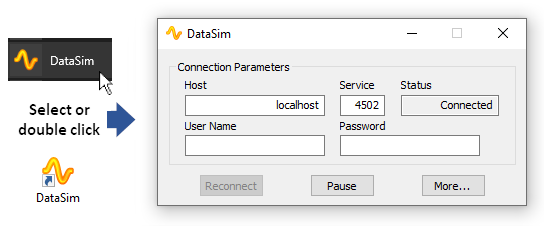
Start DataSim using the Windows menu, or by double clicking the desktop icon.
Open the DataHub Data Browser by right clicking on the DataHub system-tray icon
 and choosing from
the pop-up menu.
and choosing from
the pop-up menu.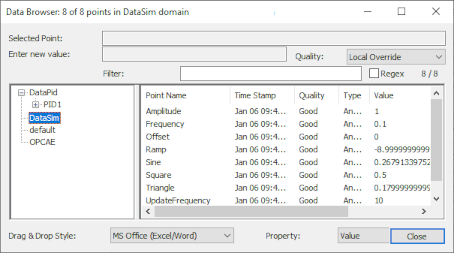
Select the DataSim data domain in the left-hand pane of the window.
The Data Browser window should fill with simulated data updating in real time. The four updating data points are
Ramp,Sine,Square, andTriangle.You can also click the button near the bottom of the Properties window to see your currently configured connections:
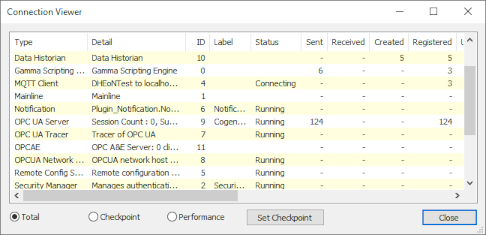
The Connection Viewer shows all active connections in your DataHub instance.
You can click the button in DataSim to access some options for changing the data feed.
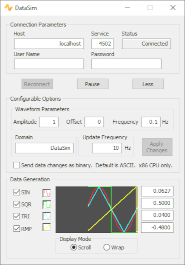
Briefly, you can change the Configurable Options and click the button to apply them. The Waveform Parameters and Update Frequency are all points in your DataHub instance, and the corresponding points change their values in the Data Browser as you make the changes. Changing the Data Domain from
DataSimwill yield no results until custom data domains are configured for your DataHub instance.![[Note]](images/note_1156523861.png)
If you shut down DataSim, its points will still appear in your DataHub instance until it is shut down and restarted. Please refer to Section 21.1, “Data Points” for more information on creating and deleting points.
Now you are ready to start using the DataHub program.