17.6. Setting Trigger Conditions
Each action can have up to four conditions that determine whether an email gets sent when the trigger fires.
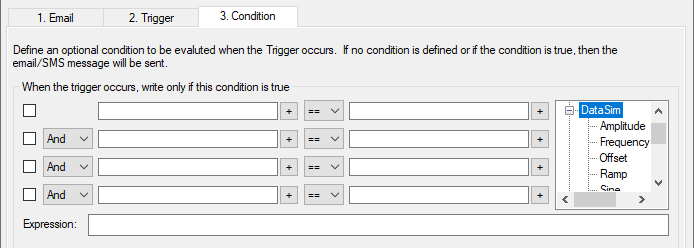
Fill in the conditions according to the guidelines below. Check the box next to
the condition to apply it. As you make entries, the corresponding
Gamma code will appear in the display. Gamma is the
DataHub program's built-in scripting language. The code that appears in the
Expression box is the actual code that gets run by the
Gamma engine. The order of precedence for "And" and
"Or" operators (&& and
||) is first And, then
Or.
Point Value Conditions
Point names can be entered on either or both sides of the comparison. They can be
picked from the data tree list, or typed in. Each point name needs to have a dollar
sign ($) in front of it to indicate to the Gamma engine that
this is a DataHub point. You can put numerical values into either side of the
comparison.
When you enter a point name in a condition field, the current value of the point will be used in the evaluation. For example, you could define a condition that states that whenever the trigger event occurs, the action will only be executed if another point value is within a certain range.
There are three automatic variables available for working with point values:
lasttrigger- the value of the trigger point the last time this trigger was fired.thistrigger- the value of the trigger point now.lastevent- the value of the trigger the last time the event was actually executed.
Time Conditions
This provides an additional way to restrict the time, day, month, etc. when a message gets sent. In addition to the options on the triggers, here you have day-of-week condition statements which can give you more flexibility for events based on specific days of the week. These will work with any type of trigger event.
You can use the Gamma functions clock and localtime to specify
particular days of the week. For example, these entries:

would create this Gamma code::
(localtime(clock()).wday > 0 && localtime(clock()).wday < 6)
which would cause an email to be sent only Monday through Friday. The function
localtime returns a class whose members contain information
about the date, as follows:
.sec
|
The number of seconds after the minute ( |
.min
|
The number of minutes after the hour ( |
.hour
|
The number of hours past midnight ( |
.mday
|
The day of the month ( |
.mon
|
The number of months since January ( |
.year
|
The number of years since 1900. |
.wday
|
The number of days since Sunday ( |
.yday
|
The number of days since January 1 ( |
.isdst
|
|
![[Note]](images/note_1156523861.png) | |
The year and month are entered differently here than for Time of Day trigger conditions, as explained in Section 17.5, “Assigning a Trigger”. |
There are two automatic variables available for working with time values:
lasteventtime- the time that the last event was executed, in UNIX epoch time.curtime- the UNIX epoch time now.
Custom Conditions
If the conditions you need to meet are beyond the scope of this interface, you can use a Gamma function to express virtually any condition you need. Then you can insert the function into one of the condition boxes, and set a condition based on the return value of the function.
To do this is you can create a DataHub script (.g file) that contains only the
functions you will be using for conditions, without any classes or methods. For
example, here is the complete contents of such a file, named
MyConditions.g:
function MyFunction ()
{
    myvalue = $DataSim:Sine;
    princ("Value when the trigger fired: ", myvalue, "\n");
    myvalue;
}
This function prints the value of the DataSim:Sine point, and
returns its value. We can use this function as a condition by calling it from one of
the condition boxes in the interface, like this:

When the trigger fires, MyFunction is called, and the return
value gets checked to see if it is less than .4. If so, the email is sent.
An Auto-Resetting Trigger
This script can turn any DataHub point into a trigger that automatically resets. To
use it, you first need to load and run the
TriggerFunctions.g script (shown below and included in the
installation archive). Then, if you put this formula:
HighWithReset($default:TriggerPoint)!= nilinto the condition boxes, whenever the TriggerPoint
changes to a non-zero number in the DataHub instance, your trigger will fire. The
script waits for a millisecond, then resets the
TriggerPoint back to zero. The second function works
similarly, but triggers on a change to zero, instead of a change to a non-zero
number.
TriggerFunctions.g
/*
 * This file contains handy functions to perform more complex
 * condition handling in the Condition tab of the data logging
 * and email interfaces.
 */

/*
 * Test a trigger point for a non-zero value.  If the point is
 * non-zero, create a delayed event to reset the point to zero,
 * and return true, indicating that the condition has succeeded
 * and the action should proceed. If the value is 0, then simply
 * return nil indicating that the action should not proceed.  We
 * need to test for zero because when we reset the trigger point
 * to zero a second data change event will occur.
 *
 * The argument is unevaluated, so the condition should look
 * like this:
 *    HighWithReset($default:TriggerPoint) != nil
 */

function HighWithReset(!triggerpoint)
{
    local   value;
    if (!undefined_p(value = eval(triggerpoint)) && value != 0)
    {
        after(0.001, `setq(@triggerpoint, 0));
        t;
    }
    else
    {
        nil;
    }
}

/*
 * This is the inverse of HighWithReset (see above).  If the trigger
 * point is zero, perform the action and set the trigger point to 1.
 * If the trigger point is non-zero do nothing and return nil.
 */
function LowWithSet(!triggerpoint)
{
    local   value;
    if (!undefined_p(value = eval(triggerpoint)) && value == 0)
    {
        after(0.001, `setq(@triggerpoint, 1));
        t;
    }
    else
    {
        nil;
    }
}