17.3. Sending a Test Message
Once you have configured the mail server you can configure and send a test email. Here's how:
In the Cogent DataHub Properties window, select Email/SMS.

In the Configure Email and SMS Events section press the button.

This opens the Email/SMS Events window:

Select the 1. Email tab.
For the Message Type, choose .
Enter a recipient email address in the Recipients box. You can enter several addresses, separated by commas.
Enter a subject in the Subject box.
For the Body, choose .
Start the DataSim program if it isn't already running, and ensure that it is connected to the DataHub instance.
In the point-picker list on the right, expand the
DataSimdata domain and select the point namedSine.Click the button to the right of the point-picker list.
In the text entry field, type the following:
The point
Click the button. Your text display should now look like this:
The point DataSim:Sine
Press Enter and continue typing:
The point DataSim:Sine
had a value of:
Click the button and then click the button. Your text display should now look like this:
The point DataSim:Sine
had a value of: <%=$DataSim:Sine%>
Press Enter and continue typing:
The point DataSim:Sine
had a value of: <%=$DataSim:Sine%>
at the time:
Click the button and then click the button. Your text display should now look like this:
The point DataSim:Sine
had a value of: <%=$DataSim:Sine%>
at the time: <%=PointTimeString(#$DataSim:Sine%)>
The message is ready. Now you can assign a trigger and set a condition.
For this example, we will trigger the action on the
DataSim:UpdateFrequency point.
Select the 2. Trigger tab.
From the point selector, expand the
DataSimdata domain and select the pointUpdateFrequency.Click the button to the right of the Point Name field. The point name
DataSim:UpdateFrequencyshould fill in for you.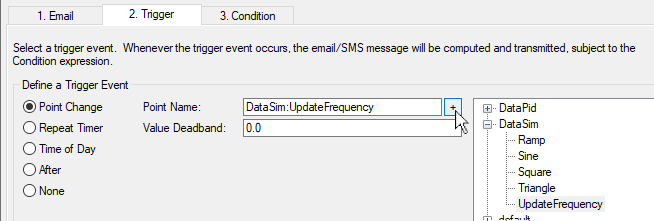
![[Note]](images/note_1156523861.png)
You can choose any point for the trigger, including the point that gets written, such as
DataSim:Sinein our example. For more information about triggers, please refer to Section 17.5, “Assigning a Trigger”.
For this example, let's limit the trigger on the
DataSim:UpdateFrequency point to changes only to values
over 100.
Select the 3. Condition tab.
Click the checkbox in the first row.
From the point selector, expand the
DataSimdata domain and select the pointUpdateFrequency.Click the button in the left column. The text
$DataSim:UpdateFrequencyshould fill in the box.From the drop-down box, choose the
>operator.In the right column, enter the number
100. Your screen should now look like this:
You have set the condition. The expression at the bottom shows what will be passed to Gamma, the internal scripting engine of the DataHub program.
Go down to the Configured Actions box and click the button.

A new configured action should appear in the list. This is a summary of what you have done. When a configured action is selected in this list, you can make changes in any of the tabs and modify it using the . You can also duplicate a configured action using the button, or remove it with the button. For more information about configured actions, please refer to Section 17.7, “Configured Actions”
Click the button to activate the configured action. Now let's see how it all works.
The action you just configured causes the DataHub instance to send an email any time the DataSim Update Frequency is changed to a value greater than 100. To test the script, you'll need to trigger it by changing that value in the DataSim.
In DataSim, press the button to view the Configurable Options
Change the Update Frequency to a number greater than
100and click the button to commit the change.
Check the email account of the recipient. You should have received a message that looks like this:

Each time you enter a new Update Frequency value greater than
100in the DataSim, the DataHub script will send a similar message.
You have just configured and tested an action that sends an email with the name,
value, and timestamp of the Sine point in the
DataSim data domain whenever the value of the
UpdateFrequency point changes to a value over 100. Now you
can configure other emails to send your own text messages or HTML pages. The
remaining sections in this chapter explain the interface in more detail